Opening Rankbank0.0s
Getting startedCreating your Rankbank accountAdding your first websiteProving your site is yoursWriter view and Site owner viewHow Rankbank tells you thingsYour dashboardRankbank Pro and billing
Site audit & search growthThe SEO overview, explainedHow Rankbank reads your siteThe site health scoreThe Problems to fix pageEvery problem type, explainedYour fix listFindings: how to read a cardEverything Rankbank looks forThe map of your siteConnecting Google Search ConsoleThe growth planSuggested linksTopics and content ideasAuthority: how much weight your site carriesThe Search traffic pagePast reads and history
Guest postsGuest posting on RankbankSubmitting your first guest postImporting from Google DocsWriting in the Rankbank editorReview & send: the last step before the editorsWhen the editors ask for changesTracking your guest postsFor site owners: opening your site to guest postsFor site owners: writing your guidelinesFor site owners: reviewing a submissionFor site owners: publishing and the live checkThe Content Library
Link exchangeLink swaps on RankbankSetting up your site for swapsPages you shareFinding a site to swap withSending a swap requestReviewing a swap request you receivedAsking a partner for a linkAnswering a link requestWhen the page is published somewhere you can't editHow Rankbank keeps watchThe partner ledger
Content calendarThe content calendarSetting up your calendarWhere the keywords come fromReading the calendarSteering an article before it's writtenReviewing and editing a draftConnecting where it publishesPublishing and what happens nextStyle & settings
TutorialsYour first site audit, from "read my site" to fixes you can ship this weekConnecting Search Console and turning its data into clicksWriting a guest post that gets accepted, the full pathRunning guest posts on your site without letting quality slipYour first link swap, start to finishKeeping your links alive, from wording changes to missing linksA month of content on autopilot, done properly
RankbankHelp center
Open Rankbank →
Getting startedCreating your Rankbank accountAdding your first websiteProving your site is yoursWriter view and Site owner viewHow Rankbank tells you thingsYour dashboardRankbank Pro and billing
Site audit & search growthThe SEO overview, explainedHow Rankbank reads your siteThe site health scoreThe Problems to fix pageEvery problem type, explainedYour fix listFindings: how to read a cardEverything Rankbank looks forThe map of your siteConnecting Google Search ConsoleThe growth planSuggested linksTopics and content ideasAuthority: how much weight your site carriesThe Search traffic pagePast reads and history
Guest postsGuest posting on RankbankSubmitting your first guest postImporting from Google DocsWriting in the Rankbank editorReview & send: the last step before the editorsWhen the editors ask for changesTracking your guest postsFor site owners: opening your site to guest postsFor site owners: writing your guidelinesFor site owners: reviewing a submissionFor site owners: publishing and the live checkThe Content Library
Link exchangeLink swaps on RankbankSetting up your site for swapsPages you shareFinding a site to swap withSending a swap requestReviewing a swap request you receivedAsking a partner for a linkAnswering a link requestWhen the page is published somewhere you can't editHow Rankbank keeps watchThe partner ledger
Content calendarThe content calendarSetting up your calendarWhere the keywords come fromReading the calendarSteering an article before it's writtenReviewing and editing a draftConnecting where it publishesPublishing and what happens nextStyle & settings
TutorialsYour first site audit, from "read my site" to fixes you can ship this weekConnecting Search Console and turning its data into clicksWriting a guest post that gets accepted, the full pathRunning guest posts on your site without letting quality slipYour first link swap, start to finishKeeping your links alive, from wording changes to missing linksA month of content on autopilot, done properly
  1. Help center
  2. /
  3. Content calendar
  4. /
  5. Where the keywords come from

Where the keywords come from

Updated August 24, 2026


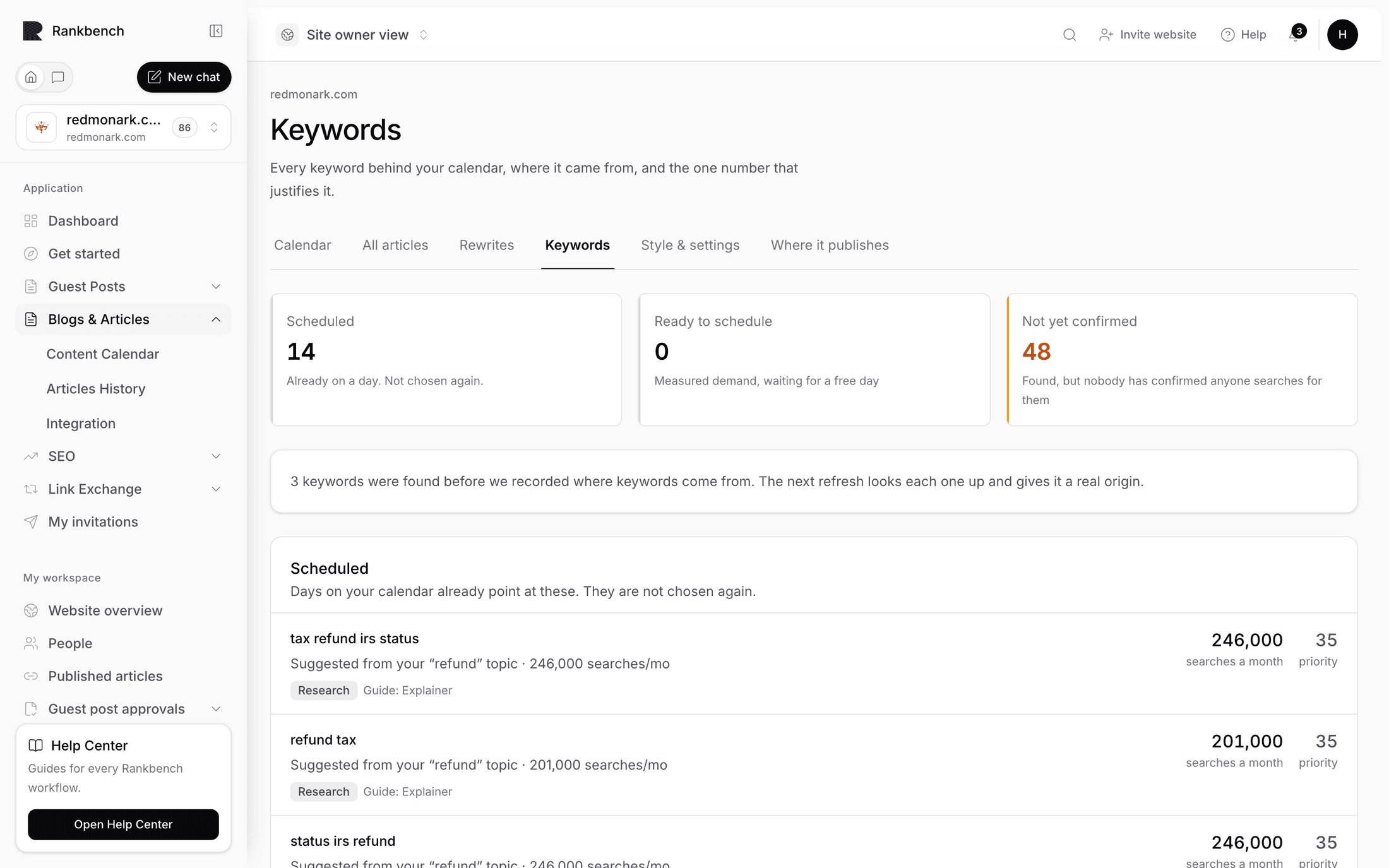
The Keywords tab is the page that makes the calendar auditable. It lists every keyword behind your plan, its score, the measurements behind that score, and the reasons it landed where it did. The page describes itself as "Every keyword behind your calendar, and exactly why it was chosen. Measured queries rank above suggestions, always."

That last word matters. There are three sources, they are not equal, and the ranking between them is fixed.

The three sources

Your Search Console queries

The strongest signal, by a distance. These are the actual searches Google recorded showing your site, with real impressions (how many times your site appeared for that search), clicks, click-through rate and average position. Nothing here is estimated. The source badge on the row reads Search Console and is tinted green.

A query already showing your site is evidence that Google considers your site relevant to it. That is a different, better thing from a keyword tool telling you a phrase has volume.

Your own pages

Taken from the last reading of your site: page titles, H1 headings, meta descriptions and URL slugs. The badge reads Your pages.

These have no measured demand behind them, so they score low by default. Their job is to give the plan something to work with on a site that has no Search Console history at all, and to surface pages that exist but nothing links to.

AI expansion

A model is asked to suggest adjacent topics around clusters that already show measured demand. The badge reads AI suggestion.

These are deliberately scored lower than anything measured, and the page says so out loud in a panel above the table: "The rest are suggestions to widen coverage and are deliberately scored lower, so they only get scheduled once the measured ones run out." The panel also tells you the split, along the lines of "94 of 212 keywords come from real Search Console measurements."

That is the honest position. A suggestion is a guess made by a model about what might be worth writing. It is useful for widening coverage once you have exhausted the things you can actually prove, and it should never outrank something Google measured.

Note

A fourth badge, Added by hand, exists for keywords entered manually. The calendar's own screens do not offer a way to add one, so most sites will never see it.

How scoring works

Every keyword gets a number from 0 to 100 called the opportunity score, and the ordering by that score is the order days get scheduled in. The panel heading on the table says it directly: "Highest opportunity first. This is the order they get scheduled in."

The score is arithmetic, not judgement. For a Search Console query it is built from four things.

Demand. More impressions is worth more, but on a log scale, because the difference between 10 and 100 impressions matters far more than the difference between 10,000 and 10,090. The reason line reads like "2,140 impressions in the last 3 months".

Striking distance. A query already ranking somewhere between position 5 and 20 gets the biggest single boost, because a better article can realistically move it onto page one. The reason reads "Already ranking at position 8.4, close enough to move onto page one". Positions past 20 and up to 40 get a smaller boost with the reason "some ground to make up". A query already in the top few positions gets a small amount, on the grounds that a refresh may defend it.

Impressions without clicks. A query that has been shown at least 50 times and never clicked scores well, with the reason "Seen in search but never clicked, nothing on the site answers it well". A high-impression query with a click-through rate under one percent gets a smaller boost and a reason naming the actual percentage.

No page targeting it. If Search Console attaches no page of yours to the query, that adds a little, with the reason "No page on the site targets this query directly". Those are queries you rank for by accident, which makes them cheap to win deliberately.

Keywords from your pages start low, with a reason naming the page they came from and noting that it has no measured search demand. They get a small lift if nothing on your site links to that page, with the reason "That page has no internal links pointing to it".

Expansion keywords start lower still. Their only reason to begin with is "Suggested to widen coverage, no Search Console data for it yet", and they are lifted only by their relationship to something measured, with a second reason naming the cluster they support and noting that the site already gets impressions for it.

Reading the Keywords page

The table has five columns.

Keyword shows the phrase, its source badge, its status badge when it is no longer just sitting in the pool, and the article format suggested for it. The format is chosen from what the searcher appears to want: someone trying to understand a subject gets a guide, someone comparing options gets a comparison, and so on. You see the suggestion rather than the reasoning behind it, because the suggestion is the part you act on.

Score is the opportunity score. Scores of 70 and above are shown in green, 40 to 69 in ordinary bold, and anything below that is muted. Roughly: 70 and up means striking distance or proven demand, the middle band means real but weaker signals or expansion around a proven cluster, and the bottom band is speculative.

Impressions and Position show the Search Console figures. An unmeasured keyword shows a dash rather than a zero, deliberately: having no impressions figure is a different thing from having zero impressions.

Why lists the reason strings that produced the score. This is the column to read when you disagree with the ordering.

The Keywords table showing keyword rows with Search Console, Your pages and AI suggestion badges, scores, impressions, positions and reason lists
The pool, highest opportunity first. The Why column shows every point the score was awarded for.

Statuses

A keyword sits in the pool until it is scheduled. Once the planner assigns it to a day, a blue status badge appears next to its source badge showing scheduled. Once the article for that day has been published, it shows published. Keywords still in the pool show no status badge at all, which is the common case.

Removing an entry from the calendar sends its keyword back to the pool, where it becomes available for a later day. That is covered in Reading the calendar.

When the page is empty

Before your first build the page shows "No keywords yet", with the explanation that building the calendar will mine your Search Console queries and your own pages to fill it. Pressing Refresh keywords on the calendar re-runs the mining on demand.

Where to go next

  • Setting up your calendar covers the build that fills this pool.
  • Connecting Google Search Console is the single biggest thing you can do for keyword quality.
  • The Search traffic page shows the same underlying data from the audit side.
← Setting up your calendarReading the calendar →

Still stuck?

Open Rankbank and the page this article describes — most screens explain themselves as you go.

On this page

The three sourcesYour Search Console queriesYour own pagesAI expansionHow scoring worksReading the Keywords pageStatusesWhen the page is emptyWhere to go next
Rankbank — Editorial collaborationOpen RankbankHelp home