
The Fixes tab
Updated · First published
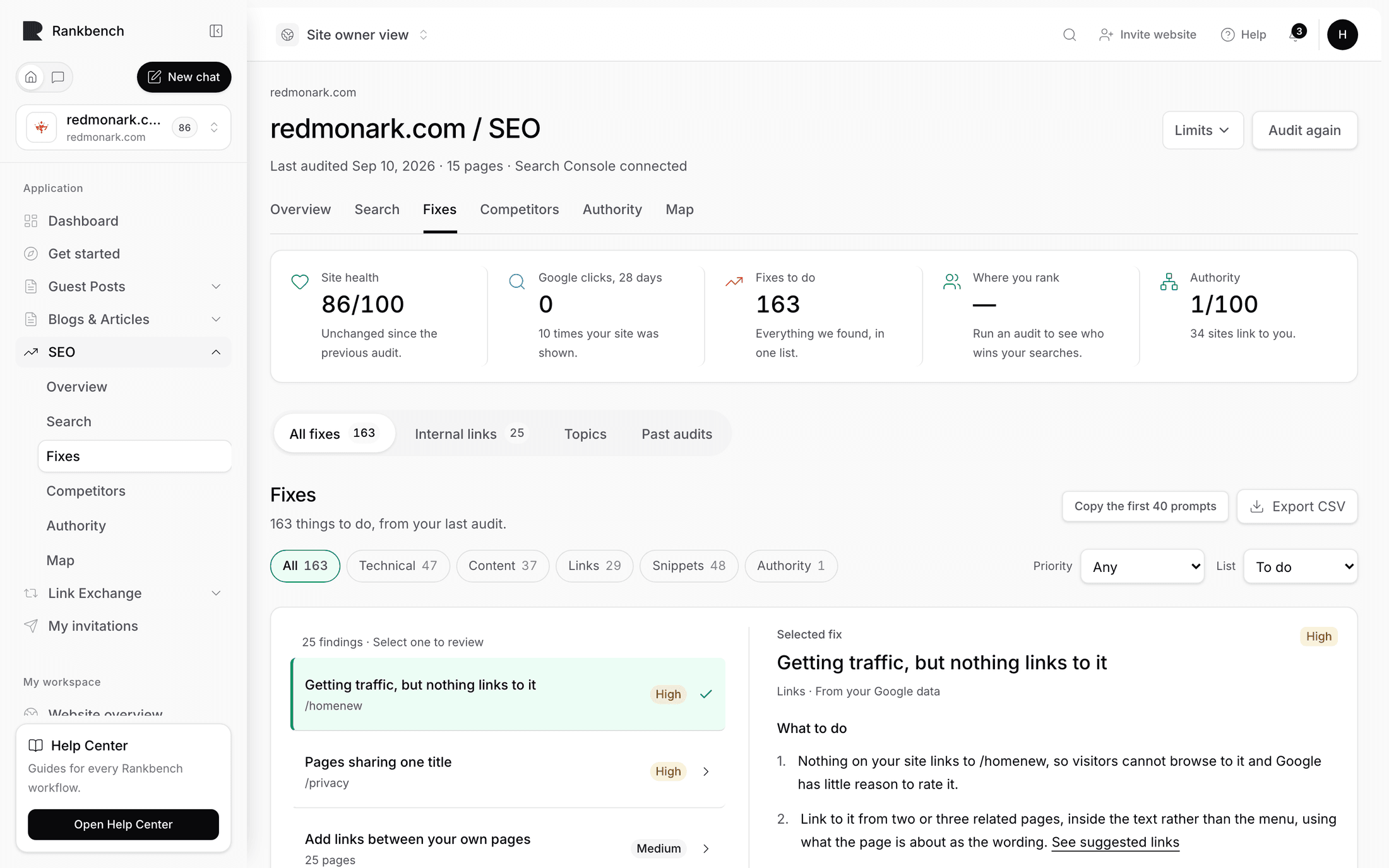
Everything the audit found that is a repair to a page you already have is in one list, whatever produced it: structural problems from the crawl, findings from your search data about pages losing clicks, suggested internal links and rewrites of published articles. Ways to gain clicks you do not get yet live on the Opportunities screen instead.
The list is grouped into jobs: one row per kind of fix, such as "Links to dead pages · 13 pages", worth the most first. The page opens with the count and what the jobs are worth, such as "105 fixes in 10 jobs · 15 high priority". <!-- example -->
The sub-views
Three pills across the top.
All fixes is the list of jobs, and where you will spend your time.
By page is the same work seen one page at a time: what each page earns, what its fixes would add, and the jobs it is part of.
Internal links is the set of suggested links, grouped by the page they would point at. See internal links.
Topics moved to the Opportunities screen (see topics) and the audit history to Audits (see past audits).
Filtering
The blocks above the list are the goals: Fix the basics, Connect your pages, Win the click and the rest, each with its count and, when Search Console is connected, what its fixes are worth. Pressing one narrows the list to that goal.
The Filter button narrows further: by priority (high or medium), by where a fix was found (your audit, your Google data, your articles) and by list state: To do, On my list, Done and Not relevant. This is how your accepted work is separated from everything you have not looked at.
There is also a search box for a page or a search phrase.
Jobs with no click estimate sit in two bands under the priced ones: Needs fixing for the urgent and high problems the crawl cannot price, such as dead links, and Clean-up for the rest.
Reading a row
Each row is one job: what the problem is, how many searches or pages it covers, and what it is worth. "No main heading, 15 pages" is one row rather than fifteen, because it is one decision and one afternoon's work.
The job, opened
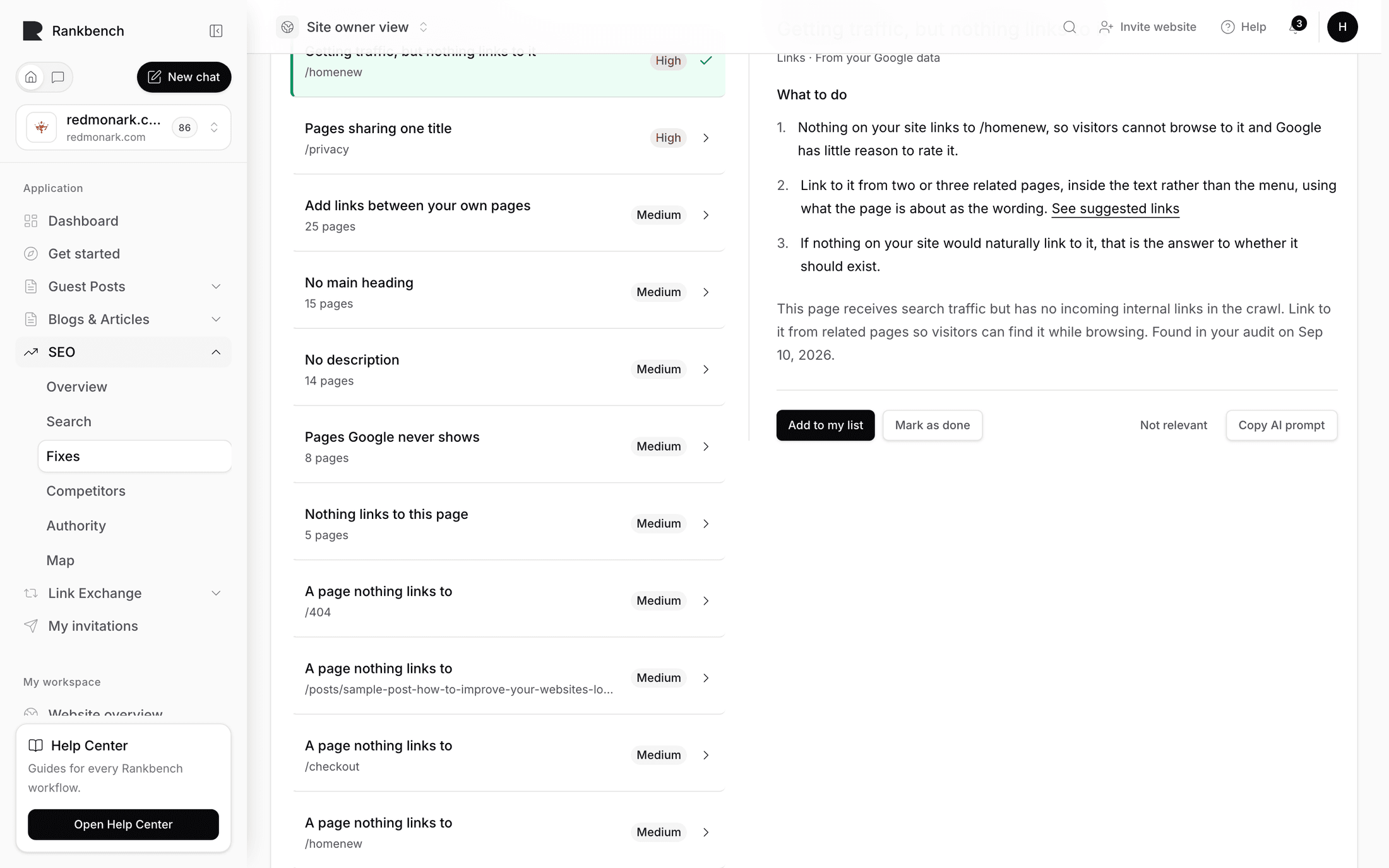
Selecting a row opens the job. At the top, its name, its goal and what it is worth; then How to do it, numbered steps said once for the whole job rather than once per page.
Under the steps, one line per page or search the job covers, with its clicks and position when Search Console is connected. Each line has Add to my list, Mark as done and Not relevant, a copy button for its AI prompt, and a link to open the page. Pages published on your Rankbench blog also get Fix it in your blog, which opens the editor on that page.
The AI prompt
Copy AI prompt puts a prompt on your clipboard carrying this page's real data, described as "Paste it into ChatGPT, Claude, or your AI editor — it has this page's real data in it."
The ⋯ menu above the list has Copy prompts, which shows the batch before copying it and bundles the prompts in view into one task, so a session's work goes over in one paste. Each fix is its own numbered section.
Nothing runs an AI inside Rankbench. The prompt is text for you to take somewhere else.
The four states
To do is everything you have not decided on.
On my list is what you accepted, which is your working queue.
Done is what you have made and told Rankbench about. Where it can be checked, the next audit confirms it.
Not relevant is set aside. It stays set aside on future audits rather than coming back every time.
Moving a fix between states is one press, and the panel confirms it.
Exporting
Export in the ⋯ menu takes the current list out as a CSV, filters included, one row per affected page, for a spreadsheet or a ticket tracker.
Where to go next
Working your fix list covers the accepted queue and the check-back loop. The kinds of fix explains what each category means and how to triage.
Still stuck?
Open Rankbench and the page this article describes — most screens explain themselves as you go.