For site owners: reviewing a submission
Updated August 24, 2026
This article is for site owners and their editors. The author's view of the same conversation is When the editors ask for changes.
A submission arrives with a notification headed "New guest post to review: {title}" and the line "Someone submitted an article for your site — it's waiting on your decision." It is filed under Action needed and it links straight to the review workspace. Notifications are in-app only, so the bell is where these show up.
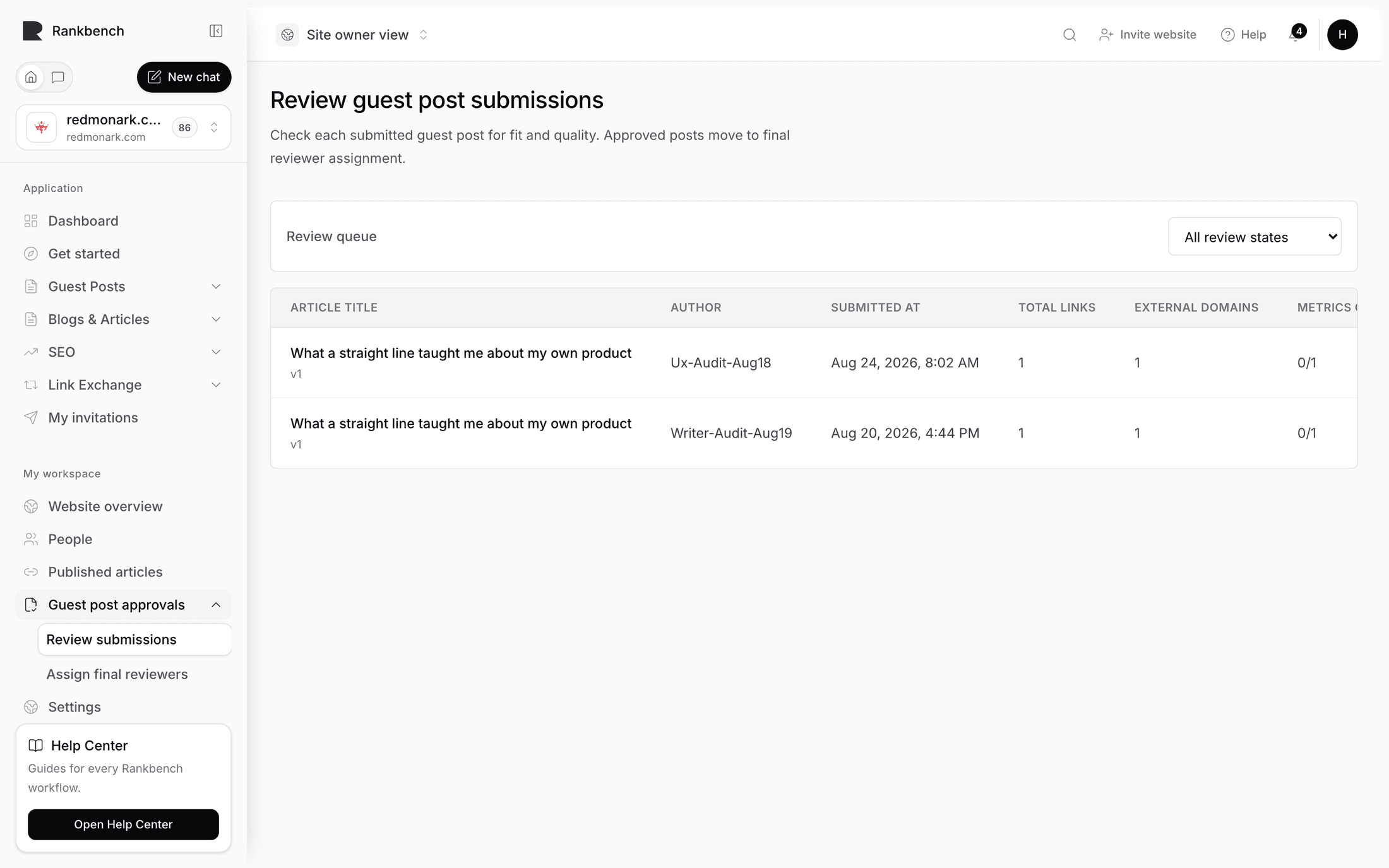
The queue
Articles in the admin section opens Admin articles, described as "Review submitted article packages for your organisation."
A Review status filter narrows the list: All review states, Submitted, Under Review, Approved, Changes Requested, Rejected.
The columns give you enough to triage without opening anything:
- Article title, with the version number beside it.
- Author.
- Submitted at.
- Total links.
- External domains.
- Metrics completion, a fraction of how many of those domains Rankbank found public data for.
- Status.
Each row has a Review action.

Work Submitted first, then Under Review. A high external domain count on an otherwise short article is worth opening early.
What you are looking at
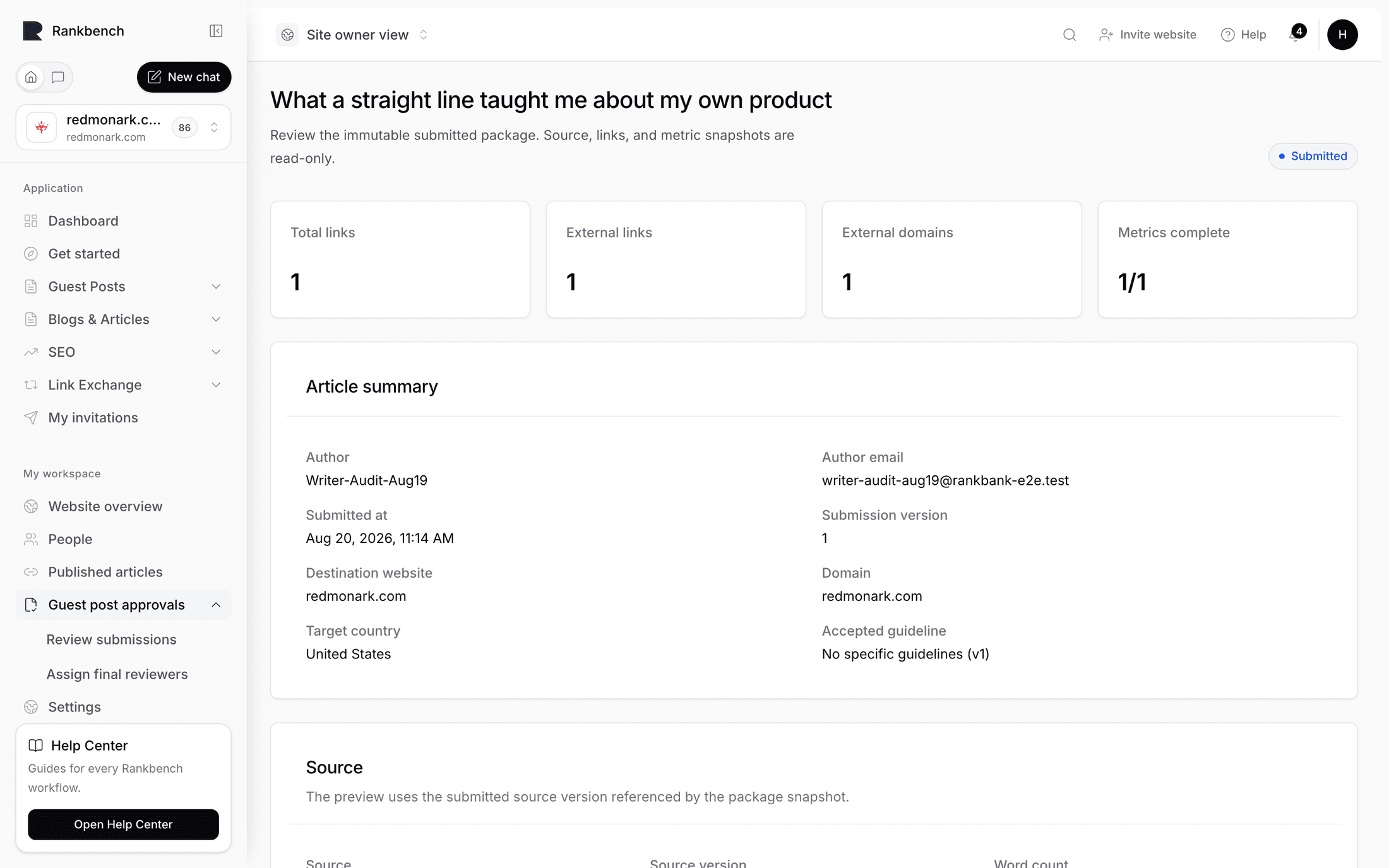
The review page is subtitled "Review the immutable submitted package. Source, links, and metric snapshots are read-only."
That is not a limitation, it is the design. You are reviewing a frozen snapshot of exactly what the author sent, including the link data as it stood at that moment. Nothing you do changes it, and nothing the author does changes it either, because their editor is locked while you read. If they resubmit, you get a new version rather than a moving target.
Four stat tiles sit at the top: Total links, External links, External domains, Metrics complete.
Article summary gives you the context: Author, Author email, Submitted at, Submission version, Destination website, Domain, Target country, and Accepted guideline, shown as {title} (v{n}).
That last field is the one to read before you judge anything. It names the exact version of your rules the author agreed to. If you tightened your rules last week, this article is not held to the new ones.
Source shows either the Google Doc address, clickable, or "Written in the Rankbank editor".
Preview mode and Review mode
The article itself sits in a workspace with a two-button toggle: Preview mode and Review mode.
Preview mode is for reading. Nothing is clickable, nothing gets attached, you just read the piece the way a visitor would.
Review mode turns the article into a commenting surface. It gets an amber border and a hint: "Select text or click an image to add a rework comment."
Select any run of text and a modal opens titled Comment on selected text, or click an image for Comment on selected image. Both explain what they do: "This creates an author-visible rework comment tied to the current submitted version." The modal shows the exact text you selected back to you, so there is no doubt about what the comment attaches to. Write the note and press Add rework comment.

This is the single best habit in the whole module. "The third section is unsupported" is an argument. The same sentence attached to the actual paragraph is a task.
At the bottom of the workspace, a bar counts what you have attached: "{n} open rework comments attached to this submitted version." Next to it, Send back for rework.
General comments
Not everything is about one sentence. Add general rework comment opens a modal for overall direction, and it says when to use it: "Use highlighted comments from the article preview for specific text or image feedback. General comments are useful for overall direction."
Here you choose a Comment type, one of Overall, Grammar, Seo, Links, Formatting, Images, Brand or Other, and a Visibility.
Visibility has two values and the difference is absolute.
Author visible comments are part of the conversation. The author reads them, replies to them, and marks them addressed.
Internal admin comments are for your team. They never notify the author, never appear on their page, and never reach them by any route. That is deliberate, so an editor can write "this is the third pitch from this agency" without it becoming a diplomatic incident.
You can Resolve and Reopen any comment. Authors cannot: they can only reply and press Mark Addressed. Resolution belongs to the person who raised the point.
The link summary
Link summary has three tabs: All external links, Passing links, and Needs attention, each with a count.
Every row shows the Link text, the External URL, its Status and a URL check. Start with Needs attention, since that is where a dead link or a redirect chain surfaces.
Domain metrics snapshot is the public data on each external domain as it stood when the author submitted: authority score, global rank, referring domains, when the underlying dataset was published, and the insight status. Rows where the data never arrived are normal, not suspicious. It is a signal, not a verdict, and the author sees the same figures.
The three decisions
Decision controls sit at the bottom of the page, under "Review decisions are recorded immutably and remain scoped to your organisation."
Start Review claims the article. It is only available while the status is Submitted, and it moves the article to Under review. The author gets a low-key notification: "The site has picked it up. Nothing to do — we'll tell you what they decide." Press it when you actually start, because it is the only signal the author gets that the article is not sitting in a void.
Approve takes an optional note. The dialog is Approve article package: "This approves the latest submitted version and prepares the Guest Post for publication." The author is notified with "The site accepted it. They'll take it from here and publish it." What comes next is publishing and the live check.
Request Changes requires a note of at least ten characters, and the dialog explains why it matters: "Tell the writer what to change — your note goes to them word for word, and editing reopens on their side." The field is labelled Your note to the writer, with the helper "A sentence or two is plenty. For line-by-line feedback, highlight text in the article preview instead."
Reject also requires a note. The dialog is Reject article package: "This rejection is final for the current Admin-review phase." There is no resubmit path afterwards, so the note is the only thing the author gets. Write a real one.

The rule the product enforces
You cannot send an article back for rework without saying what is wrong with it.
Send back for rework in the review workspace stays disabled until at least one open, author-visible comment exists on the current submitted version. Try it anyway and you get: "Add at least one open author-visible review comment before sending this back for rework."
The rule is enforced in the database, not only in the interface. It exists because a bare "changes requested" with nothing attached is the worst thing an author can receive: they know you want something, they do not know what, and the next version is a guess.
Request Changes satisfies the same rule a different way. If no open author-visible comment exists yet, the note you type in that dialog becomes one, which is why the button works without pre-attaching anything. Use it when the feedback is genuinely overall. Use Review mode when it is about specific paragraphs, which is most of the time.
Approving is the other side of the same coin: it resolves the open author-visible comments on the version you approved, so nothing is left hanging when the article moves on to publication.
The trail you are leaving
Three disclosures hold the history, all closed by default with the same framing: open them when you need them, not as part of every review.
Review history, "Open only when you need the immutable decision trail.", lists every decision with its reviewer, note and timestamp.
Version history, "Open only when you need prior immutable source versions.", holds every version the author submitted, with its status, word count and source.
Rework comments, "Open only when you need general comments outside the highlighted article review.", holds the general comments.
None of it can be edited or deleted. Six months later, when somebody asks why an article ran or did not, the answer is on the page.
Warning
Decisions land on the latest submitted version only. If you have had a review tab open while the author resubmitted, Rankbank refuses your decision rather than applying it to the wrong package: "a conflicting review decision already exists for this submitted package". Reload the page and review the version that is actually in front of you.
Once a final decision has been recorded, the page says so with Decision recorded: "This submitted package already has a final Admin review decision."
Still stuck?
Open Rankbank and the page this article describes — most screens explain themselves as you go.