Opening Rankbank0.0s
Getting startedCreating your Rankbank accountAdding your first websiteProving your site is yoursWriter view and Site owner viewHow Rankbank tells you thingsYour dashboardRankbank Pro and billing
Site audit & search growthThe SEO overview, explainedHow Rankbank reads your siteThe site health scoreThe Problems to fix pageEvery problem type, explainedYour fix listFindings: how to read a cardEverything Rankbank looks forThe map of your siteConnecting Google Search ConsoleThe growth planSuggested linksTopics and content ideasAuthority: how much weight your site carriesThe Search traffic pagePast reads and history
Guest postsGuest posting on RankbankSubmitting your first guest postImporting from Google DocsWriting in the Rankbank editorReview & send: the last step before the editorsWhen the editors ask for changesTracking your guest postsFor site owners: opening your site to guest postsFor site owners: writing your guidelinesFor site owners: reviewing a submissionFor site owners: publishing and the live checkThe Content Library
Link exchangeLink swaps on RankbankSetting up your site for swapsPages you shareFinding a site to swap withSending a swap requestReviewing a swap request you receivedAsking a partner for a linkAnswering a link requestWhen the page is published somewhere you can't editHow Rankbank keeps watchThe partner ledger
Content calendarThe content calendarSetting up your calendarWhere the keywords come fromReading the calendarSteering an article before it's writtenReviewing and editing a draftConnecting where it publishesPublishing and what happens nextStyle & settings
TutorialsYour first site audit, from "read my site" to fixes you can ship this weekConnecting Search Console and turning its data into clicksWriting a guest post that gets accepted, the full pathRunning guest posts on your site without letting quality slipYour first link swap, start to finishKeeping your links alive, from wording changes to missing linksA month of content on autopilot, done properly
RankbankHelp center
Open Rankbank →
Getting startedCreating your Rankbank accountAdding your first websiteProving your site is yoursWriter view and Site owner viewHow Rankbank tells you thingsYour dashboardRankbank Pro and billing
Site audit & search growthThe SEO overview, explainedHow Rankbank reads your siteThe site health scoreThe Problems to fix pageEvery problem type, explainedYour fix listFindings: how to read a cardEverything Rankbank looks forThe map of your siteConnecting Google Search ConsoleThe growth planSuggested linksTopics and content ideasAuthority: how much weight your site carriesThe Search traffic pagePast reads and history
Guest postsGuest posting on RankbankSubmitting your first guest postImporting from Google DocsWriting in the Rankbank editorReview & send: the last step before the editorsWhen the editors ask for changesTracking your guest postsFor site owners: opening your site to guest postsFor site owners: writing your guidelinesFor site owners: reviewing a submissionFor site owners: publishing and the live checkThe Content Library
Link exchangeLink swaps on RankbankSetting up your site for swapsPages you shareFinding a site to swap withSending a swap requestReviewing a swap request you receivedAsking a partner for a linkAnswering a link requestWhen the page is published somewhere you can't editHow Rankbank keeps watchThe partner ledger
Content calendarThe content calendarSetting up your calendarWhere the keywords come fromReading the calendarSteering an article before it's writtenReviewing and editing a draftConnecting where it publishesPublishing and what happens nextStyle & settings
TutorialsYour first site audit, from "read my site" to fixes you can ship this weekConnecting Search Console and turning its data into clicksWriting a guest post that gets accepted, the full pathRunning guest posts on your site without letting quality slipYour first link swap, start to finishKeeping your links alive, from wording changes to missing linksA month of content on autopilot, done properly
  1. Help center
  2. /
  3. Content calendar
  4. /
  5. Reviewing and editing a draft

Reviewing and editing a draft

Updated August 24, 2026


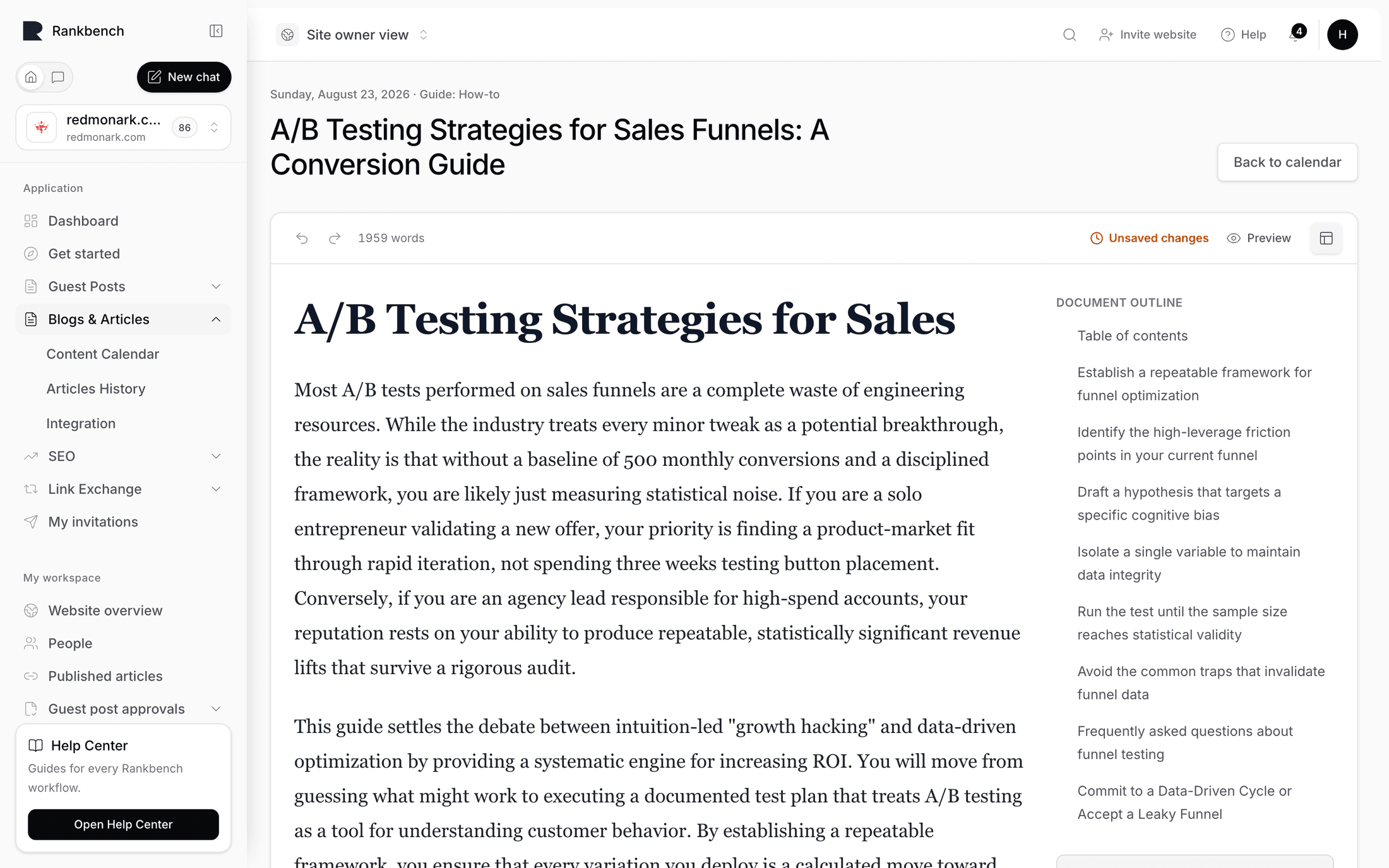
Pressing Review & publish on a calendar cell opens the entry page. The date and format sit above the title as an eyebrow, and the page splits in two: the article on the left, and the controls plus evidence on the right.

This is the screen where you stay in the loop. Nothing has left Rankbank at this point, and nothing will until you press a publish button.

The editor

The left panel is headed The article, described as "This is what gets published. Edit anything before you send it."

Title. A single line with a live character count underneath. Past 65 characters the counter adds a warning that "search results usually cut off around 65", which is roughly where Google truncates a title in the results page.

Meta description. The short summary Google may show under your title. Two lines, with the same live count, and a note past 155 characters that it is "usually clipped after 155".

Body (markdown). A large monospace text area holding the article as markdown. Headings are ## and ###, links are [text](url), and so on. Underneath it, the word count as of the last save: "1,420 words when last saved".

The editor is markdown in a text box rather than a rich-text surface, on purpose. The article is generated as markdown and published as HTML converted from that markdown, so a WYSIWYG layer in the middle would be a lossy round trip through a pipeline that is otherwise exact. It also means you can see the actual heading levels, which is usually what you want to check.

The button below reads Save changes when you have unsaved edits, and Saved when you do not. Once you have edited an article by hand, a small "Edited by hand" note appears next to it.

Note

There is no rendered preview pane and no version history. What you save replaces what was there. If you are making a large rewrite, it is worth copying the original somewhere first.

The evidence panel

This is the half of the screen that makes the draft reviewable rather than something you have to take on trust. It is headed Evidence, described as "What this draft was built from."

At the top, a badge reading AI written and, next to it, the model that wrote it.

Target query names the keyword the article was planned around.

Search Console queries it answers lists the real queries the writer was given, each with its impressions and average position, like "how to export invoices, 940 impressions, position 11.2". These are the searches the article is meant to serve. Reading them alongside the draft is the fastest way to judge whether the article actually answers them or has drifted into something adjacent.

If there were none, the panel says so: "No related Search Console queries were found, so this was planned from your site alone." That is your cue that the article rests on your own pages rather than on measured demand, and it is a good reason to read the draft harder.

Your own input appears as a green line when interview answers or instructions reached the writer. When nothing was given, the panel says so and makes the case for adding some next time.

Notes at the bottom record anything else worth knowing about how the draft was assembled, such as how many sourced facts were available to cite.

The article entry page with the markdown editor on the left and the publish and evidence panels on the right
The editor and its evidence. The queries listed on the right are the ones this article is supposed to answer.

What generation refuses to do

Two rules are enforced in the prompt itself rather than left to the model's discretion.

No invented figures. The writer is told not to invent statistics, study results, dates, prices or quotes, and to write around a figure it does not know. Where Rankbank has gathered sourced facts, the prompt states that those are the only figures the article may contain, each written in the writer's own words with its source linked, and never as a vague "according to a study" with no link.

Banned phrases are forbidden outright. Whatever you list under Phrases to never use in Style & settings is passed through as a hard rule. This is the setting to reach for when a turn of phrase keeps appearing and you keep deleting it.

Neither rule makes a draft correct. They make it honest about what it does not know, which is a different and more useful guarantee. Read the article. Check the claims that matter. That is the job the review step exists for.

When there is no AI configured

On a deployment without AI writing set up, generation does not fake it. You get an Evidence brief instead, marked with an amber badge in the evidence panel and an amber banner above the editor reading "This is a content brief, not a finished article."

The brief contains the same assembled material as a real draft, structured as an outline you can write against: the target query, the supporting queries, the internal links available to you, your instructions. The banner explains that AI writing is not configured on this deployment and that everything below is real data with nothing invented. The notes line says the same thing in the evidence panel.

You can edit a brief in exactly the same editor and publish it in exactly the same way. It is simply a starting point for you to write from rather than something to review.

Regenerating

There is a Write it now button on the calendar cell and a Write this article button on an entry that has not been written yet. Generating again on an entry that already has a draft replaces it, including your edits. Save your instructions first if you want the new attempt to be different from the last one.

Where to go next

  • Steering an article before it is written is how to make the next draft better than this one.
  • Connecting where it publishes sets up the destination.
  • Publishing and what happens next covers sending it.
← Steering an article before it's writtenConnecting where it publishes →

Still stuck?

Open Rankbank and the page this article describes — most screens explain themselves as you go.

On this page

The editorThe evidence panelWhat generation refuses to doWhen there is no AI configuredRegeneratingWhere to go next
Rankbank — Editorial collaborationOpen RankbankHelp home