Submitting your first guest post
Updated August 24, 2026
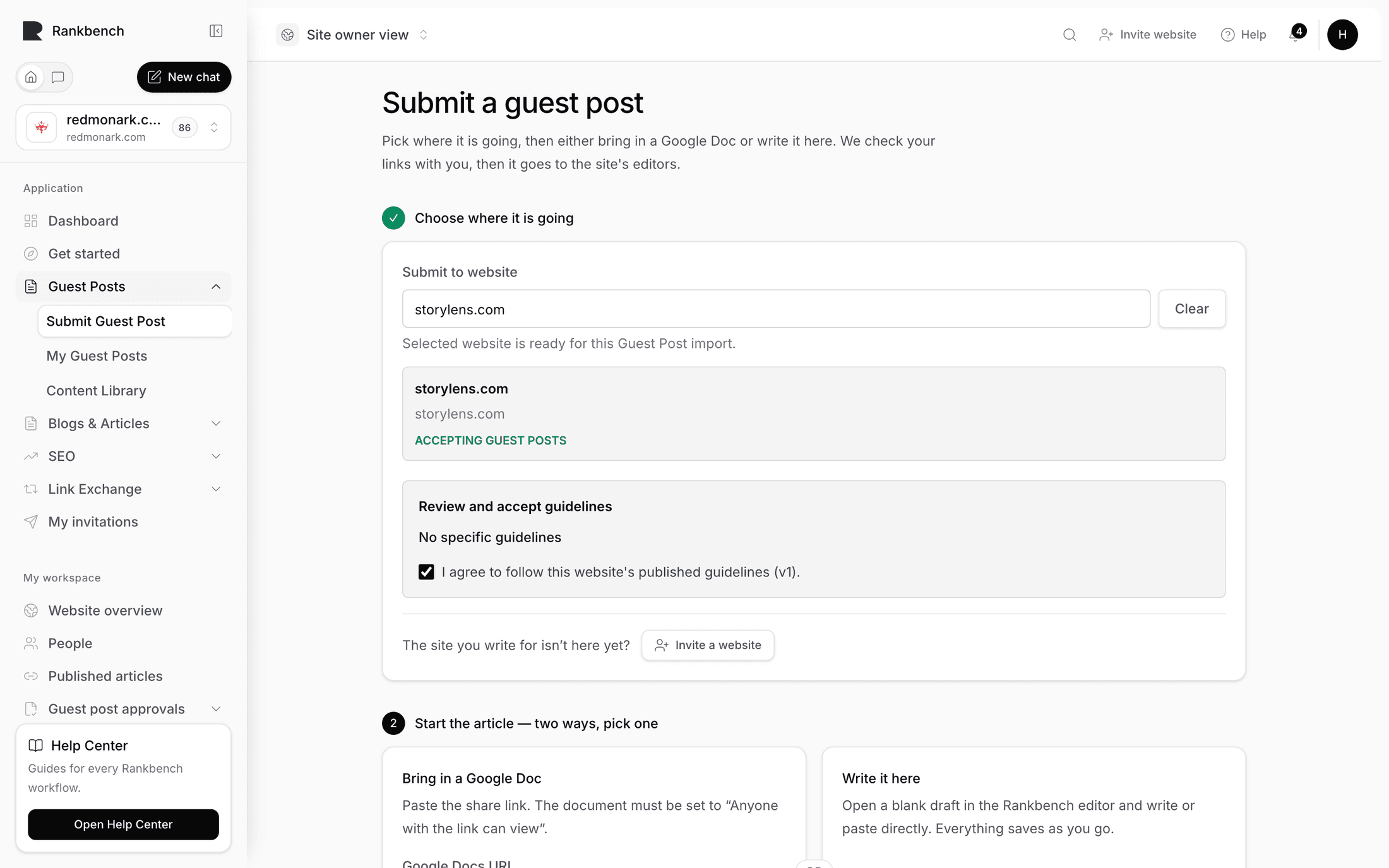
Every guest post begins on the same screen. Submit Guest Post in the sidebar opens Submit a guest post, and under the title it tells you what the next few minutes look like: "Pick where it is going, then either bring in a Google Doc or write it here. We check your links with you, then it goes to the site's editors."
The page is two numbered steps, and the second one stays switched off until the first is finished. The marker beside step 1 turns into a green tick when you are done with it.
Step 1: Choose where it is going
The only field that matters here is the website box, labelled Submit to website, with the placeholder "Search by website name or domain". Click it to browse or start typing to narrow the list. The helper line under the box changes as you go, and it is worth reading, because it tells you exactly what is being searched:
- "Click to choose a website, or type to search by name, domain, or slug."
- "Searching websites..."
- "Only websites accepting Guest Posts appear in search."
- "No websites accepting Guest Posts matched that search."
- "Selected website is ready for this Guest Post import."
That third line is the important one. The search does not show every site on Rankbank. It shows the ones that have switched guest posts on, have not paused their intake, and have a submission link, so anything you can pick is a site that is genuinely open to you. Sites that have proved they own their domain are listed first. A Clear button resets the choice. The whole control works from the keyboard if you prefer.
Once you pick a site, a card appears with its name, its domain, Target country:, Categories:, and a green ACCEPTING GUEST POSTS badge.

If the site is not on Rankbank
At the bottom of step 1: "The site you write for isn't here yet?" followed by an Invite a website button. The listbox says the same thing when your search finds nothing: "No site by that name is on Rankbank yet. You can invite them — there's an Invite a website button just below this box."
The dialog is Invite a website to Rankbank, and it explains itself: "We'll make a personal invite link. Send it however you like — they see who invited them and what collaborating means, and joining is free for them." You give the website or business name (required), optionally their address, and optionally a note. Rankbank hands you back a copyable invite link.
Warning
Rankbank does not send that invite. It gives you a link to send yourself. The mail button in the dialog opens your own mail client with a message already written, which you still have to send.
The guideline gate
Under the selected-site card sits a panel headed Review and accept guidelines. This is the pinning step, and it is why authors on Rankbank rarely get rejected for something they could not have known.
When the site's rules load in full you get the guideline's title, Version {n}, and a Read guidelines button. That opens a modal titled with the guideline name, described as "Review the website guidelines before accepting them.", listing what the owner filled in: accepted topics, content requirements, link rules, and Minimum {n} words if they set one.
If the site has turned guest posts on but has not written anything specific, you see "No specific guidelines are published for this website yet." instead. If the site has stopped taking work, an amber line says "This website is not accepting submissions right now." and the agreement checkbox is disabled.
The checkbox is required either way, and its wording depends on what the site has published:
- "I have read and understood the published guidelines for this website and agree to follow them."
- "I understand that this website has no specific published guidelines yet and agree to follow general editorial standards."
There is a third, shorter form of the panel. If Rankbank cannot load the full rule detail for your account, the panel falls back to showing just the guideline's name with a checkbox reading "I agree to follow this website's published guidelines (v{n})." and no Read guidelines button. Authors writing for a site they have no membership in hit this fallback most often.
Tip
If the Read guidelines button is not there, the rules still exist. Open the site's public submission page at /submit/{slug}, or ask your contact at the site to send them over, before you spend an afternoon writing.
Whatever the panel shows, the version you agree to travels with your submission. The editors reviewing it later see "Accepted guideline" naming that exact version, so a rule the site added afterwards cannot be used against you.
Step 2: Start the article, two ways, pick one
The heading is Start the article — two ways, pick one, and the two panels are separated by an "or". Until step 1 is complete you get a blocker line instead: "Pick the site above first. Then choose how to bring the article in." or "Tick the agreement above first. Then choose how to bring the article in."

Bring in a Google Doc is for an article that already exists. "Paste the share link. The document must be set to 'Anyone with the link can view'." Paste the URL into the Google Docs URL field and press Import document. The full walkthrough, including what import keeps and what to do when it fails, is in Importing from Google Docs.
Write it here is for an article that does not exist yet. "Open a blank draft in the Rankbank editor and write or paste directly. Everything saves as you go." Press Open the editor and you get an empty draft called Untitled Guest Post.
Either way you land in the same full-screen editor, described in Writing in the Rankbank editor. The footer of the submit page tells you what comes after: "Next you will review the links Rankbank finds, add domain metrics, and send the package for editorial review."
Note
That footer line is older than the screen it sits on. There is no step where you type domain metrics. Rankbank fetches what public data it can about the sites you link to and shows it to you read-only. You never enter a number.
Arriving from a shared link
Site owners hand out a public link that looks like /submit/{slug}. If somebody sent you one, that page is where your submission starts.
The page has an eyebrow reading "Rankbank Guest Posts", a heading of Submit to {site name}, and either the site's own description or the default: "Write a guest post for this site. Create a free account, paste your Google Doc, and the site's editors take it from there." An info card lists the name, root domain, Target country:, Categories:, and a Status: line reading either "Accepting Guest Posts" or "Not currently accepting submissions".
Below that, a teaser of the rules: the guideline title, Version {n}, and the promise "You'll see the site's rules — things like topics and word count — right before you submit, so there are no surprises."
Two buttons: Create a free account and I already have one — sign in.

/submit/{slug} page seen while signed out. Signed in, this page does not appear at all: you go straight to the submit form with the site already chosen.If you are already signed in, Rankbank skips the landing page entirely and takes you to Submit a guest post with the destination pre-selected. If you are signed out, both buttons carry the page you came from, so signing up or signing in brings you straight back to it with the site already chosen. An info box titled "You won't lose your place" says as much on publisher-level links.
A few of these pages will not let you in, and each says why:
- "Submissions are paused" with "This site isn't taking guest posts right now — check back later or ask your contact there."
- "This publisher is invite-only" with "You need a personal invitation to submit here — ask your contact for one."
- "This page isn't live" with "There's no site accepting guest posts at this link. Double-check the URL with whoever shared it with you."
A publisher link that covers several eligible sites shows a Choose a website to submit to list instead of jumping straight in.
Creating an account from here takes a minute and is covered in Creating your Rankbank account.
Still stuck?
Open Rankbank and the page this article describes — most screens explain themselves as you go.