
Your profile and account
Updated · First published
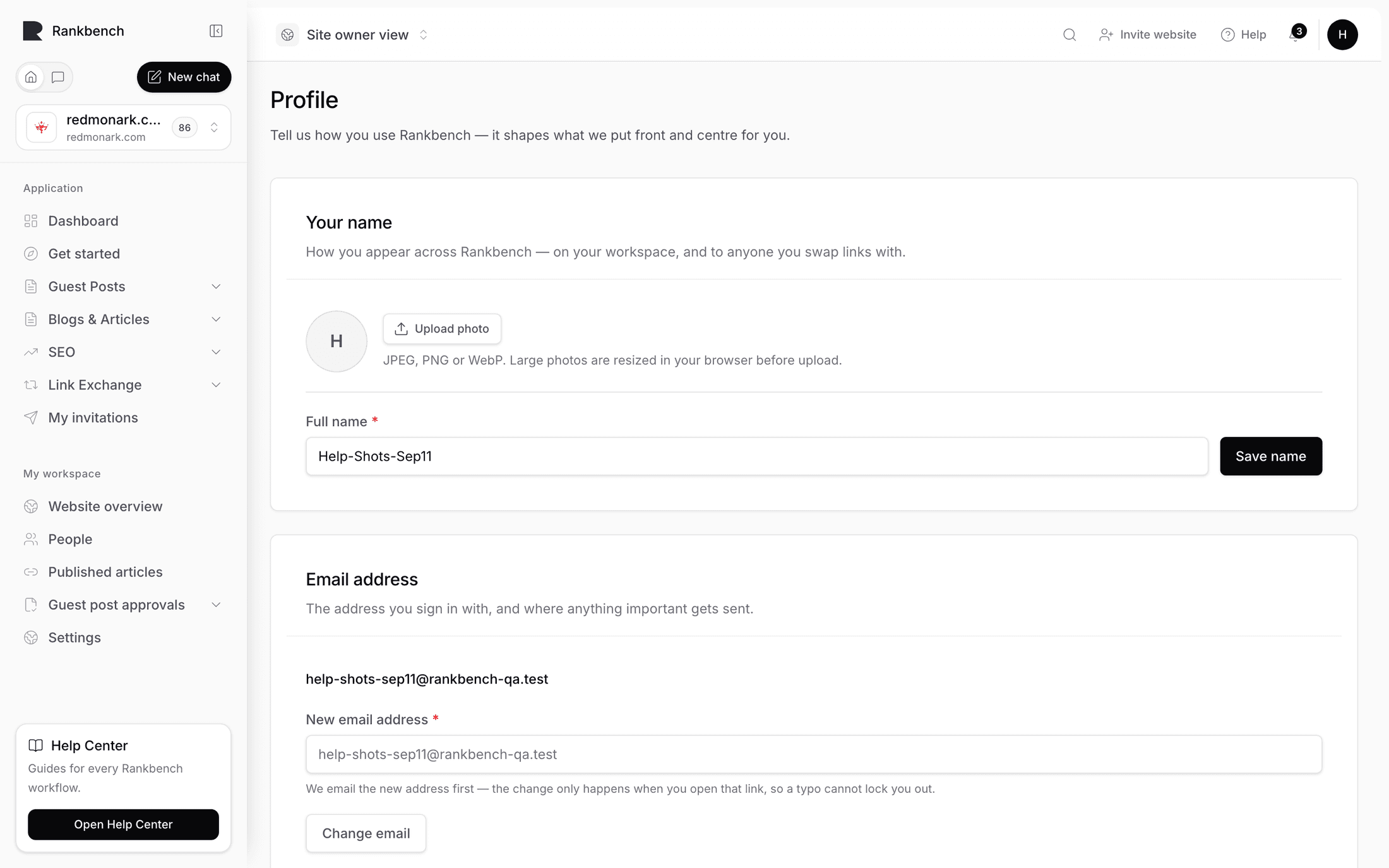
Your profile belongs to you rather than to any workspace, so what you set here follows you between sites. The page is Profile settings: "Your name, how you sign in, and how Rankbench is arranged for you."
Profile settings is laid out like a site's Settings: groups of rows, each with what it is on the left and its value or control on the right, and On this page beside them on a wide screen to jump between groups.
Profile
Photo is "Shown beside your name across Rankbench." It takes a JPEG, PNG or WebP. Large photos are resized in your browser before they upload, and the new one appears in the header as soon as it saves.
Full name is "How you appear to the people you work with, and to anyone you exchange backlinks with." A partner deciding whether to trade links with you sees this name, which is a good reason to make it a real one.
Sign-in and security
Email address shows the address you sign in with. Change opens the form under the row. The change is two-step on purpose: "We email the new address first. Nothing changes until you open that link, so a typo can't lock you out." Until then you keep signing in with your current address.
Password opens the same way: your current password, then the new one twice, at least eight characters. "Changing it doesn't sign out your other sessions."
Below them, each way you can sign in has a row: Email and password, and Google, each marked Connected once it is. Connecting Google to an account that has a password gives you both routes in, which is worth doing before you need it.
Preferences
Two questions about you. What best describes you takes as many answers as fit: "Writer, site owner, or both. Pick everything that fits." What you're interested in is "What we put first in your sidebar and dashboard."
Neither answer grants or removes anything. Every module you can reach with one set of answers, you can reach with any other. They are about emphasis, not permissions. Save preferences commits them.
How you use Rankbench switches between the site owner view and the agency view. Switching keeps every site, partner and request as it is.
Notifications
One row, Bell and email: "What appears in your bell, and which updates arrive by email." Manage opens your notification preferences.
Where to go next
To change what a whole workspace looks like from outside, read workspace settings.
Still stuck?
Open Rankbench and the page this article describes — most screens explain themselves as you go.