
Creating your Rankbench account
Updated · First published
Signing up takes one screen. Rankbench asks for an email and a password, or hands the whole thing to Google, and then gets out of the way. The questions about who you are and what you came for are asked later, on a screen where the answers actually do something.
The register page
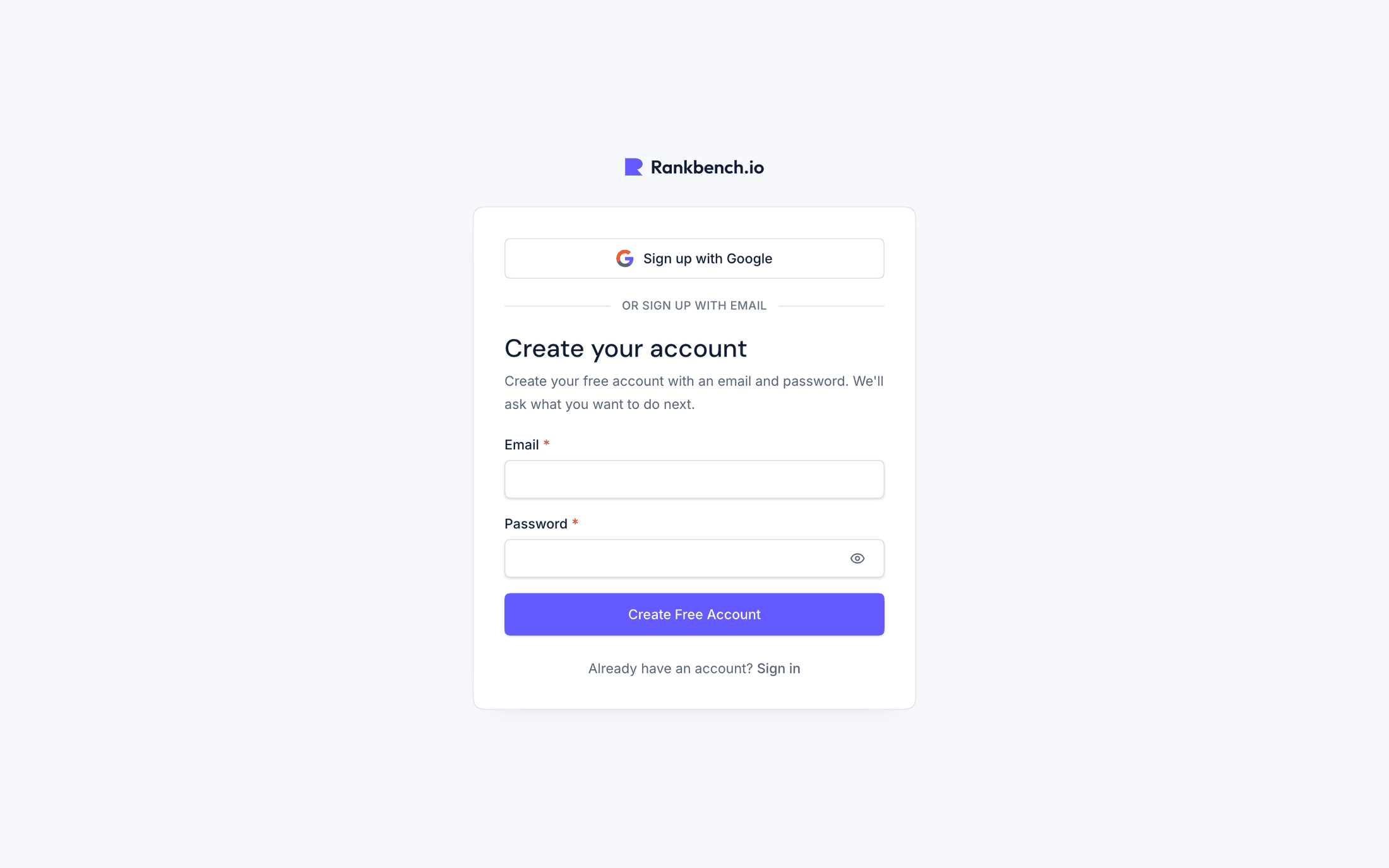
Create your account at /register says what it is going to ask for: "Create your free account with an email and password. We'll ask what you want to do next."
There are two routes in.
Sign up with Google is the one button version. Google asks you to pick an account, and you land back inside Rankbench already signed in.
Underneath, past a divider reading OR SIGN UP WITH EMAIL, is the form: Email and Password, then Create Free Account. The password needs at least eight characters. If the address is already registered you are told so and pointed at sign-in rather than being left guessing.
At the bottom: "Already have an account? Sign in". <!-- example -->
What happens next
You land on Get started, which asks what you want to do first. That screen, and the site setup behind it, are covered in adding your first website.
Nothing else is required of you at signup. There is no plan to choose and no card to enter. Most of Rankbench is free and stays free, and the paid part is described in Rankbench Pro and billing.
Signing in later
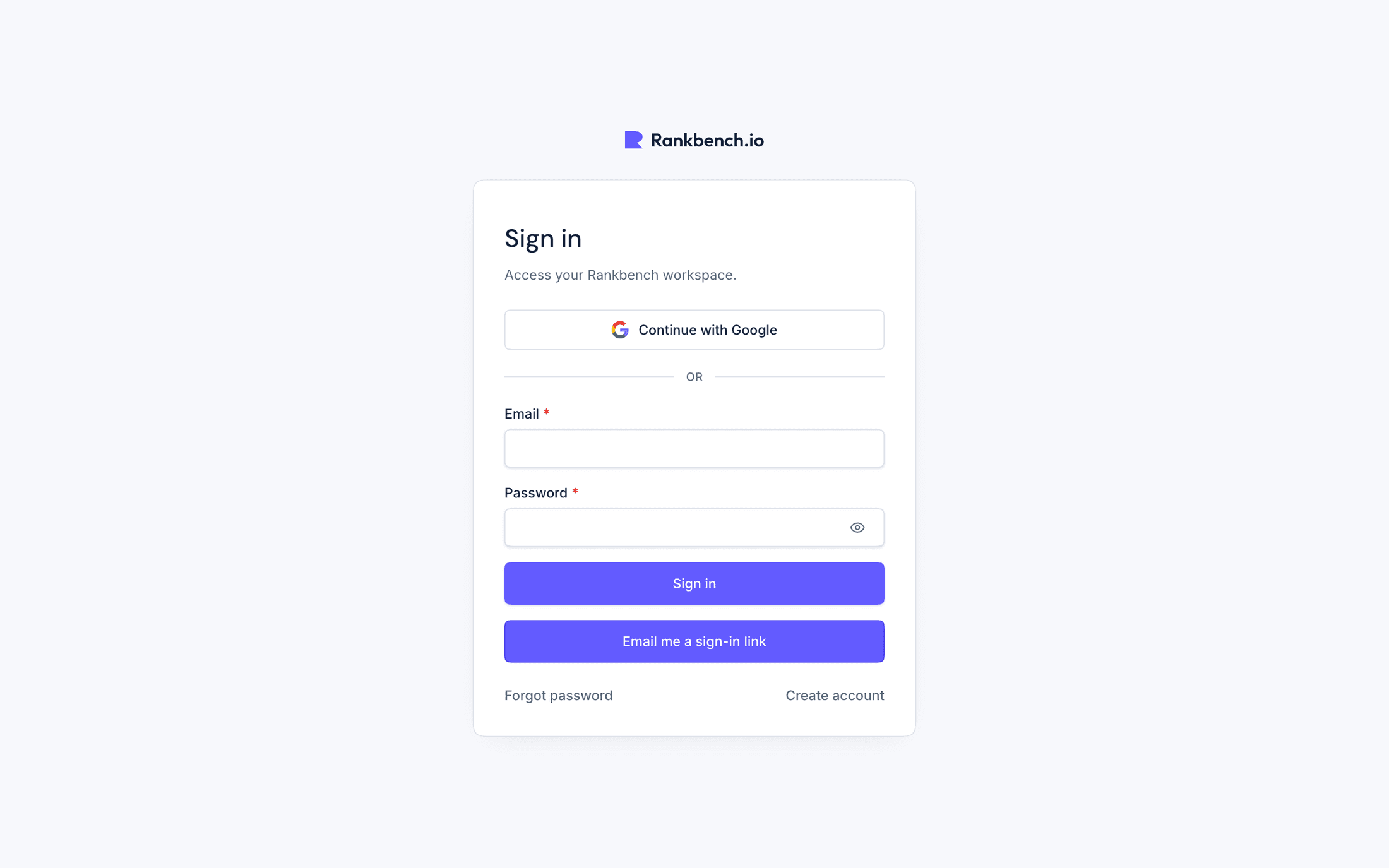
The sign-in page is /login, headed Sign in with the line "Access your Rankbench workspace." It offers three ways in:
Continue with Google, if that is how you signed up.
The Email and Password form.
Email me a sign-in link, which sends a one-time link to your inbox. Useful on a machine where you would rather not type a password, and useful when you have forgotten one.
Underneath sit Forgot password and Create account.
If you are already signed in, both /login and /register send you to your dashboard rather than showing you a form you do not need.
Resetting a password
Forgot password asks for your address and explains itself carefully: "Enter your email and Rankbench will send password reset instructions if an account can receive them."
Submitting tells you that if an account exists for that email, instructions have been sent. The hedge is deliberate. The page never confirms or denies whether an address is registered, because that would let anyone check who has an account here.
If the reset email does not arrive, Email me a sign-in link on the sign-in page is the other way back in.
Arriving from somewhere else
Three doors lead to the same signup, and each one keeps its context.
If you started with a read of your site, the page header changes to say your plan is waiting, and the read is claimed into your new workspace as soon as the account exists.
If someone invited your website, your link carries an invitation token and the page names who sent it. Finishing signup marks the invitation accepted and takes you into setting the site up. See inviting a website to Rankbench for the whole journey from both sides.
If you came from a site's public submission page at /submit/{slug}, you arrived through Start your guest post. Once the account exists you land back in the guest post intake with that site already chosen. See submitting your first guest post.
Accounts with a workspace, and accounts without
This distinction shows up everywhere, so it is worth naming early.
An account with no workspace belongs to someone writing for other people's sites. The profile menu labels it Guest Author. It can submit guest posts, track them through review, reply to editors and collect verified work in the Content Library. What it cannot do is manage a site, because no site is attached to it.
An account with a workspace belongs to someone running one or more sites. One website is one workspace, and the account gets the site machinery with it: audits, backlink exchanges, the content calendar, guest post rules.
You are not stuck on either side. Adding a site gives a writer's account a workspace, and a site owner never loses the writing tools. Workspaces, the switcher and your view explains how the two fit together.
Where to go next
Add the site you manage in adding your first website. If you are here to write for other people, go straight to guest posting on Rankbench.
Still stuck?
Open Rankbench and the page this article describes — most screens explain themselves as you go.