
Setting up your calendar
Updated · First published
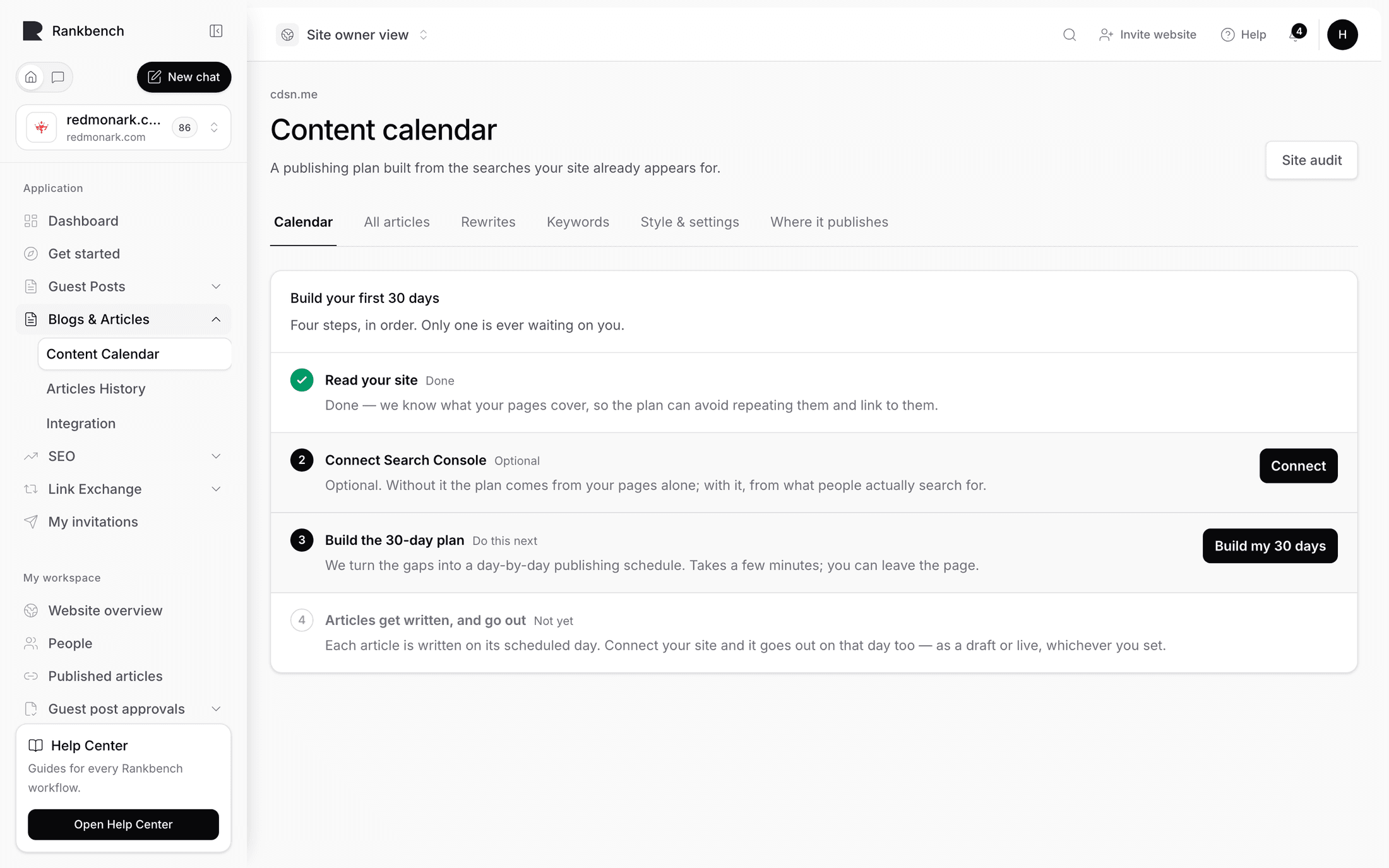
A new calendar shows a panel rather than an empty grid, listing what has to be true before a plan can exist. The panel is honest about the order: four steps, and only one is ever waiting on you.
The four stages
Read your site. Required, and the reason is given: the plan is built from the topics your site already covers, so it has to be read first. Done, the stage says so: we know what your pages cover, so the plan can avoid repeating them and can link to them.
Until the audit has run, everything below is locked, because there would be nothing to plan from. See running the site audit.
Connect Search Console. Optional, and the panel describes both outcomes plainly: without it the plan comes from your pages alone, with it from what people actually search for. A connection that exists but has never synced is called out separately, because that looks the same from outside and is not.
Build the plan. The stage is named for the number of days it is about to plan, and before it will build, Rankbench asks you to check the brief it drafted from your site: "We read your site and drafted this. Correct anything that is wrong; every article for this site is written against it."
Articles get written, and go out. The last stage describes what will happen rather than asking for anything: each article is written on its scheduled day, and once your site is connected it goes out on that day too, as a draft or live, whichever you set.
The brief
Three cards, drafted from your site and editable in place.
What you do is a paragraph about the business. This is the one worth reading carefully, because everything else is written against it. If Rankbench got your business wrong, every article will be wrong in the same way.
Who it's for is a short list of the people who buy from you.
Who you're up against is competitor domains, added as chips. These are not decoration: the calendar mines what those sites rank for and you do not, which is one of its better sources of topics.
If the brief is empty, Fill this in from my site drafts it. If your site could not be read, it says so rather than inventing a business.
Building
The same button that confirms the brief starts the build, and the panel says so: check what we understood, correct anything wrong, and the same button starts it.
It takes a few minutes and you can leave the page.
Four things happen. Keywords are found from all the available sources. Each is checked for real search demand. The ones that pass are scored and assigned to your open publishing days, spread across the week rather than clumped. Then articles are written on their own days, not now.
What you get
A month grid and four figures: Days planned against a target of thirty, Ready to write, Drafts and Published.
If the plan is shorter than the target, the page says so and explains that the window refills on its own each day.
If writing needs Pro, a panel says which parts are free and offers the upgrade, or offers to assign a Pro slot you already own to this site.
If the keyword pool has run dry, a line at the bottom explains that the next daily top-up will search for more so the calendar keeps rolling forward.
Where to go next
Reading the calendar covers the grid. Where the keywords come from covers the pool the plan was built from.
Still stuck?
Open Rankbench and the page this article describes — most screens explain themselves as you go.