
The content calendar
Updated · First published
Most content plans start with a blank spreadsheet and a guess. This one starts with evidence you already have: the searches your site appears for, the pages you have already published, and the competitors you name.
The page describes itself in one line: "A publishing plan built from the searches your site already appears for."
What it actually does
Five jobs, and you can inspect and change every one of them.
It drafts a brief about your business by reading your site, so the writer knows what you sell and who to. You correct it, and every article is written against it. See Brief & settings.
It finds keywords from your Search Console queries, your own pages, competitors you name, blogs you point it at, and topics you type. It checks each one has real search demand before it will schedule it. See where the keywords come from.
It plans days, spreading articles across the week at the cadence you set and keeping about a month planned ahead.
It writes each article on its scheduled day, not in advance, so the article reflects the site as it is then.
It sends the finished article where you publish, as a draft for you to approve or live, whichever you chose per connection.
It keeps going without you
This is the part worth being clear about, because it changes how you use it.
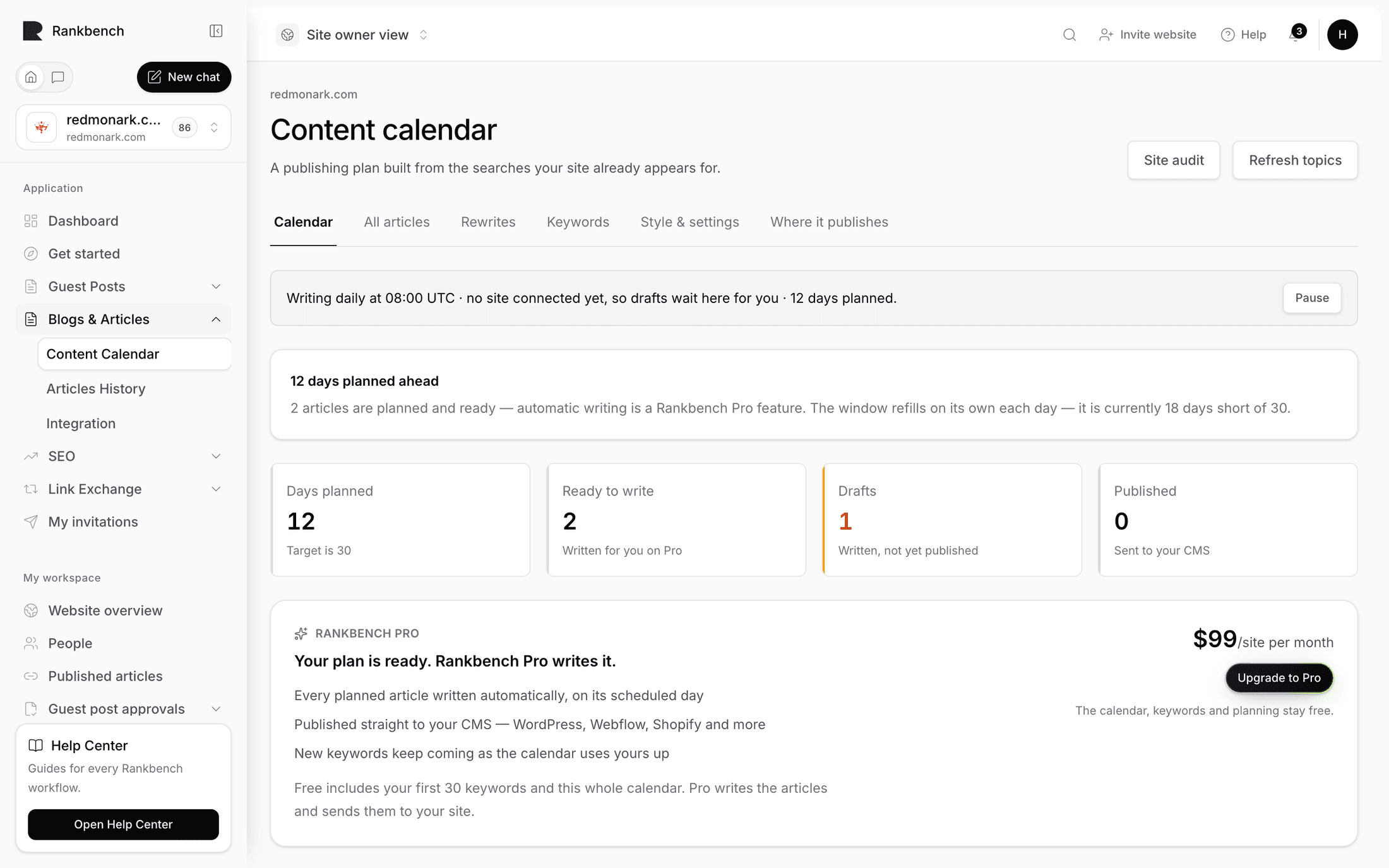
Once set up and running, the calendar writes and publishes on its own. The status line at the top says exactly what it will do, in your words and your timezone, for example: "Writes after midnight · publishing each one to your blog at 08:00 UTC · 30 days planned." <!-- example --> Each article is written just after midnight on its day and goes out at your publishing time.
Pause stops it. The setting behind it is blunt about what that means: nothing is written and nothing is sent until you start it again.
You stay in the loop by choice rather than by being blocked: steer a day before it is written, read a draft before it goes, or let it run and review afterwards.
What it needs first
The site has to have been audited. The plan is built from what your pages already cover, so the calendar can avoid repeating them and can link to them. Until then the first step is locked, and the panel says why.
Google Search Console is optional and makes a real difference. Connected, the plan comes from searches your site already appears for. Not connected, it comes from your pages and the competitors you name, and the page says so: "This plan has no search data behind it." See connecting Google Search Console.
Writing needs Rankbench Pro. Planning, keywords and the whole calendar are free, and the page states the split: "Free includes your first 30 keywords and this whole calendar. Pro writes the articles and sends them to your site." See Rankbench Pro and billing.
The four figures
Above the grid: Days planned against a target, Ready to write, Drafts written but not published, and Published.
Where things are
Six views across the top.
Calendar is the month grid.
All articles is everything it has written.
Rewrites is pages you published that the audit has since found a problem with.
Keywords is the pool behind the plan.
Style & settings is the brief and the four decisions that shape the writing.
Where it publishes is your CMS connections.
What it deliberately does not do
There is no drag and drop. A day is moved through a dialog, which is also where it tells you if the target day is taken.
One article a day. The grid is a month, not a queue.
Nothing is published to a CMS you have not connected. Without a connection, finished drafts wait in Rankbench for you, and the top of the calendar offers to publish them on a free blog in one press.
Where to go next
Setting up your calendar is the first hour. For the whole month as one story, read how to plan and publish a month of content.
Still stuck?
Open Rankbench and the page this article describes — most screens explain themselves as you go.