
People and roles
Updated · First published
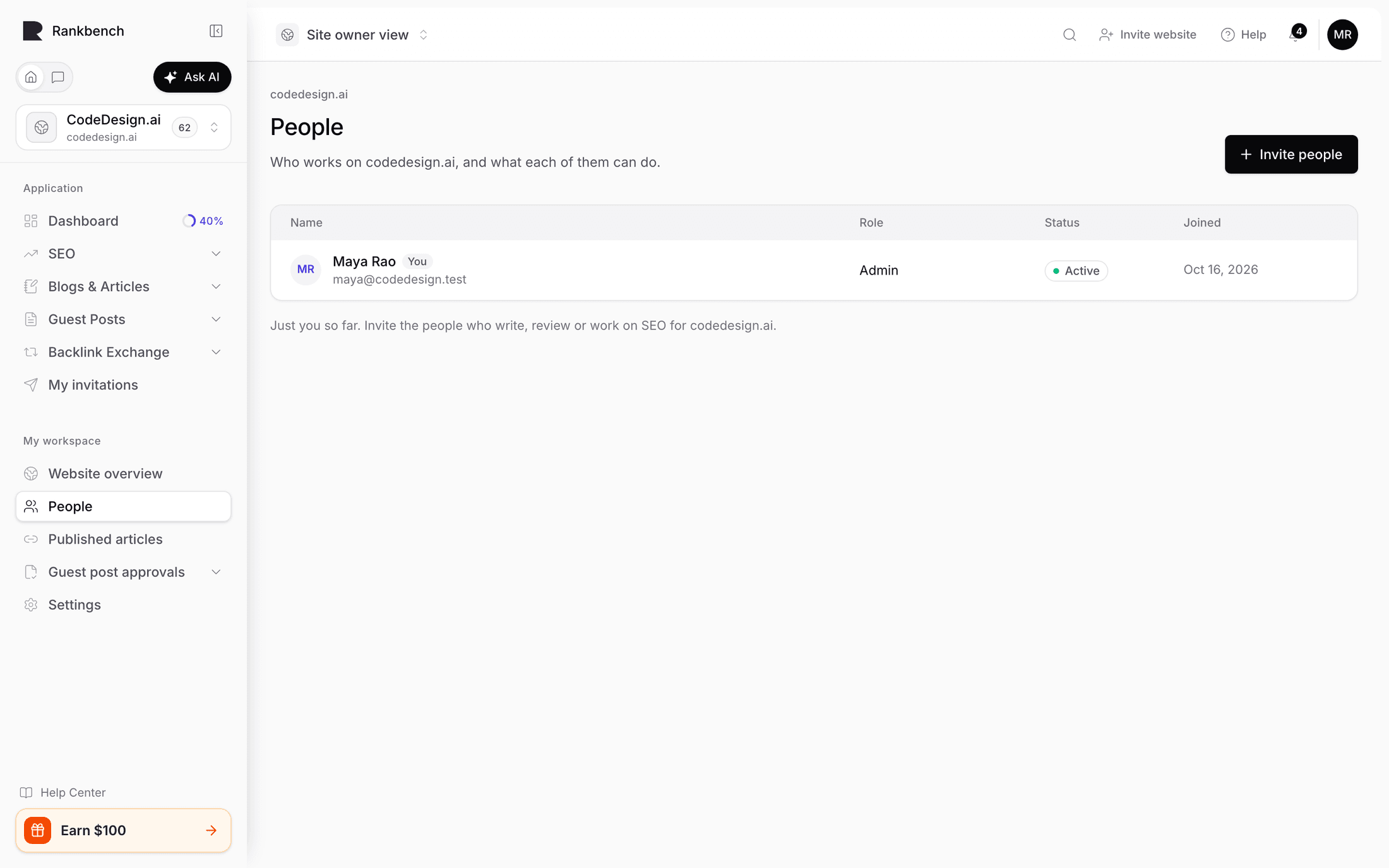
A workspace can have more than one person in it. People, in the sidebar under My workspace, is where you bring them in and decide what each one can do. The page is headed with your site and described as "Who works on redmonark.com, and what each of them can do." <!-- example -->
The list
One table of everyone, with each person's Name and email address, Role, Status and the date they Joined. Your own row is marked You. Invitations sit in the same list, marked Invited, with "Hasn't joined yet" under the address and when the invite was sent.
The statuses are Active, Invited, Deactivated and, for older rows, Archived, Expired or Cancelled.
Once the list has five or more rows, a search box and a filter sit above it: All, Active, Invited and Deactivated, each with its count.
Inviting someone
Invite people opens a panel: "New people get an email to join redmonark.com." <!-- example -->
Email addresses takes one address or several: "Paste several, separated by commas. Anyone already on Rankbench joins straight away." Under it, What they can do lists the roles, each with a line saying what it allows. One role covers everyone in that send. Press Send invite, or Send 3 invites for three. <!-- example -->
Each address then gets its own answer. Added means they already had a Rankbench account and are in the workspace now. Invited means they have been emailed an invite. If the email could not go out, Rankbench says so rather than pretending it went: the invite is saved, and Resend invite in that row's menu tries again.
Note what this is not. Adding a person to your workspace is not the same as inviting another website to Rankbench. That is a different thing with a different journey, covered in inviting a website to Rankbench.
The roles
The roles you can give, in the order they are offered:
Admin: "Runs the site: settings, people, guest posts and backlink exchanges."
SEO consultant: "Works on SEO and backlink exchanges. Can't manage people or delete the site." This is the role for an agency or a freelancer you have brought in. They work in the audit, the calendar and the exchange, and can change most of the site's settings, but the site's name and address and the Danger zone stay with the owner.
Internal Author: "Writes and submits articles."
Approver: "Reviews the articles and links assigned to them." See final review and the Approver role.
Super Admin: "Everything an Admin can do, and can hand the workspace to someone else." Only a Super Admin can make another one.
Author may still appear on older rows. It is not offered when you invite someone or change a role.
Asked to join
Sometimes a person asks to join rather than being invited. Asked to join appears above the list when someone is waiting, and says "They see nothing until you approve."
Two kinds of request arrive here. Someone from a Shopify store you connected. And an agency that manages websites for clients and asked to look after your site's link building, which happens when they tried to add a site you had already verified.
Each request has a role already chosen, which you can change: SEO consultant for an agency. Approve adds them with that role. Decline turns them away.
Who may answer exchange requests
A site's admins accept and decline exchange requests. An SEO consultant can too, when the site's owner allows it, which is the usual arrangement with an agency that handles your link building.
An SEO consultant's row says which: Answers exchange requests or Doesn't answer exchange requests. To change it, open the row's menu and choose Stop them answering exchange requests or Let them answer exchange requests. Stopped, exchange requests for the site are yours alone: they no longer see or answer them.
An agency that set your site up and handed it to you starts with it on. See confirming who represents your website.
Acting on a person
Each row that can be acted on has a menu. Change role opens a panel with the same role choices and Save role. Deactivate stops someone signing in until you Reactivate them, with the same role. Transfer Super Admin, for a Super Admin, hands the workspace over and makes you an Admin. Remove from redmonark.com takes their access away now. <!-- example -->
Every one of these asks first and says what will happen, and the person's history stays either way.
Two things are deliberately awkward. Your own row has no menu, so you cannot lock yourself out by accident. And removing somebody sits at the bottom of the menu, apart from the reversible actions, so it is never one slip away from deactivating them.
A role change is checked by the server rather than trusted from the browser, and it lands in the audit log.
Rows marked Managed by the platform belong to platform superadmins rather than to your workspace, and cannot be changed from here.
What the person receives
Somebody added to a workspace gets a notification saying so, and a role change or a removal generates one too. Whether those also arrive by email depends on their own preferences, under the workspace access category. See how Rankbench tells you things.
Where to go next
To bring in an agency who will work on your SEO, inviting a website to Rankbench covers the consent step that role alone does not. For what a workspace holds in the first place, read workspaces, the switcher and your view.
Still stuck?
Open Rankbench and the page this article describes — most screens explain themselves as you go.