
Proving your site is yours
Updated · First published
Rankbench will let you type any domain into a form. Before it treats that site as yours it wants proof, and it accepts four different kinds: Google Search Console, a tag on your homepage, a file on your site, or a DNS record. Any one is enough, and the check looks for all of them at once, so you never have to declare which you chose.
Why it matters
Three things hang on it.
The audit will not run without it, and neither will Search Console data or backlink exchanges. Anyone could type someone else's domain into a form. Verification is what stops a stranger reading a report about your site.
Partners only exchange with verified sites. An unverified site is invisible in the exchange directory, and an exchange request from one is blocked with Verify your site as the fix. See setting up your site for exchanges.
One verified owner per domain. Once a site is yours, no other account can claim it, and the Ownership row in your site's Settings says so.
Where you verify
The verify step looks and works the same wherever you meet it:
- In Get started, straight after you name your site.
- In website setup, as the Connect and verify step.
- In the Verify dialog. The Ownership row in your site's Settings opens it, and so does every other Verify button: the setup card on your Website overview and Dashboard, the SEO pages, and Backlink Exchange. The links in Rankbench's reminder emails open Settings with it already open.
- On your site's Backlink Exchange settings page.
- In agency view, when you set up a client site.
Every one ends with the same line: "We use your data only to verify your site and plan your content."
How the step is laid out
Google Search Console comes first, in its own card headed "See where you can win more clicks from Google", with one button, Continue with Google. Under it: "Pick the Google account that has redmonark.com in Search Console." <!-- example -->
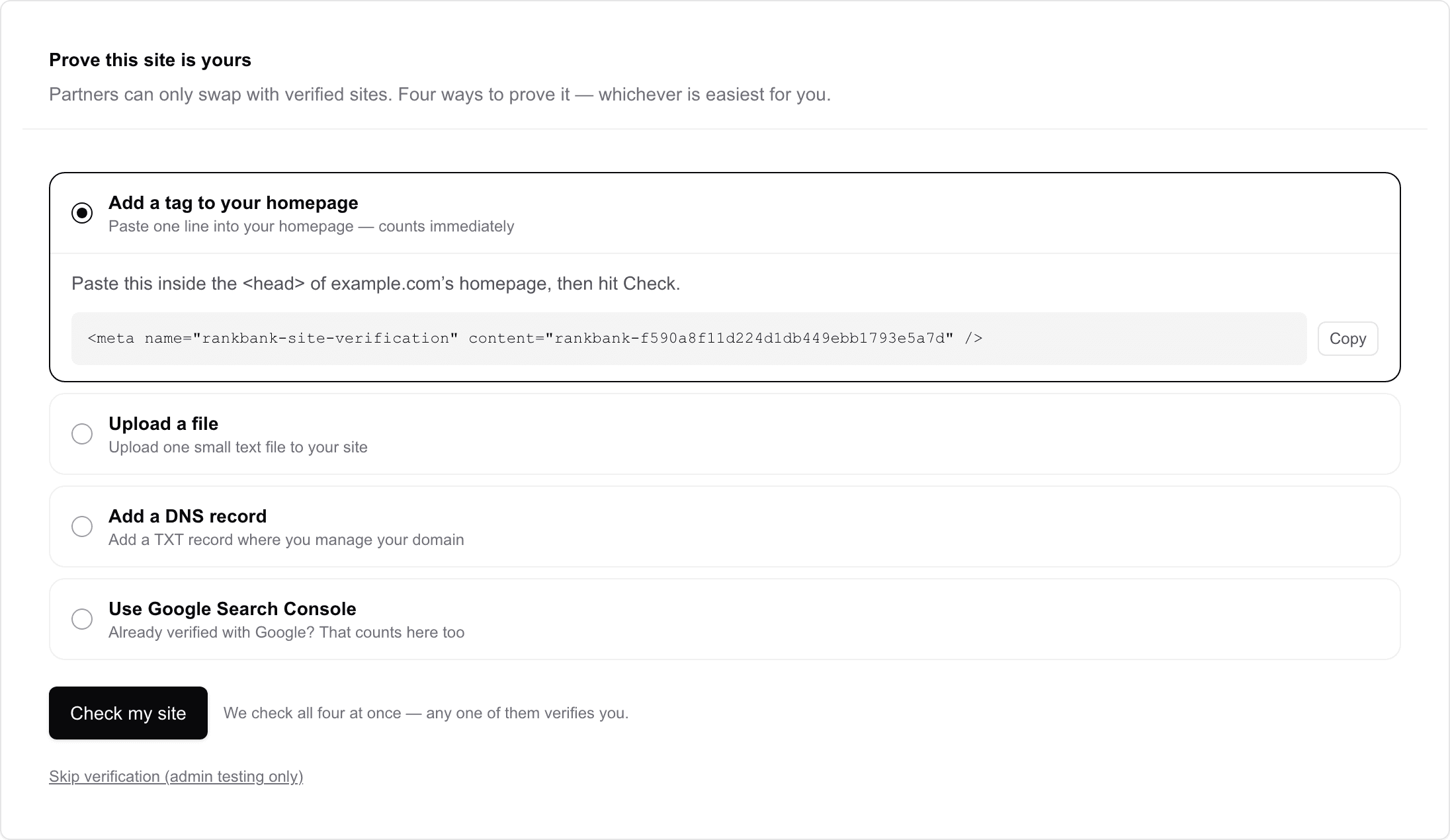
The other proofs sit underneath, under Other ways to verify, one row each: the tag, the file and the DNS record. Opening a row shows its instructions, with your site's own code already in the snippet and a Copy button beside it.
Check my site is always below the list, whichever row is open.
Use Google Search Console
If the domain is already in your Google Search Console, Google has verified it, and connecting that account counts here. Press Continue with Google, approve access on Google's own screen, and you land back on the same page with the check already run. It is read-only: Rankbench can't change anything in your Google account or on your site.
Pick the right account. It counts when that Google account owns the property or has full access to it. Restricted access, which only lets someone see the data, does not prove the site is yours, and neither does a property Google hasn't verified yet. If your access is restricted, ask an owner in Search Console to give your account full access, or use the DNS record.
This proof has a bonus the others do not: it also connects the search data that the Search tab runs on.
Add a tag to your homepage
"One line in your homepage."
A single meta tag goes inside the <head> of your homepage. Most site builders have a field for exactly this, usually called something like header code or custom head HTML. It has to be in the HTML your server returns, not injected by a script afterwards. Built with Next.js? Using Next.js? under the snippet shows the line for your metadata instead.
This is the fastest method, because the check reads your homepage live. It counts the moment the page is published.
Rankbench tries both https://yourdomain.com/ and https://www.yourdomain.com/, so it does not matter which one your site actually serves.
Upload a file
"One small text file."
Create a file called rankbench-verification.txt containing one line with your code, and put it at the root of your site so the address serves the file directly.
Reach for this when you can upload files but cannot edit the homepage template, which is common on static sites and on hosting where the theme is locked.
Placed a tag, file or record from before the product was called Rankbench, with rankbank in its name? It still counts; there is nothing to redo.
Add a DNS record
"One TXT record, about 2 minutes."
A TXT record on the root domain, carrying the same value as the file. DNS usually spreads within minutes, sometimes a few hours, and Rankbench keeps checking every hour for two weeks, so an empty first check means nothing is wrong yet and you can leave the page.
This is the proof that survives a redesign, a platform migration and a new theme, because it does not live on the website at all. If you own the domain but somebody else runs the site, it is often the only one you can do alone.
Not now
At the bottom, Email me the steps sends you all of this with the exact values, and Send to my developer gives you the same steps to copy or email to whoever edits your site.
Client sites: the owner's email
If you look after a site for a client in agency view, there is one more way, and it comes first for those sites: Email the site's owner, in its own card above the Google one. One email goes to an address at the site's own domain, and the owner clicks once to confirm you represent the site. No code, no logins.
It is a weaker proof than the others, and partners are told so: the site shows Owner confirmed by email. It is enough for backlink exchanges. The free Pro week still needs Search Console, a tag, a file or DNS. The owner's side is covered in confirming who represents your website.
Running the check
The button is Check my site, and while it works it reads "Checking your site…". Beside it: "We check every method at once. Any one of them verifies you."
That is the useful part. Put a proof in place by whichever route suits you, press the button, and if any of them lands you are verified.
Reading what it found
After a check that did not pass, the panel lists every method with what it actually saw. The messages are specific rather than a generic failure, because the specific thing is usually the fix:
- "Read https://yourdomain.com/ (HTTP 200) — the page loads, but the tag isn't in it yet." Your site is reachable and the tag is not in what the server returned. Usually the tag went into a builder's preview and was never published, or into a template the homepage does not use.
- "Couldn't reach https://yourdomain.com/." or a bare HTTP status. <!-- example --> The page did not load for Rankbench, whatever a browser shows you. Firewalls and bot protection are the usual reason.
- "https://yourdomain.com/rankbench-verification.txt answered with HTTP 404 — the file isn't there yet." The address does not serve the file. Check the spelling, and check it sits at the root rather than in a folder.
- "https://yourdomain.com/rankbench-verification.txt exists but its content doesn't match your code." The file is there and the line inside it is wrong. Usually a code copied from a different site, or an editor that added quotes.
- "yourdomain.com has 3 TXT records — none match your code yet. DNS changes can take a few hours to spread." <!-- example --> The lookup worked and your value is not visible yet. This one often just needs time.
- "Your Google account is connected, but none of its 2 Search Console properties cover yourdomain.com." <!-- example --> Connected to Google, but with an account that does not hold this domain. Try again with the account that does.
When the result points at one fix, a note under it says what to do next, such as using the DNS record instead.
A passing check names which proof won, so you know what not to delete later: the tag on your homepage, the file on your site, your DNS record, or your Google Search Console connection.

What changes when it lands
The audit unlocks. Until then the SEO pages show it as locked, your Website overview marks it After verification, and the dashboard offers verification rather than an audit.
Backlink exchanges unlock. The site becomes eligible for the directory, though eligibility needs a few more things alongside verification, listed in setting up your site for exchanges.
Domain strength is measured. Those are the figures partners judge you by, and they appear on your Website overview in the Authority tile.
Leave the proof where it is
Verification is not a gate that stays passed for ever. The status is whatever the last check found. If the tag comes off in a redesign, the file is lost in a migration or the DNS record is tidied away, the next check will not find it and the site drops back to unverified. Everything that depended on it stops with it, and you get a notification saying a site lost its verification.
So pick the proof you are least likely to undo. For most people that is the DNS record, or Search Console if the site is already in it. Then leave it alone.
Where to go next
Once the site is verified, run the site audit and read what it found in the SEO overview. To get your own Google numbers flowing too, see connecting Google Search Console.
Still stuck?
Open Rankbench and the page this article describes — most screens explain themselves as you go.