
Inviting a website to Rankbench
Updated · First published
Some of the sites you want to work with are not on Rankbench yet. An invitation is a personal link you send, and it carries the collaboration goal through setup.
This is different from adding somebody to your own workspace. That is covered in people and roles.
Where the button is
Invite website sits in the header on wider screens, and Invite a website is at the top of My invitations. You will also meet it in the places where a missing site blocks you: the guest post intake when the destination is not on Rankbench, and Find partners, including when nothing matches your search.
The dialog
Every field is optional, so you can create a link in one press.
Website is the site you are inviting: "Optional. Leave it blank and they pick their own during setup." Rankbench takes it with or without https://, and the recipient can correct it during setup, so an approximate domain is fine.
Email (optional): "We’ll email the invitation. Leave blank to share the link yourself." Fill it in and Rankbench emails the invitation. Leave it blank and you get a link to send however you like.
The line under them says what kind of link you are making. With both blank, anyone you send it to can join with their own website, as many people as you like. With either filled in, the link invites one website.
Why are you inviting them? sets the invitation goal and changes where the recipient lands at the end: Receive guest posts, Build a link partnership or Improve this website's SEO.
Ask to join as an SEO consultant asks for access to their site. The dialog is clear about what happens: "The site owner chooses. Access starts after approval and verification. No admin privileges."
A personal note is optional and appears on the invitation page.
For a link partnership, the dialog also tells you what your invitation will show. When your site is verified, open to backlink exchanges with published rules, and shares pages, it says so. When something is missing it names it, with a link to fix it, because an invitation that shows your strength, your pages and your rules is far more convincing than one that shows only your name.
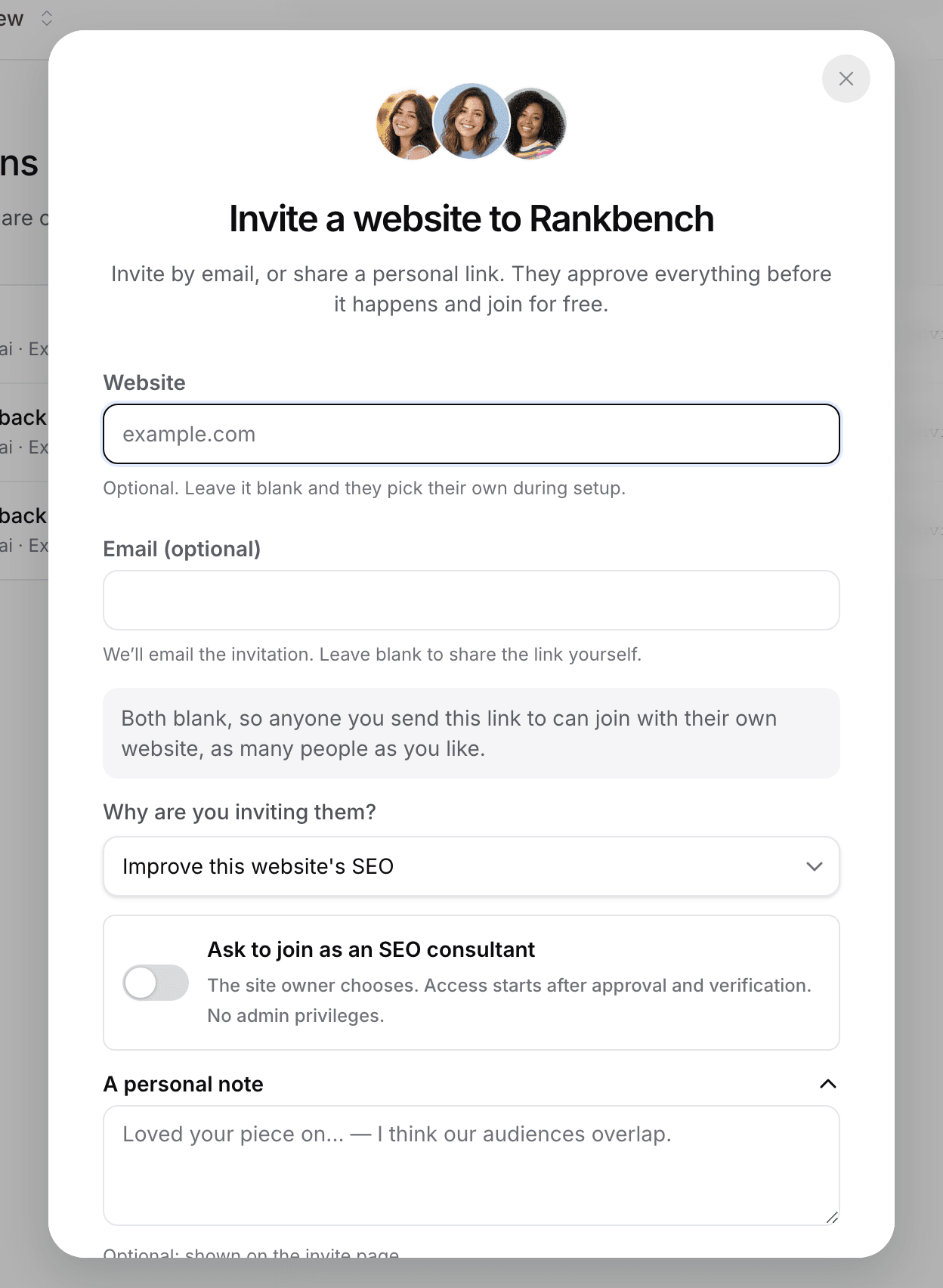
Create invite link makes it. You then get the link with Copy link, Open email draft, which opens your own mail client with the text prepared, and a way to track it in My invitations. If you gave an email and it could not be sent, Retry invitation email tries again.
Tracking what you sent
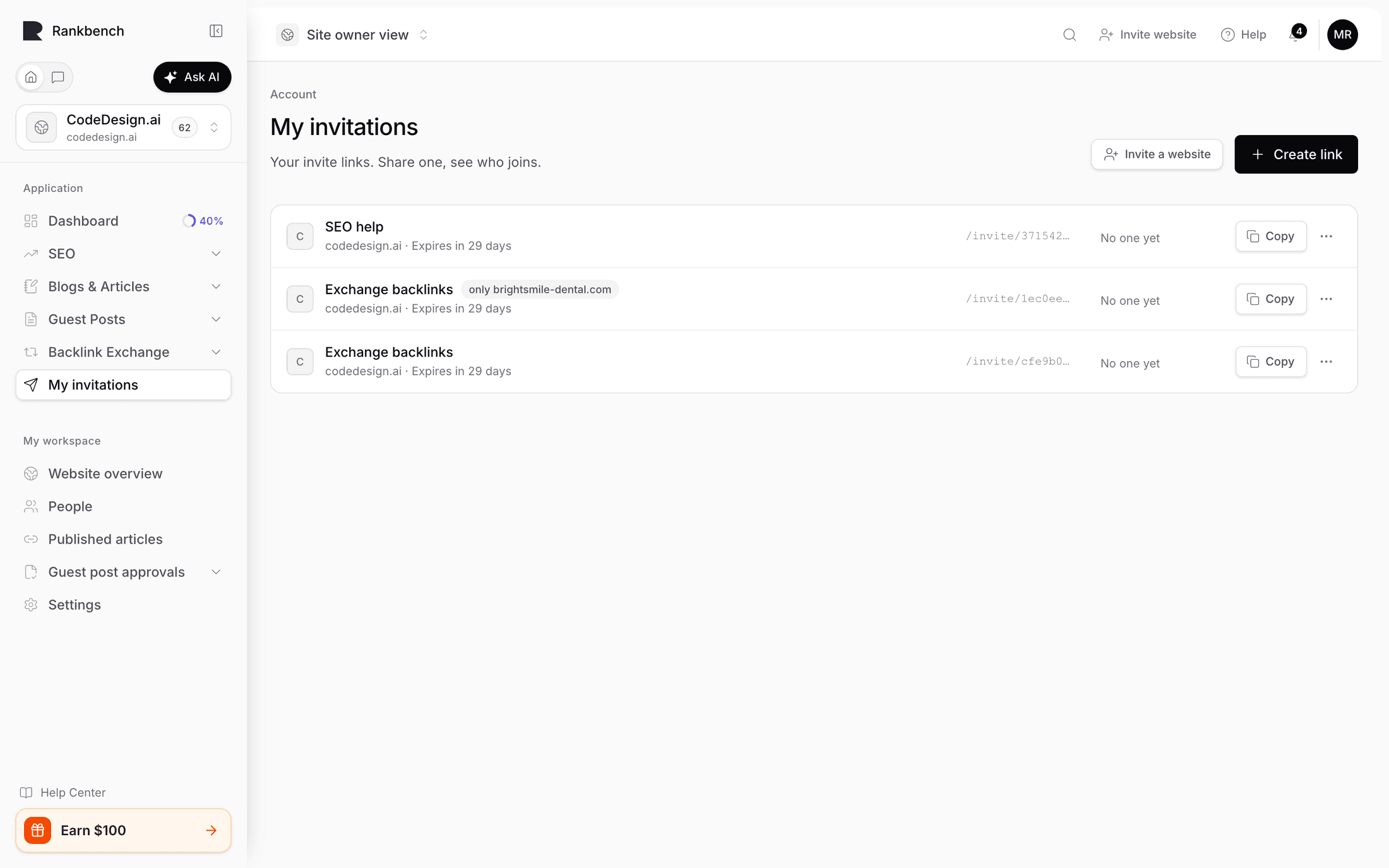
My invitations, in the sidebar, is described as "Your invite links. Share one, see who joins." Only you see it.
Each link shows what it is for, which of your sites it comes from and when it expires. A link anyone can use counts how many joined, and opening the count lists every site that came through it and how far each has got. A link for one website shows where that person has got to: Not joined yet, Setting up or Ready. If you asked to be their SEO consultant, a line under it says whether they have decided yet.
Copy copies a link again, and the menu beside it has Close link, which stops anyone new joining; people already on their way keep going. Closed and expired links fold away underneath.
Create link, at the top of the page, is the quick way to a link you share yourself: pick the site it comes from, whether it is for Exchange backlinks or Guest post, and optionally Only for one website. Leave that empty and anyone with the link can join; fill it in and one person can use it, with that website filled in. Each link works for 30 days. Invite a website, beside it, opens the full dialog above, for an invitation by email, a personal note or an SEO consultant request.
Before you have made any, the page says "No links yet" and offers Create link.
You are notified when the owner accepts, when the website is ready, and when SEO consultant access is approved.
What the recipient walks through
Their link opens a page that leads with your website: its logo, how it is verified, and its strength (authority, sites linking to it, monthly search visits). For a link partnership it then shows what you bring to an exchange: how many pages you share, a few of their titles, and your exchange rules in plain words, with Read all their rules for the full list. Your note appears too, if you wrote one. Nothing on the page commits them to anything.
From there they either sign in or create an account. Both screens, and the moment their sign-in finishes, say who invited them and why, so the invitation is never lost along the way. They land in the setup wizard with their domain already filled in: "Your inviter suggested this address. Correct any typo or change the domain before continuing." The rest of setup is the ordinary one, covered in adding your first website.
If you asked to be their SEO consultant, they meet an extra step. It names you, describes the request, and is explicit that it is optional and reversible: "Remove their access anytime from People." Declining does not stop the rest of setup.
They then verify ownership, and that is the gate on everything: agent access begins only after the site is verified.
A small card in the side of the wizard keeps your invitation in view on every step.
If the person you invited looks after several websites for clients, setup asks "One website, or several?" first. Choosing several sets them up in agency view: they add their client sites, set each one up, and send them to you together. You get one request for all of them and accept or decline each site, covered in sending requests from several sites.
The last step depends on why you invited them. For a backlink exchange, when your site is open to backlink exchanges, they land on an exchange request to your site, with your pages and rules in front of them; otherwise on their Partners page, with your eligible sites recommended first. For guest posts they land on their rules and submission link. For SEO they land on their site's audit.
If they close the tab part way through, they can come back to it. A banner tells them their invited website is waiting and their progress is saved.
What an invitation does not do
It does not create a partnership. It does not place a link. It does not give you access to their site. Every one of those still needs them to agree separately.
An invitation produces a shareable link and, optionally, an email. It never claims an email was sent when it was not.
Where to go next
Once they are on Rankbench, finding a site to exchange with is the next step for a backlink exchange, and opening your site to guest posts is the one for an editorial arrangement.
Still stuck?
Open Rankbench and the page this article describes — most screens explain themselves as you go.