Opening Rankbank0.0s
Getting startedCreating your Rankbank accountAdding your first websiteProving your site is yoursWriter view and Site owner viewHow Rankbank tells you thingsYour dashboardRankbank Pro and billing
Site audit & search growthThe SEO overview, explainedHow Rankbank reads your siteThe site health scoreThe Problems to fix pageEvery problem type, explainedYour fix listFindings: how to read a cardEverything Rankbank looks forThe map of your siteConnecting Google Search ConsoleThe growth planSuggested linksTopics and content ideasAuthority: how much weight your site carriesThe Search traffic pagePast reads and history
Guest postsGuest posting on RankbankSubmitting your first guest postImporting from Google DocsWriting in the Rankbank editorReview & send: the last step before the editorsWhen the editors ask for changesTracking your guest postsFor site owners: opening your site to guest postsFor site owners: writing your guidelinesFor site owners: reviewing a submissionFor site owners: publishing and the live checkThe Content Library
Link exchangeLink swaps on RankbankSetting up your site for swapsPages you shareFinding a site to swap withSending a swap requestReviewing a swap request you receivedAsking a partner for a linkAnswering a link requestWhen the page is published somewhere you can't editHow Rankbank keeps watchThe partner ledger
Content calendarThe content calendarSetting up your calendarWhere the keywords come fromReading the calendarSteering an article before it's writtenReviewing and editing a draftConnecting where it publishesPublishing and what happens nextStyle & settings
TutorialsYour first site audit, from "read my site" to fixes you can ship this weekConnecting Search Console and turning its data into clicksWriting a guest post that gets accepted, the full pathRunning guest posts on your site without letting quality slipYour first link swap, start to finishKeeping your links alive, from wording changes to missing linksA month of content on autopilot, done properly
RankbankHelp center
Open Rankbank →
Getting startedCreating your Rankbank accountAdding your first websiteProving your site is yoursWriter view and Site owner viewHow Rankbank tells you thingsYour dashboardRankbank Pro and billing
Site audit & search growthThe SEO overview, explainedHow Rankbank reads your siteThe site health scoreThe Problems to fix pageEvery problem type, explainedYour fix listFindings: how to read a cardEverything Rankbank looks forThe map of your siteConnecting Google Search ConsoleThe growth planSuggested linksTopics and content ideasAuthority: how much weight your site carriesThe Search traffic pagePast reads and history
Guest postsGuest posting on RankbankSubmitting your first guest postImporting from Google DocsWriting in the Rankbank editorReview & send: the last step before the editorsWhen the editors ask for changesTracking your guest postsFor site owners: opening your site to guest postsFor site owners: writing your guidelinesFor site owners: reviewing a submissionFor site owners: publishing and the live checkThe Content Library
Link exchangeLink swaps on RankbankSetting up your site for swapsPages you shareFinding a site to swap withSending a swap requestReviewing a swap request you receivedAsking a partner for a linkAnswering a link requestWhen the page is published somewhere you can't editHow Rankbank keeps watchThe partner ledger
Content calendarThe content calendarSetting up your calendarWhere the keywords come fromReading the calendarSteering an article before it's writtenReviewing and editing a draftConnecting where it publishesPublishing and what happens nextStyle & settings
TutorialsYour first site audit, from "read my site" to fixes you can ship this weekConnecting Search Console and turning its data into clicksWriting a guest post that gets accepted, the full pathRunning guest posts on your site without letting quality slipYour first link swap, start to finishKeeping your links alive, from wording changes to missing linksA month of content on autopilot, done properly
  1. Help center
  2. /
  3. Content calendar
  4. /
  5. Publishing and what happens next

Publishing and what happens next

Updated August 24, 2026


Publishing happens from the entry page, in the Publish panel to the right of the editor. It is a deliberate act: you choose the destination, choose the status, and press the button.

Sending an article

The panel is headed Publish and, once you have at least one connection, described as "Choose where this goes."

Send it to lists your connections by name. A connection that has been paused shows "(paused)" after its name so you do not pick it by accident.

As decides the status the post arrives with. The first option uses whatever that connection's default is, and names it, so the option reads something like "Use the default (draft)". The other two are Draft, described as "review it in your CMS first", and Publish immediately.

Then press the button. It reads Publish normally, and Save and publish if you have unsaved edits, because sending a stale version silently would be the worst possible behaviour. While it runs it says "Sending…".

When it succeeds you get a line back in green. If the CMS returned a URL, that line contains it: "Published. It is live at https://example.com/blog/…". If it did not, the message names the connection and the status it went out as instead.

Tip

If you have not connected a CMS yet, the panel says so and links straight to Where it publishes. Set the connection up first; the draft waits for you. See Connecting where it publishes.

The statuses an entry passes through

An entry moves through a small set of states, and the calendar cell's button label reflects each one.

Planned. The day exists, the keyword is assigned, nothing has been written. On a future day the cell button is disabled and reads Opens 12 Sept; on a day that has arrived, it reads Write it now.

Generating. The writer is running. The button reads Writing… and is disabled.

Drafted. An article exists and is waiting for you. The button reads Review & publish.

Publishing. The article is on its way to your CMS.

Published. It went out. If Rankbank has the URL your CMS returned, the button turns green and reads View published post, linking to the live page in a new tab.

Failed. Something went wrong. The cell shows the error message in red underneath, and the button returns to Write it now so you can retry. On the entry page a failed generation attempt is reported above the write button as "Last attempt failed", followed by the reason.

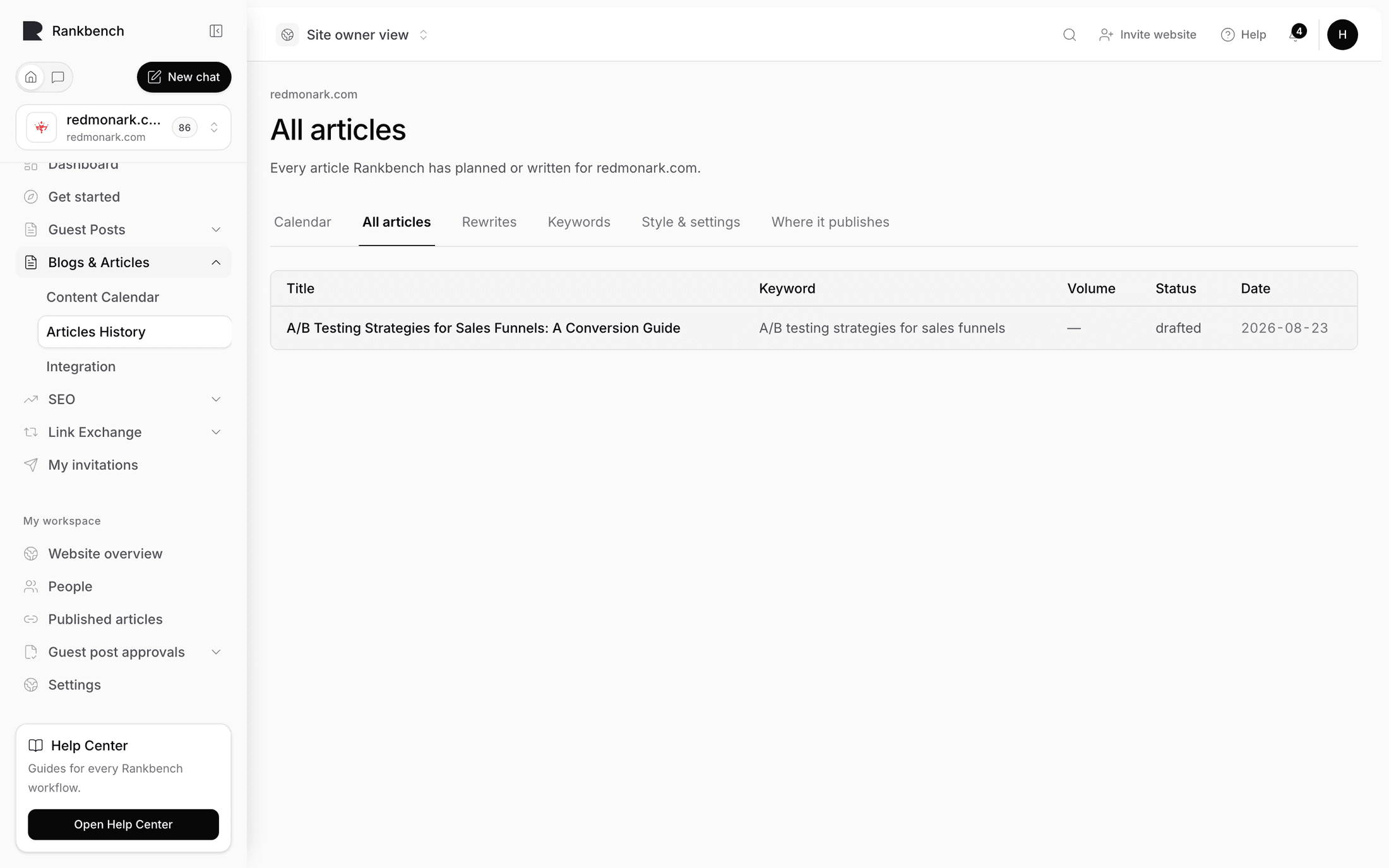
Every one of these also appears as a plain word in the Status column of the All articles tab, which is the easiest way to scan a few months at once.

The publishing history

Every attempt is recorded, successful or not, and they are listed under Publishing history at the bottom of the entry page.

Each row carries a status badge (green for succeeded, red for failed, amber for anything in between), the status the post was created as when the CMS reported one, and a View post link when there is a URL. A failed attempt shows the error message the platform returned in red.

Those error messages are the platform's own words, deliberately. "Publishing failed" with no reason is useless to whoever has to fix the credential; "401: Invalid application password" is something you can act on in thirty seconds. If a CMS does not answer at all, the message says the CMS did not respond within the timeout.

An entry page showing its publishing history with a failed attempt and the error message the platform returned, in red
The publishing history keeps every attempt, so a post that failed twice before working still shows what went wrong.

When publishing fails

Work through it in this order.

Open Where it publishes and press Test on the connection. That runs a credential check and reports what the platform says. Most failures are credentials: a rotated token, a revoked application password, a URL that changed.

Check the error message in the publishing history. A 401 or 403 is permissions. A 404 usually means an ID is wrong, such as a Shopify blog ID or a Webflow collection ID. A 400 is normally the platform rejecting a field, and the message will name it.

Fix the connection, then press Publish again on the same entry. Nothing about the draft needs to change, and the failed attempt stays on record.

What to check on your site afterwards

Open the live post. Five things are worth a look the first few times, and less often once you trust the connection.

The formatting. Your theme decides how headings, lists and tables render. If something looks wrong, it is almost always the theme rather than the article, and it will be wrong the same way every time, which makes it easy to fix once.

The internal links. Articles are written with real URLs from your own site, taken from the last reading. If a link points at a page that has since moved, that is a redirect you want to fix rather than a broken article.

The meta description. Some CMS platforms need an SEO plugin to accept one. If yours drops it, set it in the CMS.

The status. If you meant to publish a draft and the post is live, check the connection's Post articles as default.

The featured image, if you are expecting one.

And afterwards

Published articles keep their entry, their evidence and their history. They appear in the All articles table with a status of published, and their keyword moves to a published state in the pool so it is not planned twice.

The real measure comes later. A month or so after publishing, the article should start appearing in Search Console for the query it was planned around. The Search traffic page shows pages that gained and lost, which is where you find out whether the piece met the searches it was aimed at.

Where to go next

  • Connecting where it publishes covers connections and testing them.
  • Reading the calendar explains the cell states listed above.
  • A month of content on autopilot, done properly runs the whole cycle once, end to end.
← Connecting where it publishesStyle & settings →

Still stuck?

Open Rankbank and the page this article describes — most screens explain themselves as you go.

On this page

Sending an articleThe statuses an entry passes throughThe publishing historyWhen publishing failsWhat to check on your site afterwardsAnd afterwardsWhere to go next
Rankbank — Editorial collaborationOpen RankbankHelp home