
How Rankbench tells you things
Updated · First published
Almost everything here involves somebody else: an editor reading your article, a partner deciding whether to place your link, a site owner answering an exchange request. Notifications are how you find out that the other side moved. They arrive in two places, and you control each one separately.
The bell
Top right of every page. When you have unread notifications a small badge sits on it with the count, capped at nine and a plus. No unread ones, no badge.
Clicking it opens the notifications page rather than a dropdown, so there is only ever one list to keep track of.
The notifications page
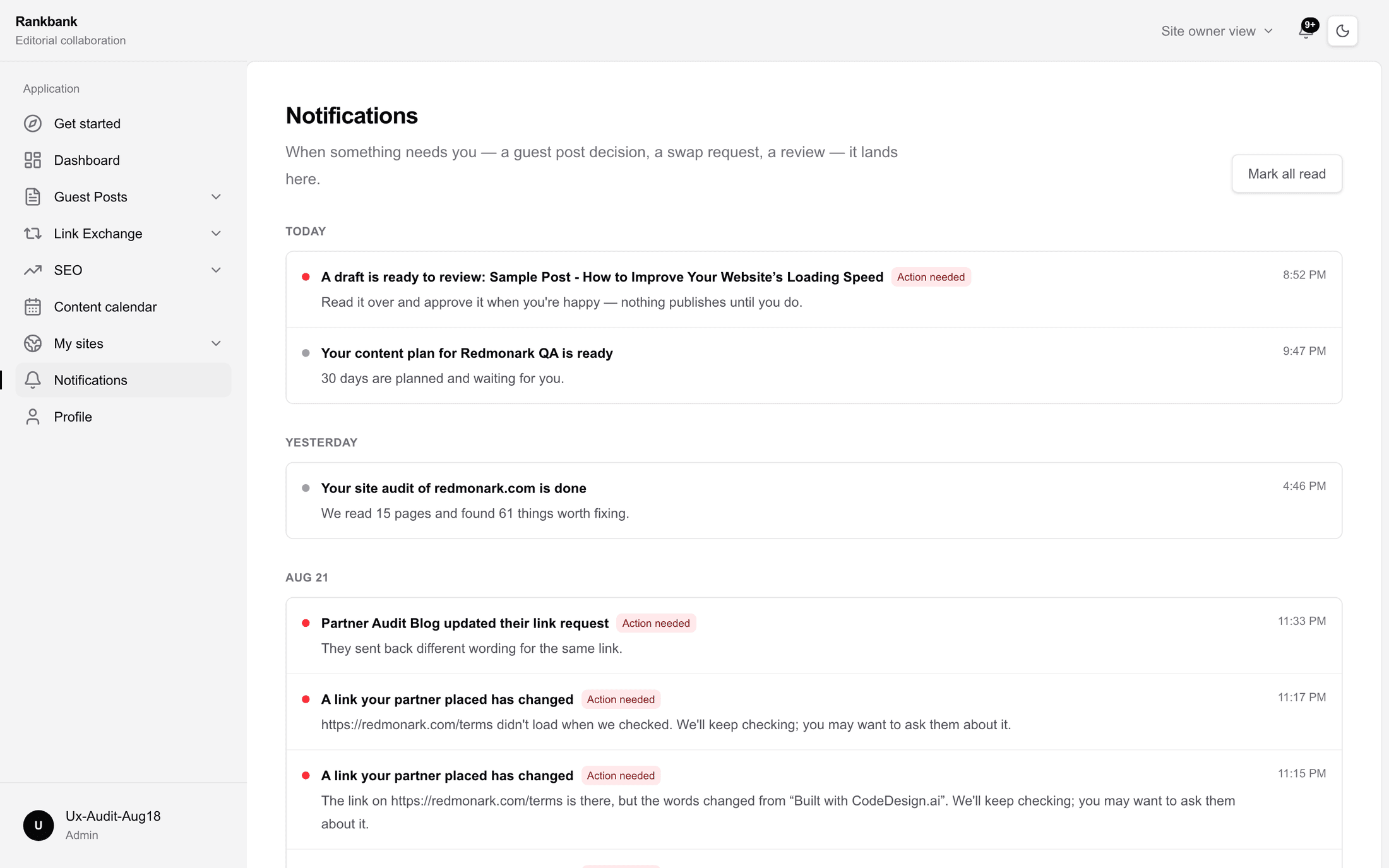
Headed Notifications, with the line "When something needs you — a guest post decision, an exchange request, a review — it lands here."
Rows are grouped by day, newest first, with today's group headed Today and yesterday's Yesterday. Within a group, unread rows come first, and inside that the most urgent come first. Read rows stay in place, dimmed, so a busy day still reads as a timeline rather than a queue that keeps emptying itself.
The three tiers
Every notification carries one of three severities, and they set the order.
Action needed means nothing moves until you do something. These get a red dot and a chip saying so.
Important means worth knowing straight away, but nobody is waiting on you. Blue dot, no chip.
FYI is a fact for the record. Grey dot, no chip.
Only the blocking tier is labelled. Putting a chip on every row is how labels stop meaning anything.
Clicking a row
The whole row is a button, and it does two things at once: marks that notification read, and opens whatever it is about. An approved article opens that article. An exchange request opens the request.
Nothing is marked read without being opened, so the count stays honest about what you have actually seen.
Mark all read sits in the header when you have unread items. Use it after a week away, when the backlog is history rather than a list of things to do. The page shows your fifty most recent, with Show older notifications underneath if there are more.
When there is nothing, the page says you are all caught up and describes what would land there.
Notifications can also arrive by email, and the two channels are set separately. Notification preferences, reachable from the notifications page and from your profile, is laid out like your other settings: groups of rows, a switch on each, and one save for the page. "What appears in your bell, and which updates arrive by email."
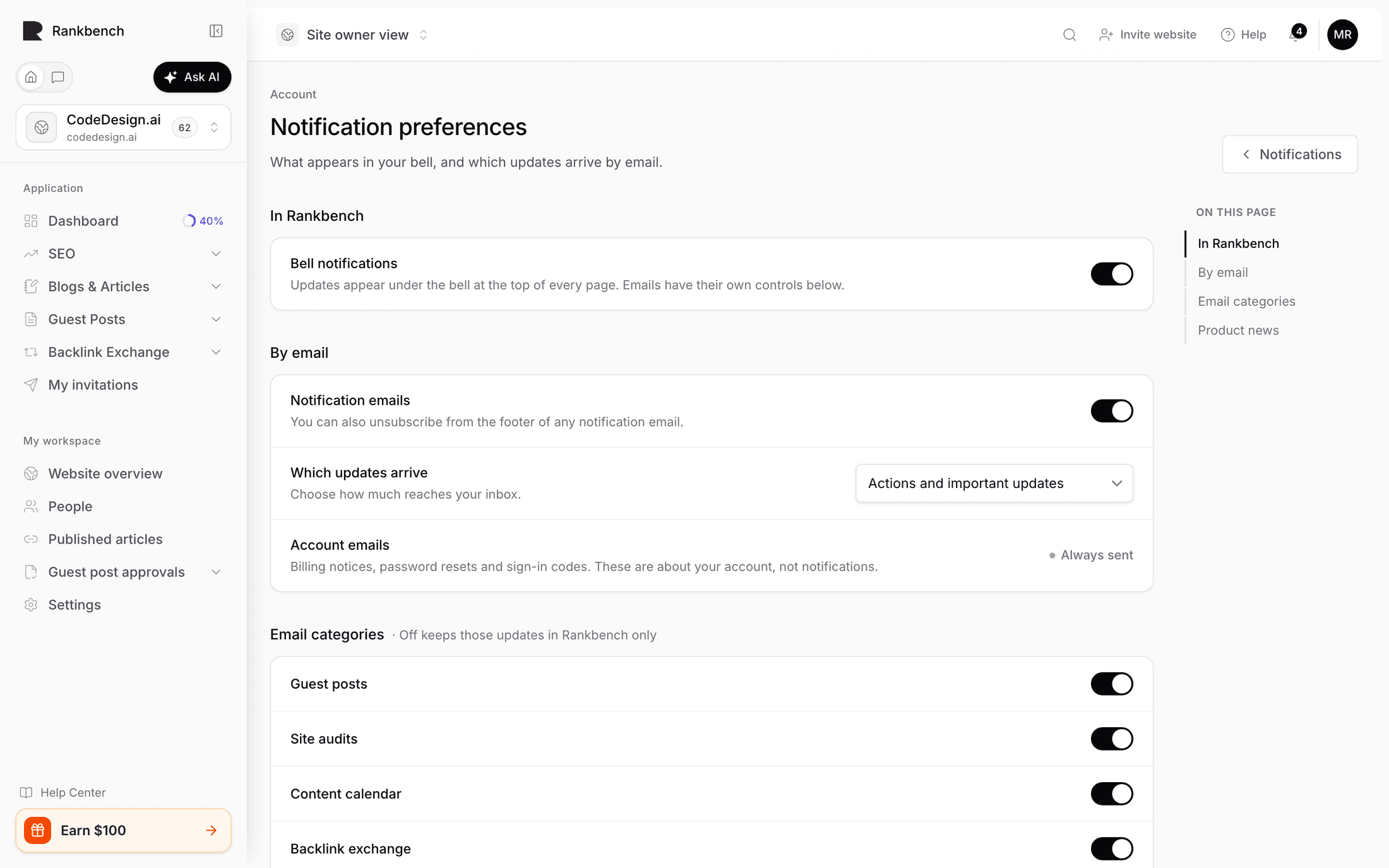
In Rankbench holds one row, Bell notifications: "Updates appear under the bell at the top of every page. Emails have their own controls below."
By email holds Notification emails. Turn it on and Which updates arrive appears, offering Only updates that need my action, Actions and important updates, or All updates in my selected categories. Every notification email carries an unsubscribe link in its footer, and the page says so.
The same group ends with Account emails, marked Always sent: "Billing notices, password resets and sign-in codes. These are about your account, not notifications." Turning notification email off does not stop a password reset from reaching you.
Email categories lets you turn individual families off; off keeps those updates in Rankbench only. The categories are guest posts, site audits, content calendar, backlink exchange, automatic exchanges, invitations, workspace access, getting started and your blog.
Product news is separate again: occasional emails about what's new, which you can switch off here or from the footer of any of them. It saves the moment you switch it, without waiting for the bar below.
Change anything and a bar appears at the bottom saying how many changes are waiting, with Discard and Save changes. Leaving the page with changes waiting asks first.
What generates one
A tour by module, with the label each event carries.
Guest posts. For a writer: someone started reviewing your article, your article was approved, your article needs changes, your article was declined, a new comment on an article, your article went live, the live link checked out, and the live link failed its check. For a site owner: a guest post is waiting for review, revisions were sent, an article was assigned to you, a reviewer made a decision, and an assigned review is due.
Backlink exchange. Someone wants to exchange backlinks, then your exchange request was approved or declined. Once you are partners: a partner asked you for a link, your link request was accepted, a partner suggested different wording, a partner passed on that link, your link went live, and a placed link changed or disappeared. Partnerships also report being paused, resumed or ended.
Site audits. Your site audit finished, and your site audit hit a problem when one stopped early. A site that loses its verification says so. Only the person who started an audit is told about it.
Content calendar. Your content plan is ready, a scheduled article needs your approval, a calendar draft could not be generated, a calendar article was published, a draft was sent to your CMS, an article could not be published, and your publishing connection needs attention. A day being rescheduled or removed is recorded too.
Automatic backlinks. A link was verified, restored, failed, or disappeared; the exchange was paused or enabled; and credits are running low.
Invitations and workspace access. You were invited to a workspace or to set up a website, an invitation was accepted, an invited website is ready, SEO consultant access was approved, you were added to a workspace, your role changed, or your access changed.
Who gets told
Two rules cover almost everything.
The other side is notified, never the person who acted. You do not get a notification for sending your own request; the site receiving it does.
Work you started tells you when it is done. Audits, calendar builds and generated drafts notify whoever kicked them off. Routine background work that succeeded quietly tells nobody.
Where a notification is meant for a site rather than a person, it goes to the admins of the workspace that owns it.
Where to go next
The place notifications most often land is your dashboard, which shows the same open work as counted panels. To change your own preferences, see your profile and account.
Still stuck?
Open Rankbench and the page this article describes — most screens explain themselves as you go.