Opening Rankbank0.0s
Getting startedCreating your Rankbank accountAdding your first websiteProving your site is yoursWriter view and Site owner viewHow Rankbank tells you thingsYour dashboardRankbank Pro and billing
Site audit & search growthThe SEO overview, explainedHow Rankbank reads your siteThe site health scoreThe Problems to fix pageEvery problem type, explainedYour fix listFindings: how to read a cardEverything Rankbank looks forThe map of your siteConnecting Google Search ConsoleThe growth planSuggested linksTopics and content ideasAuthority: how much weight your site carriesThe Search traffic pagePast reads and history
Guest postsGuest posting on RankbankSubmitting your first guest postImporting from Google DocsWriting in the Rankbank editorReview & send: the last step before the editorsWhen the editors ask for changesTracking your guest postsFor site owners: opening your site to guest postsFor site owners: writing your guidelinesFor site owners: reviewing a submissionFor site owners: publishing and the live checkThe Content Library
Link exchangeLink swaps on RankbankSetting up your site for swapsPages you shareFinding a site to swap withSending a swap requestReviewing a swap request you receivedAsking a partner for a linkAnswering a link requestWhen the page is published somewhere you can't editHow Rankbank keeps watchThe partner ledger
Content calendarThe content calendarSetting up your calendarWhere the keywords come fromReading the calendarSteering an article before it's writtenReviewing and editing a draftConnecting where it publishesPublishing and what happens nextStyle & settings
TutorialsYour first site audit, from "read my site" to fixes you can ship this weekConnecting Search Console and turning its data into clicksWriting a guest post that gets accepted, the full pathRunning guest posts on your site without letting quality slipYour first link swap, start to finishKeeping your links alive, from wording changes to missing linksA month of content on autopilot, done properly
RankbankHelp center
Open Rankbank →
Getting startedCreating your Rankbank accountAdding your first websiteProving your site is yoursWriter view and Site owner viewHow Rankbank tells you thingsYour dashboardRankbank Pro and billing
Site audit & search growthThe SEO overview, explainedHow Rankbank reads your siteThe site health scoreThe Problems to fix pageEvery problem type, explainedYour fix listFindings: how to read a cardEverything Rankbank looks forThe map of your siteConnecting Google Search ConsoleThe growth planSuggested linksTopics and content ideasAuthority: how much weight your site carriesThe Search traffic pagePast reads and history
Guest postsGuest posting on RankbankSubmitting your first guest postImporting from Google DocsWriting in the Rankbank editorReview & send: the last step before the editorsWhen the editors ask for changesTracking your guest postsFor site owners: opening your site to guest postsFor site owners: writing your guidelinesFor site owners: reviewing a submissionFor site owners: publishing and the live checkThe Content Library
Link exchangeLink swaps on RankbankSetting up your site for swapsPages you shareFinding a site to swap withSending a swap requestReviewing a swap request you receivedAsking a partner for a linkAnswering a link requestWhen the page is published somewhere you can't editHow Rankbank keeps watchThe partner ledger
Content calendarThe content calendarSetting up your calendarWhere the keywords come fromReading the calendarSteering an article before it's writtenReviewing and editing a draftConnecting where it publishesPublishing and what happens nextStyle & settings
TutorialsYour first site audit, from "read my site" to fixes you can ship this weekConnecting Search Console and turning its data into clicksWriting a guest post that gets accepted, the full pathRunning guest posts on your site without letting quality slipYour first link swap, start to finishKeeping your links alive, from wording changes to missing linksA month of content on autopilot, done properly
  1. Help center
  2. /
  3. Guest posts
  4. /
  5. Review & send: the last step before the editors

Review & send: the last step before the editors

Updated August 24, 2026


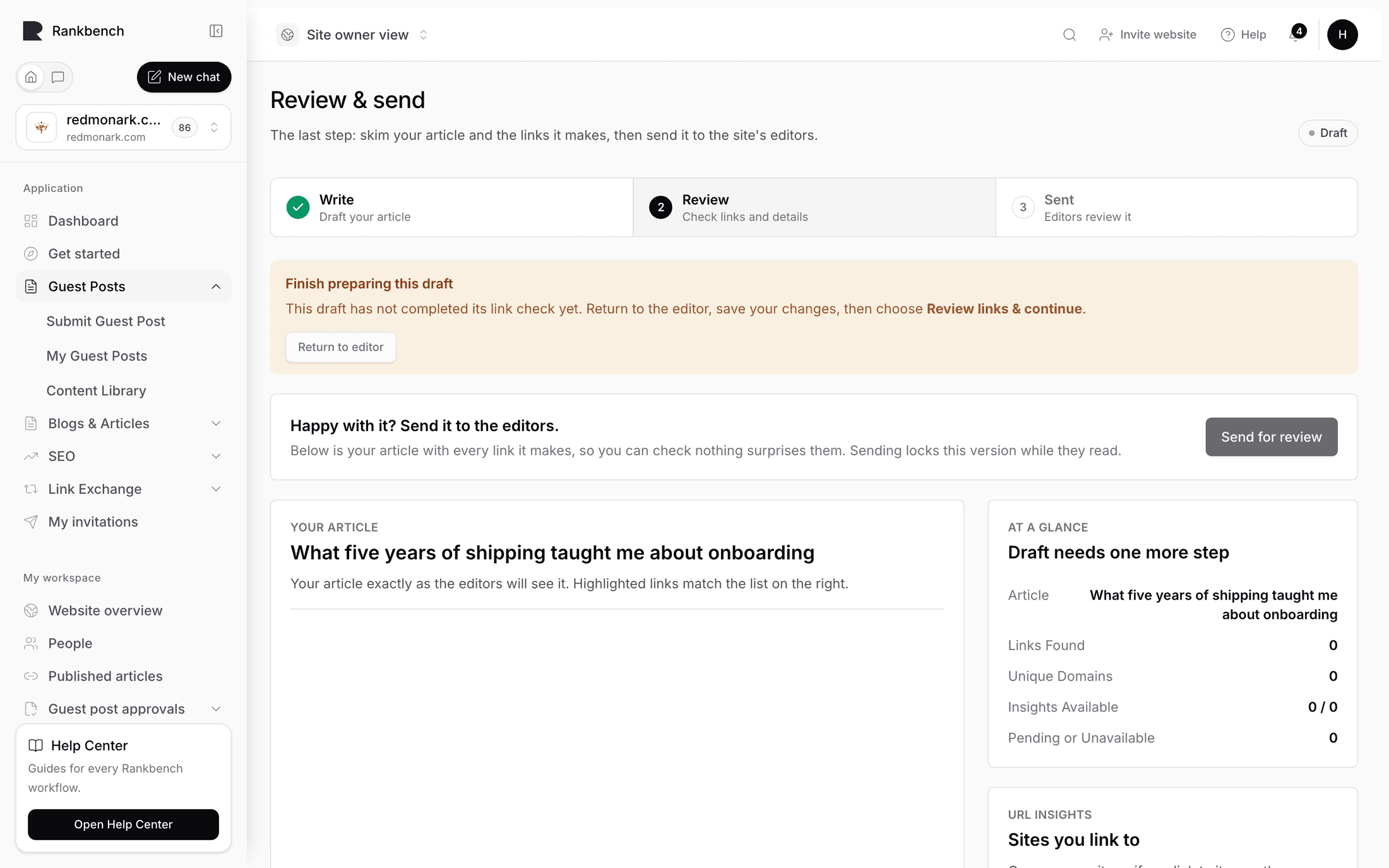
Review & send is the screen between your draft and somebody else's inbox. Its subtitle sets the task: "The last step: skim your article and the links it makes, then send it to the site's editors."

Two things sit side by side here. On the left, your article rendered exactly as the reviewer will see it. On the right, a summary and a table of every site you link out to. They are connected, and using that connection is the whole point of the screen.

The decision bar

Across the top, before either column, is the thing you came here to do.

Before you send, it reads "Happy with it? Send it to the editors." with the explanation underneath: "Below is your article with every link it makes, so you can check nothing surprises them. Sending locks this version while they read." The button says Send for review.

After you send, the same bar reads "Sent — the editors have it now" with "You'll hear back on My Guest Posts. If they want changes, editing reopens.", and the button reads Sent and does nothing.

Your article, with the links pulled out

The left column is headed Your article and explains itself: "Your article exactly as the editors will see it. Highlighted links match the list on the right."

Every outbound link in the preview is stripped of its destination and turned into a chip you can click. The colour tells you whether Rankbank has public data about that site yet: green means insights are available, amber means they are still pending or were not found. Hovering a chip shows the domain, how many times you link to it, and its status.

Clicking a chip jumps the right-hand column to that site's row. That is the fastest way to answer the question this screen exists for: what does this link actually point at, and did I mean to put it there?

Read the preview once, slowly, looking only at the chips. Guest posts get rejected for a stray link far more often than for a weak paragraph.

The Review and send screen with the rendered article on the left, its outbound links shown as coloured chips, and the At a glance summary and Sites you link to table on the right.
Clicking any chip in the article scrolls the right-hand column to that site's row.

At a glance

The right column opens with a status line, either Ready to send or Sent to the editors, and five rows:

  • Article Imported shows the title as submitted.
  • Links Found is the total number of links in the article.
  • Unique Domains is how many distinct sites those links reach.
  • Insights Available is a fraction: how many of those domains Rankbank found public data for.
  • Pending or Unavailable is the rest.

The fraction is information, not a checklist. A 2 of 5 does not mean you have three things left to do.

Sites you link to

Below the summary sits the table, headed Sites you link to under the label URL Insights, with the sentence that governs the whole screen:

One row per site — if you link to it more than once, the count shows how often. The numbers are context, not a gate: missing data never blocks your submission.

Take that literally. Nothing in this table can stop you sending.

Each row carries:

  • Domain, the site's root domain.
  • Occurrences, how many links in your article reach it.
  • Authority Score. Rankbank's tooltip is precise about what this is: "Provider-supplied authority score on a 0-10 scale. It is not calculated from Global Rank or Referring Domains." It comes from an outside data provider, not from Rankbank.
  • Global Rank, described as "Relative worldwide authority position. Lower is stronger." Rank 400 is a bigger site than rank 400,000.
  • Referring Domains, "Estimated number of meaningful domains linking to this website." Referring domains means how many separate sites link to it, which is a better measure of standing than raw link count, since one site linking a thousand times is still one site.
  • Data Updated, "Date of the underlying public-link dataset." Public link data is always a little stale. That is normal.
  • Status, one of five: Fetching in amber while the lookup runs, Available in green, Partial in blue when only some figures came back, No public data in grey when there is nothing to find, and Temporarily unavailable in red when the provider could not be reached.

Each row has a Show extracted URLs disclosure listing the exact addresses you linked to from that site. Open it when a domain surprises you and you want to know which paragraph did it.

Note

There is no step anywhere in this flow where you type a domain authority, a domain rating, a spam score or a country. Rankbank fetches what it can and shows it to you. If a row says No public data, that is the end of it, and you send anyway.

What the numbers are actually for

They exist so you can catch the link you would not have defended. A site with no public footprint at all in the middle of an article for a careful publisher is worth a second look, not because Rankbank objects but because the reviewer might.

Editors see the same snapshot you do, frozen at the moment you submitted. Reading it before they do means nothing on it is news to you.

Sending

Press Send for review and a confirmation appears, titled Send it to the editors?:

"{your title}" links out to {n} sites. Once sent, this version is locked while they read it — if they want changes, you'll get their notes and editing reopens.

The buttons are Send it and Not yet.

The confirmation dialog titled "Send it to the editors?" naming the article and the number of sites it links to, with Send it and Not yet buttons.
The dialog names the article and counts the sites, so a mis-click on the wrong draft is obvious before you confirm.

What "locked" means

Locked means read-only, not gone.

The version you sent is frozen as an immutable record. The editors review that exact package: your text, your links, and the data snapshot above. Opening the editor while they read shows the article with a Read-only notice: "This version is locked while the editors read it. You'll be able to edit again if they ask for changes."

Editing reopens when the editors request changes. It does not reopen because you thought of a better opening line. If you spot a real problem after sending, say so as a reply on the article page rather than hoping to slip an edit in.

Approval also leaves the article locked, and that is on purpose. After approval the version that matters is the one the site is about to publish and the one the live check will compare against.

After you send

Rankbank notifies the destination site's admins that a guest post is waiting for them, and you can follow the article from My Guest Posts. See Tracking your guest posts for every status you might meet, and notifications for where Rankbank tells you things. Everything arrives on the bell inside the app. There is no email.

← Writing in the Rankbank editorWhen the editors ask for changes →

Still stuck?

Open Rankbank and the page this article describes — most screens explain themselves as you go.

On this page

The decision barYour article, with the links pulled outAt a glanceSites you link toWhat the numbers are actually forSendingWhat "locked" meansAfter you send
Rankbank — Editorial collaborationOpen RankbankHelp home