Importing from Google Docs
Updated August 24, 2026
Most guest posts are written in Google Docs before Rankbank ever sees them, so importing one is the shorter of the two ways to start. You paste a share link, Rankbank fetches the document, and you land in the editor with your article already in it.
The one requirement
The document has to be readable by anyone holding the link. Rankbank fetches it as an anonymous visitor, with no Google account and no permission to ask for access. A doc shared with named people, or with your company's domain, simply is not visible to it.
In Google Docs:
- Open the document and press Share in the top right.
- Under General access, change Restricted to Anyone with the link.
- Leave the role as Viewer. Rankbank never writes to your document, so Editor access buys you nothing.
- Press Copy link, then Done.
Tip
Viewer is enough, and it is the right choice. If a link like this ever leaks, a viewer can read your draft and nothing else.
Doing the import
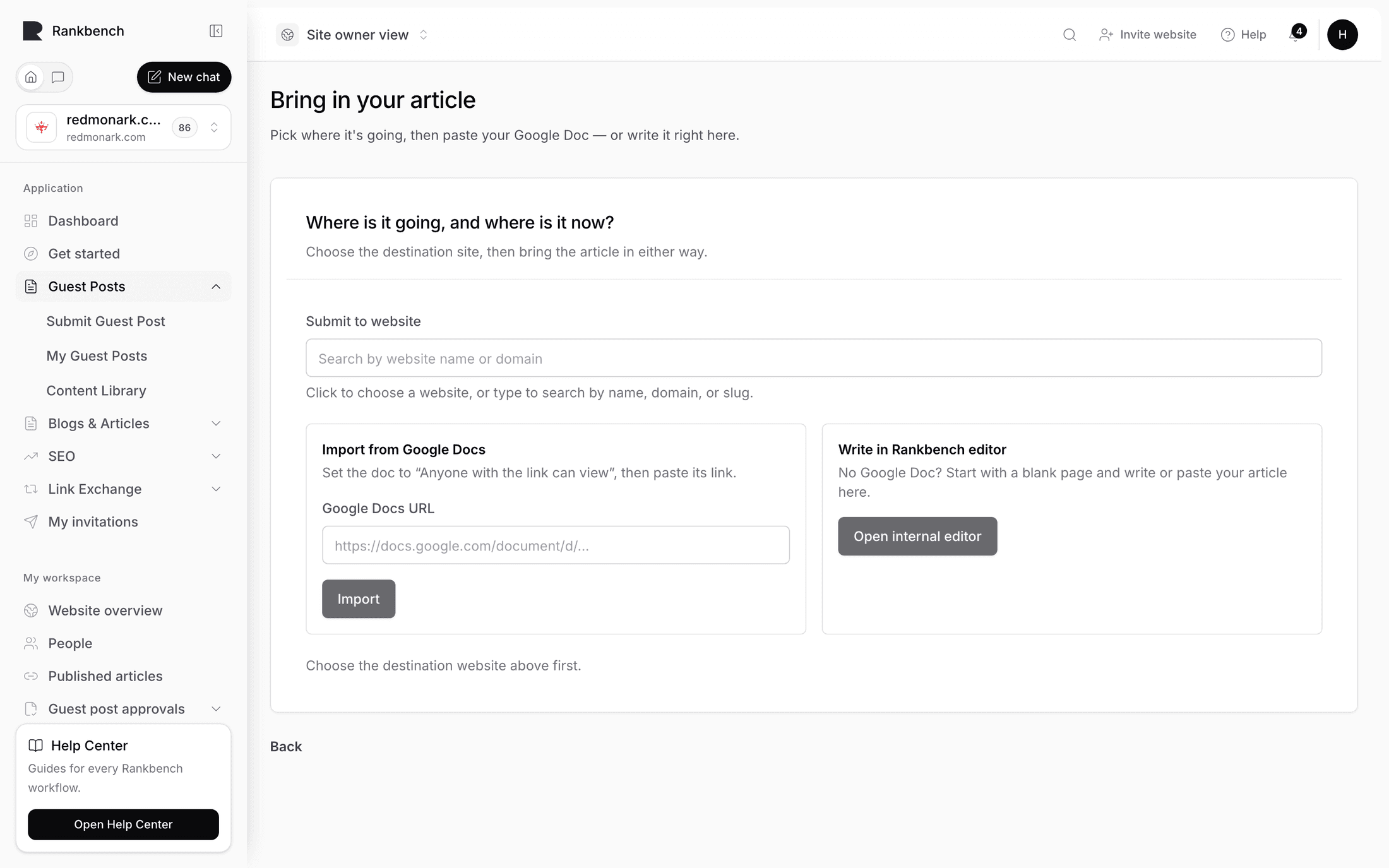
On the Submit a guest post screen, after you have chosen the destination site and ticked the agreement, the left panel of step 2 is Bring in a Google Doc. It repeats the requirement: "Paste the share link. The document must be set to 'Anyone with the link can view'."
Paste the URL into the Google Docs URL field. Rankbank accepts the ordinary document address, the one that starts https://docs.google.com/document/d/. Press Import document.

A few seconds later you are in the editor with your article loaded, and Rankbank has already pulled out every link it contains.
What the import keeps
Structure, mostly. Rankbank is looking for an article, not a design.
- Headings come through as headings. The editor only has two levels, Heading and Subheading, so a document with deeper nesting gets flattened: your Heading 4 becomes a Heading, your Heading 5 and Heading 6 both become Subheadings. Nothing is lost, but a six-level outline arrives as a two-level one.
- The title is read from the document and put in the title field. Google Docs usually repeats that title as the first heading of the body, so Rankbank checks: if the first heading says exactly the same thing as the title, it is removed from the body. You get the title once, not twice.
- Links survive with their wording intact, and are extracted into the list you will review before sending.
- Images come across as images. Their captions come from the document where it has them.
- Lists, quotes, bold and italic all come through.
What does not come through is styling. Fonts, colours, custom spacing, page breaks and comments are all dropped. Google Docs comments in particular are not imported and are not visible to anyone at the destination site.
Note
There is no file upload anywhere in this flow, and none in the editor either. Images live at a public HTTPS address or they arrive inside an imported document.
When the import does not work
A failed import sends you to a retry screen headed Bring in your article, with the subtitle "Pick where it's going, then paste your Google Doc — or write it right here." The error sits at the top in a banner titled "That import didn't work", followed by the specific reason and then the same advice every time: "Check the URL and make sure the doc is shared as 'Anyone with the link can view', then try again."
The reasons Rankbank gives are specific, so read the first sentence rather than skipping to the advice:
- "This Google Doc is not public. Update sharing to public and try again." The sharing setting is wrong. This is the common one.
- "Enter a valid Google Docs URL." The address is not a URL Rankbank can parse.
- "Only public Google Docs documents are supported." The link points at something that is not a Google Doc, a Sheet or a Slide deck for instance.
- "The Google Docs URL does not contain a valid document ID." Usually a truncated or hand-edited link. Copy it again from the Share dialog.
- "The Google Doc did not contain importable article content." The document is empty, or everything in it lives somewhere Rankbank cannot read, such as inside an image.
- "Google Docs did not respond in time. Try again." and "Google Docs is unavailable right now. Try again shortly." Neither is your fault. Wait a minute.

The retry screen carries your destination site and the URL you tried, so fixing the sharing setting in Google and pressing Import document again is the whole recovery.
Re-importing later
The link between the article and its document does not go away after the first import.
On the article's own page you get a Re-import from Google Docs action next to Edit article and Review & send →. It appears only for articles that came from a document. It takes you back to the import screen with that document's address already filled in.
What it will not do is give you two copies of the same article. If you already have a draft from that document, importing it again returns you to the draft you already have rather than making a second one. That is a safety net against double submissions, not a way to pull fresh edits across: to move changes you made in Google Docs into a draft you have already imported, paste them into the Rankbank editor, or make the changes there in the first place.
The document connection does matter once review starts. When editors ask for changes, a Google Doc article is resubmitted by fixing the same document and pressing Resubmit my updated doc. That button does fetch the document again and files what it finds as a new version of the article. You do not paste a new link, and you do not start a new article. See When the editors ask for changes for both resubmission paths.
Warning
Keep the sharing setting as it is until the post is live. Resubmission fetches the document again, so a doc that has been locked back down mid-review cannot be resubmitted.
Still stuck?
Open Rankbank and the page this article describes — most screens explain themselves as you go.