
Your website and its settings
Updated · First published
Each website you add has two pages, both in the sidebar under My workspace. Website overview shows how the site is set up and what Rankbench runs for it. Settings holds its details and its switches. Both are headed with your domain.
A workspace holds one site, so Website overview opens straight on it. Add another site, in the switcher under the logo, gives the new site a workspace of its own. Workspaces, the switcher and your view covers what that means day to day.
Website overview
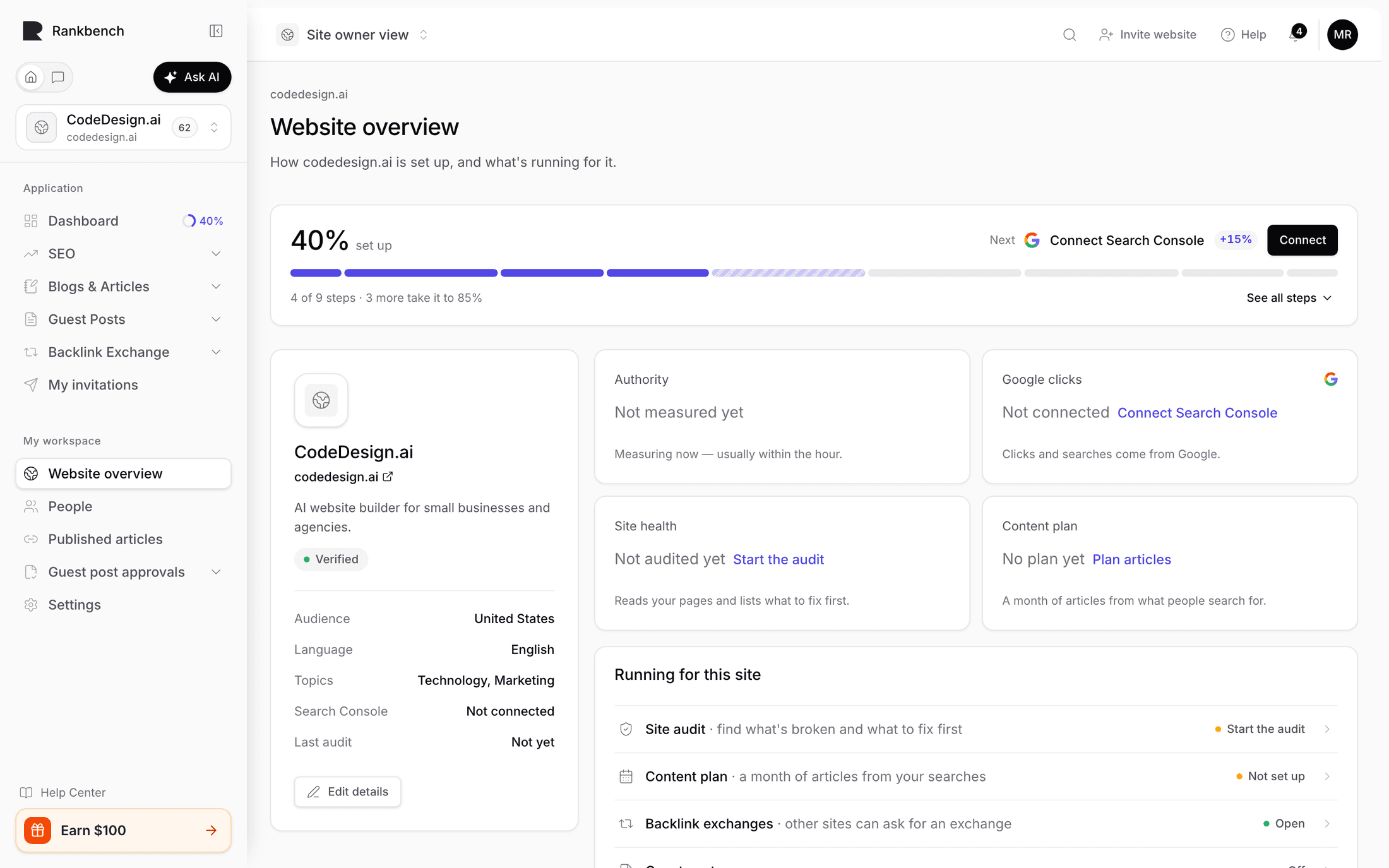
The page is described as "How redmonark.com is set up, and what's running for it." <!-- example -->
How far setup has got
At the top, a card shows how set up the site is as a percentage, the step to do next, and a button for it. The bar underneath has one segment per step, each as wide as the step is worth. See all steps lists all nine:
- Add your site, 5%
- Verify you own it, 15%
- Connect Search Console, 15%
- Run the first audit, 15%
- Plan a month of articles, 15%
- Add audience and topics, 10%
- Publish on a blog, 10%
- Open to backlink exchanges, 10%
- Accept guest posts, 5%
Adding the site counts from the start, so nobody sees 0%. The same percentage sits beside Dashboard in the sidebar. At 100% the card and the badge both go.
The site and its numbers
On the left, a card with the site's icon, name and address, whether it is Verified or Not verified, and its Audience, Language, Topics, Search Console connection and Last audit. Edit details opens Settings.
On the right, four tiles. Authority is out of 100, with how many sites link to yours and a spam score underneath. Google clicks covers the last 28 days, from Search Console. Site health is the audit's score. Content plan counts the planned articles already published. A tile with nothing to show says why, and offers the step that fills it, such as Connect Search Console or Start the audit. Authority explains what moves the first one.
Running for this site
Running for this site lists what Rankbench does for the site, one row each, with where it stands: Site audit, Content plan, Blog when the site has one or could, Backlink exchanges, Guest posts, Automatic backlinks and Search Console. Each row opens the place that runs it.
Before the site is verified, the audit, the plan and backlink exchanges read After verification.
Settings
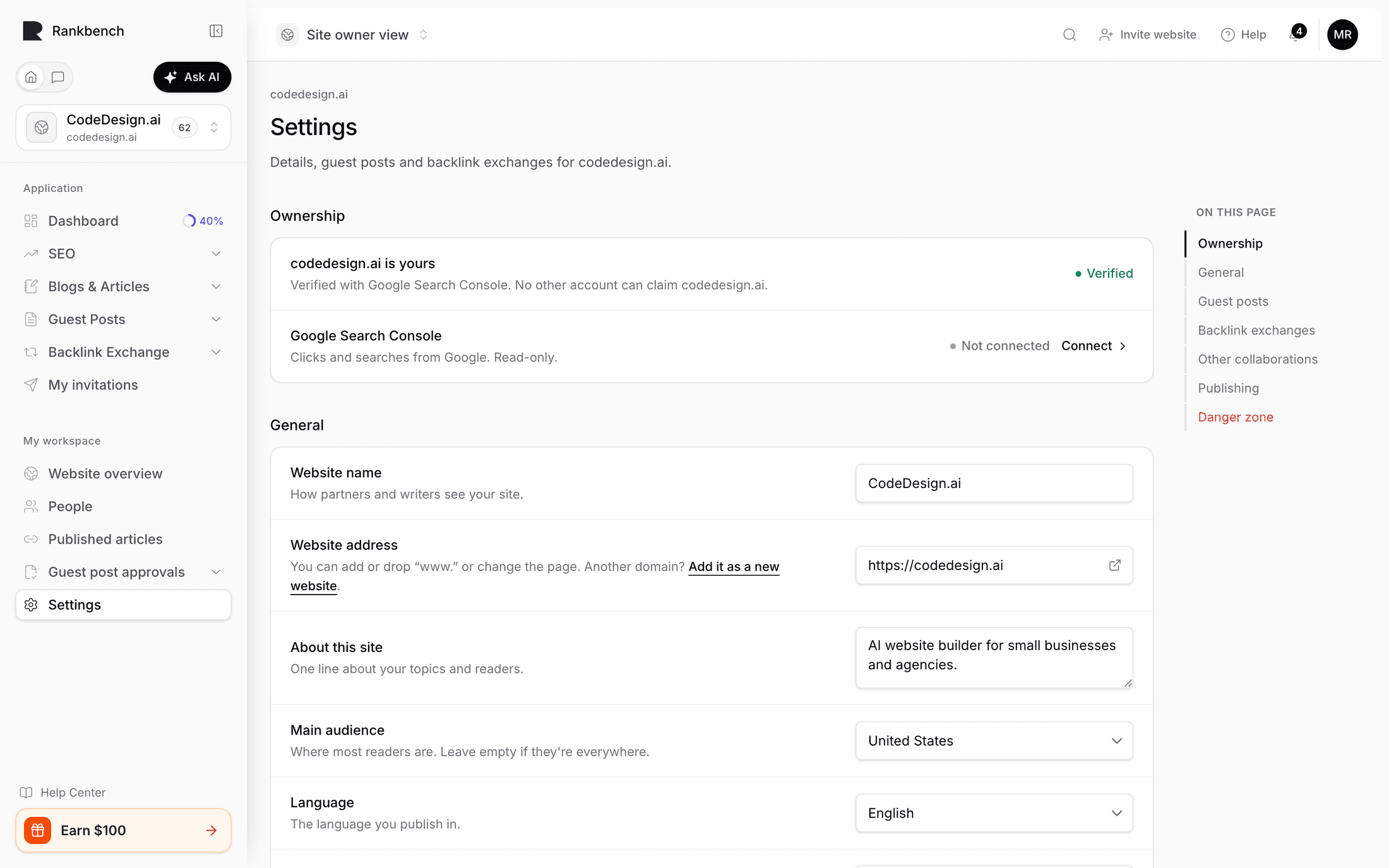
Described as "Details, guest posts and backlink exchanges for redmonark.com." <!-- example --> The page is one column of sections, with a list beside it to jump between them.
The details and switches in General, Guest posts, Backlink exchanges and Other collaborations share one save. Change anything and a bar appears at the bottom saying how many changes are unsaved, with Discard and Save changes. Leaving the page before you save asks first.
Ownership
Whether the site is verified, with the section noting that it "unlocks the audit, the content plan and backlink exchanges". Until then the row has a Verify button, which opens the verify dialog. Once it is done, the row names the proof that settled it and says no other account can claim the domain. See proving your site is yours.
Google Search Console shows whether it is connected, with Connect or Manage.
General
Website name, Website address, About this site, Main audience, Language and Topics: how partners and writers see your site.
The address can change in two ways only: adding or dropping "www.", or pointing at a different page. Another domain is another website, and the row links to Add it as a new website.
Guest posts
Accept guest posts: "You approve every article before it's published."
Taking submissions pauses new articles without turning guest posts off.
Public link for writers is your submission address, with Copy, and Edit to change the link name. The line under it says whether writers can use it yet, such as "Writers can find and use it." or "Submissions are paused."
Rules for writers shows a few of your rules and the version that is live. Edit, or Set rules if you have none yet, opens them in a panel. See writing your guest post rules.
Backlink exchanges
Accept backlink exchanges: "Other sites ask for a backlink exchange. You approve every exchange." Turning it on waits for verification. Turning it off never does.
Who can find you is Listed or Hidden. Hidden keeps the site out of the exchange directory, and nobody can send it a new request, though you can still ask others. It waits until the site is verified and has rules for partners. While guest post submissions are paused, the site stays out of the directory too.
Rules for partners shows a few of your exchange rules and their version, and opens them in a panel. Pages you share counts the pages partners can ask for a link on, with Manage or Add pages. See setting up your site for exchanges.
Other collaborations
Paid collaborations: "Agree terms for sponsored placements."
Automatic backlinks shows On or Off, with Manage or Set up. It needs Pro.
All of these are per site, not per account, so a workspace whose site takes guest posts but not exchanges is normal.
Publishing
Content plan and Where articles publish, each with where it stands and a link to its own settings.
Use in ChatGPT & Claude
For the people who can connect an AI tool: which AI tools read this site, and what they may do. See use your own AI.
Danger zone
Archive this website stops Rankbench working on it: no audits, no articles written or published, no guest posts, and the blog goes offline. Nothing is deleted, and Restore brings it back.
Delete this website is the permanent one. The site disappears from Rankbench and from everywhere it appears publicly, open requests and exchanges are closed, and you type the domain to confirm. If it is the only website in the workspace, the workspace goes with it, and the card says so before you press anything.
If you are an SEO consultant
An SEO consultant invited to help with a site sees its Settings, not its overview. They can change most of it, but not the website name or address ("Only the site's owner can change it."), paid collaborations, the public link's name, or anything in the Danger zone. Rules for partners and who can find the site are theirs to change only when the owner lets them answer exchange requests.
See people and roles for what each role may do.
Where to go next
There is no separate workspace settings page any more; workspace settings says where each of its old fields went. To bring somebody in to help, read people and roles.
Still stuck?
Open Rankbench and the page this article describes — most screens explain themselves as you go.