
The assistant
Updated · First published
There is a panel on the right of every page that answers questions about Rankbench and, when you ask it to, does things for you. It reads the help centre you are reading now, and nothing else.
Opening it
Ask AI at the top of the sidebar opens the panel on the right of the page. The speech-bubble control beside it switches the sidebar to your saved conversations.
You can also ask from search. Press ⌘K (Ctrl+K on Windows), or click the search field on the dashboard, and type your question. Choose Ask AI under the results, or press Enter when no page matches, and the panel opens with your question already asked.
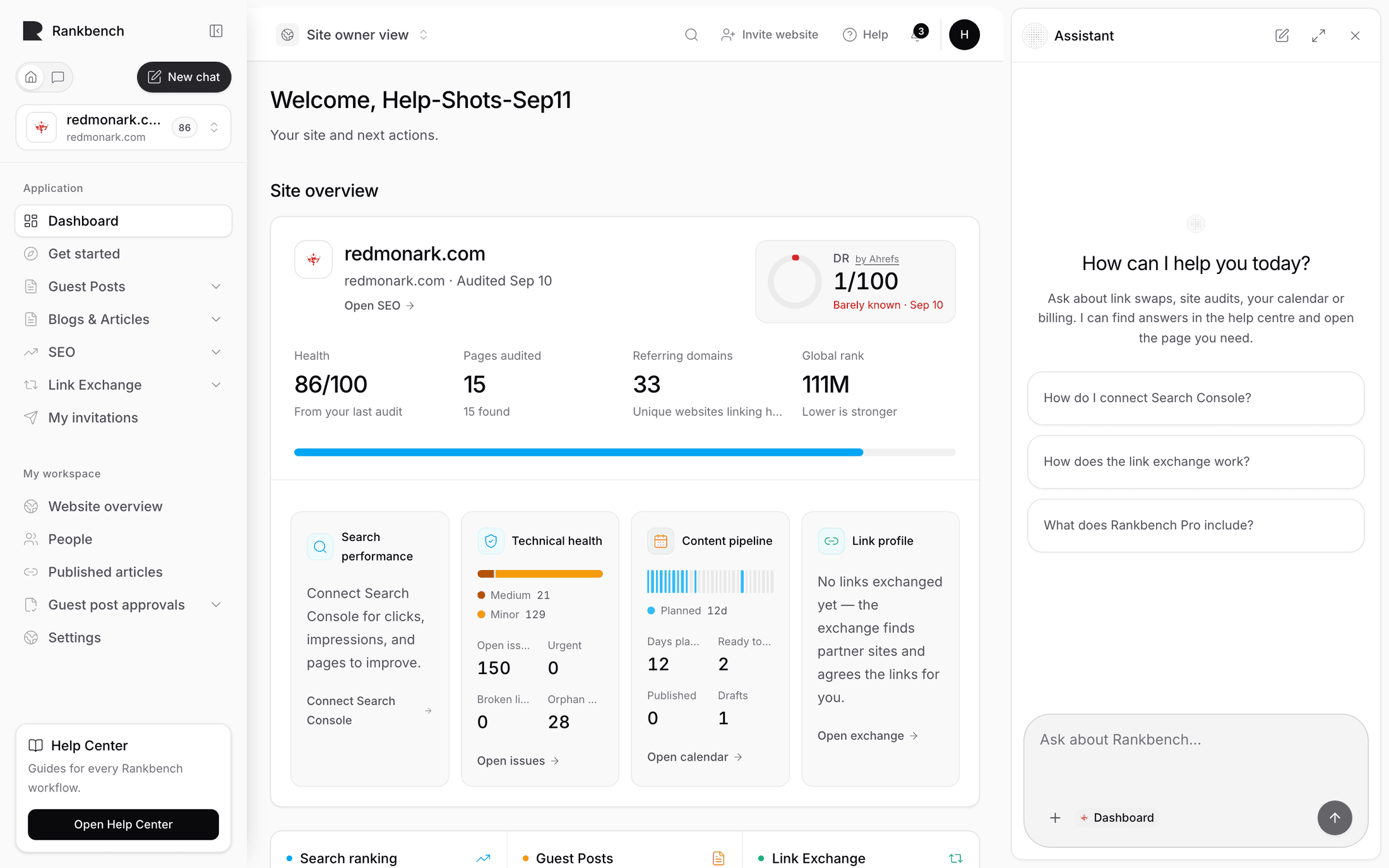
Empty, the panel greets you with How can I help you today?, the welcome message your workspace admin wrote, and up to six one-click starters they chose. Those starters are worth setting to the questions your team actually asks.
There is also a set of built-in quick prompts behind their own control, which work on any page:
Explain this page, described as "Understand this screen and the actions available here."
Show my next step: "Find the most useful action to take from this page."
Summarize the workflow: "Turn the current workflow into a short practical summary."
Underneath the composer it names its own sources: "Help centre + permitted workspace data", and "The current page and your permitted Rankbench data are available as context."
How it answers
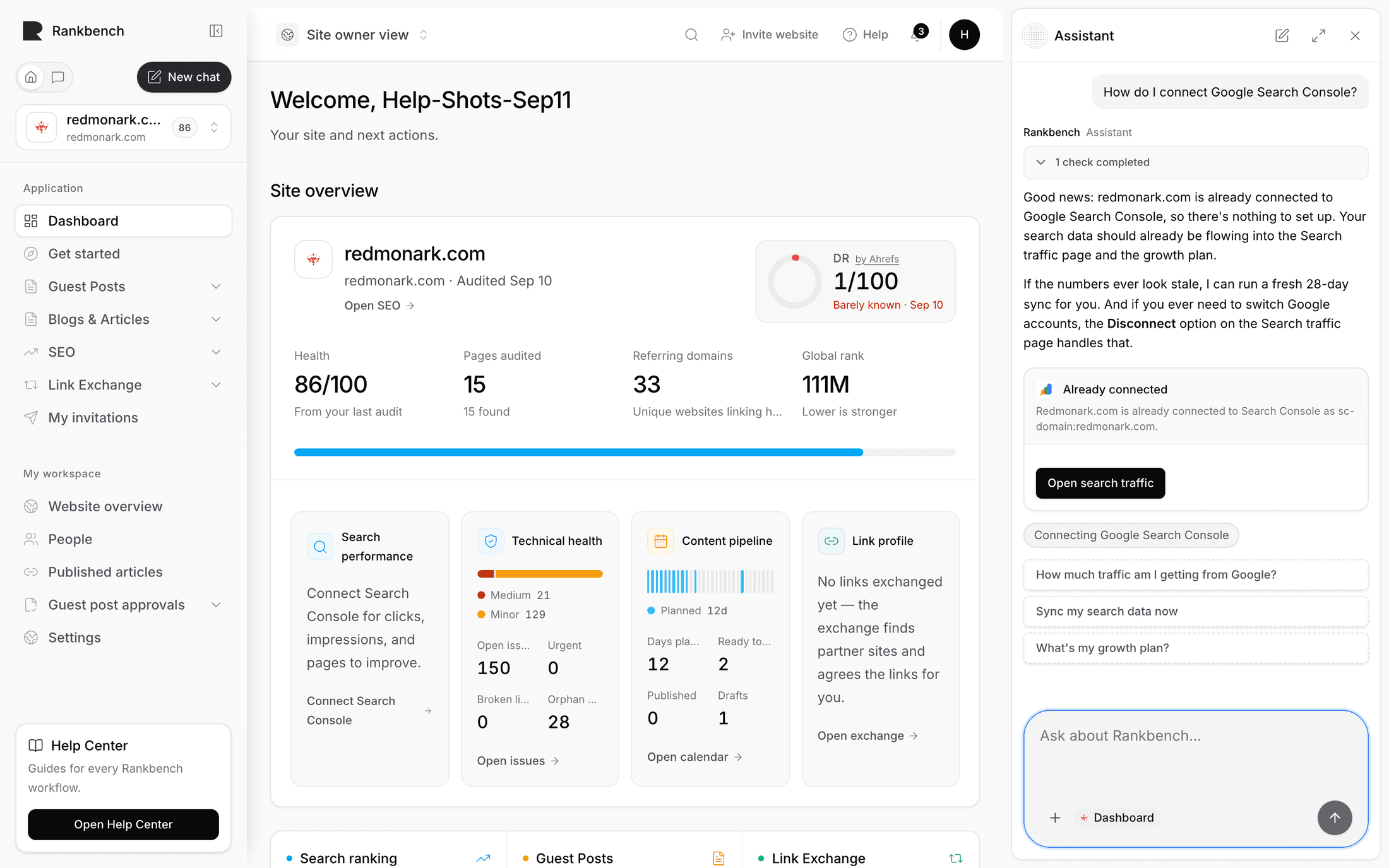
Every answer is grounded in help centre articles. When it uses one it cites it, and the citations are links you can open to read the whole thing yourself.
When the help centre does not cover something, it says so rather than guessing. That is a deliberate limit: it will not describe a button, a setting or a behaviour that is not documented.
It may also offer a single navigate button when your goal clearly lives on another page. One button, only when it genuinely helps, and only to a real destination.
Up to three follow-up questions appear underneath, chosen as things you would plausibly ask next.
What it can do
Beyond answering, the assistant can act. Roughly, it can:
- Run a site audit, and read your audit's overview and issues
- Read your growth summary and its plan, connect Search Console, and start a sync
- Search for exchange opportunities, compose a request, decide one, mark a link live, share a page, and read your partners and ledger
- Read your calendar's status and entries, generate an article, publish one, and test a CMS connection
- Read and join Automatic backlinks, pause or resume it, and read placements
- Quote Pro pricing, cover or uncover a site, change slots, cancel and resume
- List and switch workspaces, and add a website
Two rules bound all of it. It only ever does what your own account is allowed to do, so it is not a way around a permission. And anything that writes asks you to confirm first, in the chat, with a second press: "Select again to confirm. This can't be undone."
If you leave a confirmation too long it lapses and says so rather than acting late.
History
Conversations are saved. Show chat history in the sidebar lists them, and opening one brings the whole thing back. Starting a new chat leaves the old one in the list.
What it will not do
It cannot see your website's live pages beyond what Rankbench has already read during an audit, so a question about a page you published this morning is one for the next audit.
It does not send email or messages on your behalf.
It answers from the help centre, so a feature nobody has documented is a feature it will tell you it cannot find.
For admins
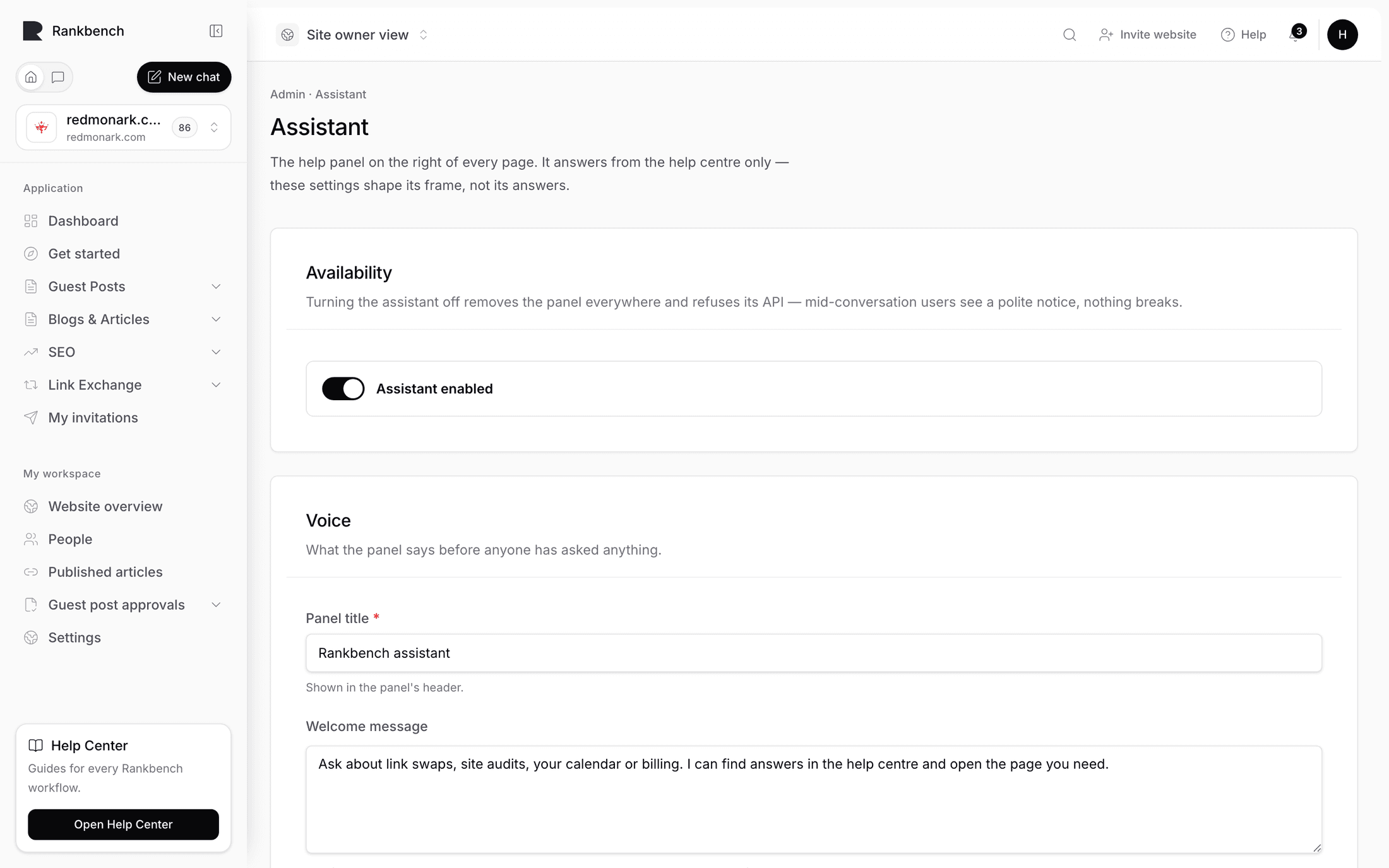
Admins change it on the Assistant page, described as "The help panel on the right of every page. It answers from the help centre only — these settings shape its frame, not its answers." No menu leads there: open /admin/settings/assistant, or ask the assistant to take you to its settings.
Availability holds one switch. Turning the assistant off removes the panel everywhere and refuses its API, and the page is clear about what members see: "mid-conversation users see a polite notice, nothing breaks."
Voice sets what the panel says before anyone has asked anything: a Panel title, a Welcome message ("The first thing a member reads. Say what it can do and where its answers come from."), and Suggested questions, one per line up to six. The advice on the page is worth taking: "real questions members actually ask work best."
Disabled tools is a kill switch. Tool names, one per line. A listed tool is never offered to the assistant, and its pending confirmations stop executing. Leave it empty for everything on.
Changes reach every member on their next page load.
Where to go next
The assistant is at its best when you are mid-task and unsure. If you would rather read, the help centre landing page lists everything by category.
Still stuck?
Open Rankbench and the page this article describes — most screens explain themselves as you go.