Opening Rankbank0.0s
Getting startedCreating your Rankbank accountAdding your first websiteProving your site is yoursWriter view and Site owner viewHow Rankbank tells you thingsYour dashboardRankbank Pro and billing
Site audit & search growthThe SEO overview, explainedHow Rankbank reads your siteThe site health scoreThe Problems to fix pageEvery problem type, explainedYour fix listFindings: how to read a cardEverything Rankbank looks forThe map of your siteConnecting Google Search ConsoleThe growth planSuggested linksTopics and content ideasAuthority: how much weight your site carriesThe Search traffic pagePast reads and history
Guest postsGuest posting on RankbankSubmitting your first guest postImporting from Google DocsWriting in the Rankbank editorReview & send: the last step before the editorsWhen the editors ask for changesTracking your guest postsFor site owners: opening your site to guest postsFor site owners: writing your guidelinesFor site owners: reviewing a submissionFor site owners: publishing and the live checkThe Content Library
Link exchangeLink swaps on RankbankSetting up your site for swapsPages you shareFinding a site to swap withSending a swap requestReviewing a swap request you receivedAsking a partner for a linkAnswering a link requestWhen the page is published somewhere you can't editHow Rankbank keeps watchThe partner ledger
Content calendarThe content calendarSetting up your calendarWhere the keywords come fromReading the calendarSteering an article before it's writtenReviewing and editing a draftConnecting where it publishesPublishing and what happens nextStyle & settings
TutorialsYour first site audit, from "read my site" to fixes you can ship this weekConnecting Search Console and turning its data into clicksWriting a guest post that gets accepted, the full pathRunning guest posts on your site without letting quality slipYour first link swap, start to finishKeeping your links alive, from wording changes to missing linksA month of content on autopilot, done properly
RankbankHelp center
Open Rankbank →
Getting startedCreating your Rankbank accountAdding your first websiteProving your site is yoursWriter view and Site owner viewHow Rankbank tells you thingsYour dashboardRankbank Pro and billing
Site audit & search growthThe SEO overview, explainedHow Rankbank reads your siteThe site health scoreThe Problems to fix pageEvery problem type, explainedYour fix listFindings: how to read a cardEverything Rankbank looks forThe map of your siteConnecting Google Search ConsoleThe growth planSuggested linksTopics and content ideasAuthority: how much weight your site carriesThe Search traffic pagePast reads and history
Guest postsGuest posting on RankbankSubmitting your first guest postImporting from Google DocsWriting in the Rankbank editorReview & send: the last step before the editorsWhen the editors ask for changesTracking your guest postsFor site owners: opening your site to guest postsFor site owners: writing your guidelinesFor site owners: reviewing a submissionFor site owners: publishing and the live checkThe Content Library
Link exchangeLink swaps on RankbankSetting up your site for swapsPages you shareFinding a site to swap withSending a swap requestReviewing a swap request you receivedAsking a partner for a linkAnswering a link requestWhen the page is published somewhere you can't editHow Rankbank keeps watchThe partner ledger
Content calendarThe content calendarSetting up your calendarWhere the keywords come fromReading the calendarSteering an article before it's writtenReviewing and editing a draftConnecting where it publishesPublishing and what happens nextStyle & settings
TutorialsYour first site audit, from "read my site" to fixes you can ship this weekConnecting Search Console and turning its data into clicksWriting a guest post that gets accepted, the full pathRunning guest posts on your site without letting quality slipYour first link swap, start to finishKeeping your links alive, from wording changes to missing linksA month of content on autopilot, done properly
  1. Help center
  2. /
  3. Site audit & search growth
  4. /
  5. Connecting Google Search Console

Connecting Google Search Console

Updated August 24, 2026


Google Search Console is a free Google product that reports which searches showed your site, where you ranked, and how many people clicked. Connecting it hands Rankbank that data.

The growth plan explains why in one line: "Google shares which searches show your site, and where. That's the raw material for every suggestion here."

It's optional, and everything else works without it

The connection card says so up front: "Optional — everything else keeps working without it. Connecting just makes suggestions smarter."

That's true rather than polite. Without Search Console, Rankbank still reads your site, still finds every structural problem, still scores health, still draws the map, still suggests internal links, and still measures your authority. Roughly half the finding catalog runs on the read alone.

What you don't get is prices. 27 of the 58 findings need search data to fire, and they include almost everything that carries a clicks-per-month figure. Without it, Rankbank can tell you what's wrong. With it, Rankbank can tell you what that's costing, which changes what you work on first.

The flow

You'll need to already have the site verified in Search Console under the Google account you're about to use. If you don't, do that in Search Console first.

  1. Open Search traffic from the growth strip, or press Connect Search Console from anywhere it's offered.
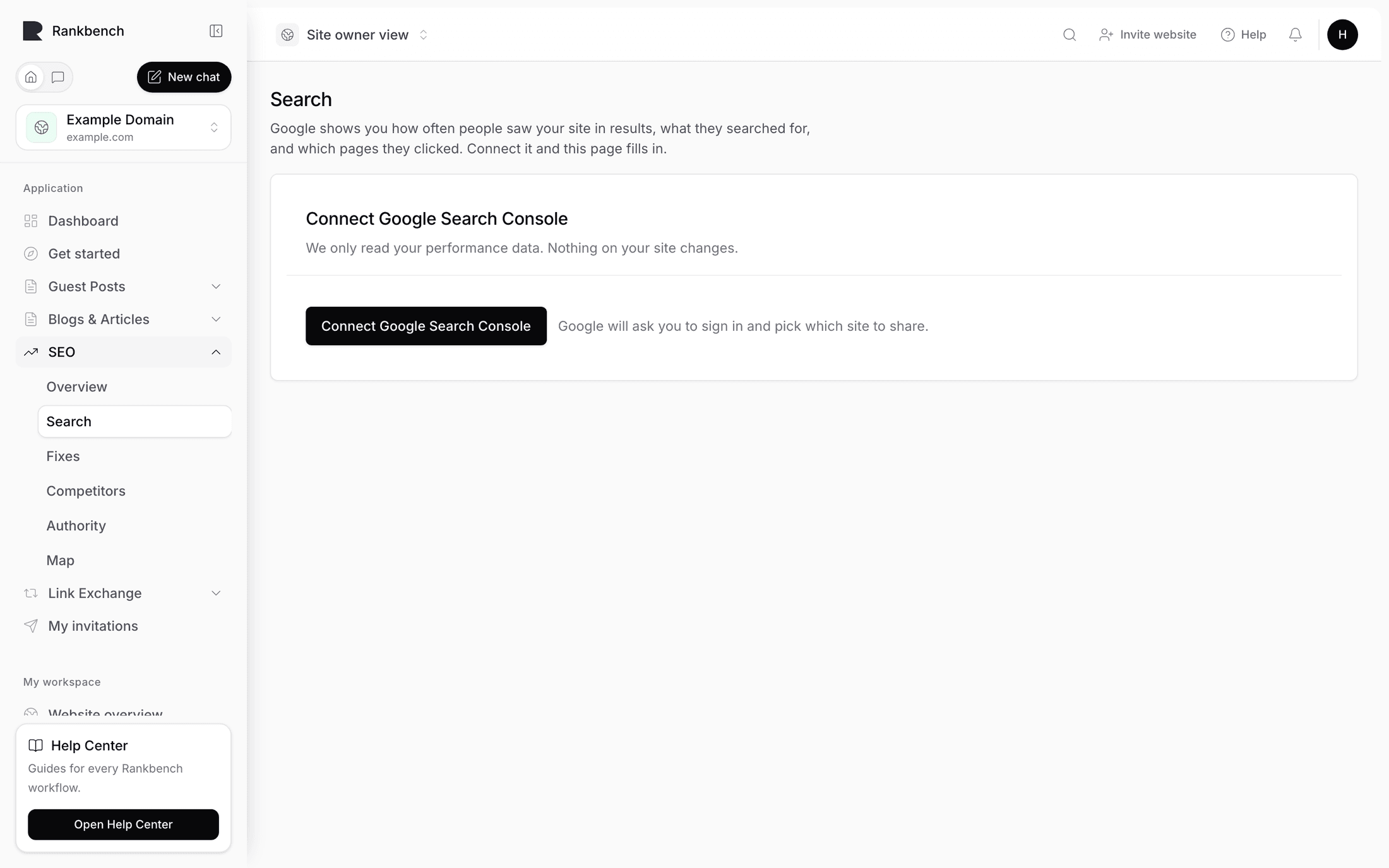
  2. Press Connect Google Search Console. The line beside it says what happens: "Google will ask you to sign in and pick which site to share."
  3. Sign in on Google's own screen and grant access.
  4. You come back to Rankbank with the banner Google Search Console connected: "Authorization succeeded. Select the compatible property below to start the first 28-day data sync."
  5. Pick your property. Saving it also runs the first sync immediately.
The Search traffic connection card before connecting, showing the Connect button and its explanation
Before connecting, the card is one button and one sentence.

If you reconnect a project that was already connected, the banner says "Authorization refreshed. Your selected property and stored performance data were preserved." Nothing is lost.

Domain properties and URL properties

Search Console lets you register a site two ways, and the difference matters here.

A Domain property covers everything on a domain: every subdomain, both http and https, with and without www. Rankbank shows these as domain properties.

A Website property covers exactly one address prefix, so https://www.example.com/ and https://example.com/ are two separate properties with separate data.

Domain properties are almost always the better choice, because they capture everything without you having to think about which variant people actually land on. If you have both registered, pick the domain property.

Only matching properties are offered

Rankbank only lists properties whose domain matches this project. Everything else is summarised in one line rather than shown as dead rows you can't pick:

4 other sites on your Google account belong to different domains, so they aren't shown here. Add them as their own projects to report on them.

That's the answer to "why isn't my other site in this list": one project reports on one domain, deliberately. Add each site as its own project.

If none of your Google properties match, you get None of your Google sites match this project with a fuller explanation:

Search Console has 6 sites on your account, but none of them are for this project's domain. Add the property in Search Console first, or connect this project to the site it actually belongs to.

Two causes cover nearly all of these. Either the site genuinely isn't in Search Console yet, in which case add and verify it there first. Or the project's address in Rankbank doesn't match what's in Search Console, usually a www mismatch, in which case fix the address in your site settings.

Pick one and press Use this one. Rankbank saves it, immediately syncs, and reports back: "Property saved and sync completed for 84 pages and 12 opportunities." Once a property is chosen the list folds away behind one line reading Reporting on {property} — change site, so it's still there when you need it and out of the way when you don't.

Ranges and syncing

Once connected you get a range switcher with three options: 7 days, 28 days, 3 months. The sync button changes to match: Sync 7 days, Sync 28 days, Sync 3 months.

The range does two things at once. It decides how much history a sync pulls, and it decides which window every number on the page is calculated over, including all the deltas.

28 days is the sensible default and the one everything else in the module assumes. The Google clicks, 28 days tile on your Overview is exactly that. 7 days is for checking whether something you shipped this week moved. 3 months smooths out weekly noise and is the honest window for judging whether a change actually worked.

Note

Every window ends two days ago, not today. Google finalises its data on a lag, so the last two days are incomplete, and including them would make every recent number look like a decline. Two days back is the last complete day.

Comparisons use the window immediately before the current one, the same length and directly adjacent, so no days fall between them and the two are a fair match. That's what makes "Up 240 clicks on the period before." mean something.

Re-sync whenever you want. There's no scheduled sync and nothing runs on a timer, so the Last sync date on the connection card is always a date you can account for. If the sync fails after the property saved, you'll see "Property saved, but the first performance sync failed. Use sync 28 days to retry."

The connected state showing the connection details, range switcher, sync and disconnect buttons
Once connected: connected site, last sync, Google account, and the controls.

Disconnecting

Disconnect removes the connection. Use it when you're switching Google accounts or handing a project to someone else.

The rest of the module keeps working afterwards, minus the search half: the priced findings stop appearing, the growth plan reverts to its setup stages, and the search tiles show dashes again.

What appears once the first sync finishes

More than most people expect, and it's spread across the module rather than concentrated on one page.

On your Overview: the Google clicks, 28 days tile fills in, Clicks on the table gets a real number instead of "Connect Search Console to price every suggestion in clicks.", and Do these three next starts showing priced findings.

On the Search traffic page: six stat cards with deltas, pages that gained and lost, search opportunities, top pages and top queries.

On the growth plan: the setup stages disappear and the five sections fill with priced suggestions.

Everywhere else: findings gain evidence lines quoting the actual searches people used, and prices in clicks per month.

Warning

New sites and newly verified properties can take a few weeks to accumulate data. If the growth plan says "Google hasn't recorded search traffic for this site in the last month, or the first sync hasn't run", the connection is fine and there's simply nothing to report yet. It fills in on its own.

For what all those new numbers mean, start with the Search traffic page. For what to do with them, connecting Search Console and turning its data into clicks walks the whole path.

← The map of your siteThe growth plan →

Still stuck?

Open Rankbank and the page this article describes — most screens explain themselves as you go.

On this page

It's optional, and everything else works without itThe flowDomain properties and URL propertiesOnly matching properties are offeredRanges and syncingDisconnectingWhat appears once the first sync finishes
Rankbank — Editorial collaborationOpen RankbankHelp home