Opening Rankbank0.0s
Getting startedCreating your Rankbank accountAdding your first websiteProving your site is yoursWriter view and Site owner viewHow Rankbank tells you thingsYour dashboardRankbank Pro and billing
Site audit & search growthThe SEO overview, explainedHow Rankbank reads your siteThe site health scoreThe Problems to fix pageEvery problem type, explainedYour fix listFindings: how to read a cardEverything Rankbank looks forThe map of your siteConnecting Google Search ConsoleThe growth planSuggested linksTopics and content ideasAuthority: how much weight your site carriesThe Search traffic pagePast reads and history
Guest postsGuest posting on RankbankSubmitting your first guest postImporting from Google DocsWriting in the Rankbank editorReview & send: the last step before the editorsWhen the editors ask for changesTracking your guest postsFor site owners: opening your site to guest postsFor site owners: writing your guidelinesFor site owners: reviewing a submissionFor site owners: publishing and the live checkThe Content Library
Link exchangeLink swaps on RankbankSetting up your site for swapsPages you shareFinding a site to swap withSending a swap requestReviewing a swap request you receivedAsking a partner for a linkAnswering a link requestWhen the page is published somewhere you can't editHow Rankbank keeps watchThe partner ledger
Content calendarThe content calendarSetting up your calendarWhere the keywords come fromReading the calendarSteering an article before it's writtenReviewing and editing a draftConnecting where it publishesPublishing and what happens nextStyle & settings
TutorialsYour first site audit, from "read my site" to fixes you can ship this weekConnecting Search Console and turning its data into clicksWriting a guest post that gets accepted, the full pathRunning guest posts on your site without letting quality slipYour first link swap, start to finishKeeping your links alive, from wording changes to missing linksA month of content on autopilot, done properly
RankbankHelp center
Open Rankbank →
Getting startedCreating your Rankbank accountAdding your first websiteProving your site is yoursWriter view and Site owner viewHow Rankbank tells you thingsYour dashboardRankbank Pro and billing
Site audit & search growthThe SEO overview, explainedHow Rankbank reads your siteThe site health scoreThe Problems to fix pageEvery problem type, explainedYour fix listFindings: how to read a cardEverything Rankbank looks forThe map of your siteConnecting Google Search ConsoleThe growth planSuggested linksTopics and content ideasAuthority: how much weight your site carriesThe Search traffic pagePast reads and history
Guest postsGuest posting on RankbankSubmitting your first guest postImporting from Google DocsWriting in the Rankbank editorReview & send: the last step before the editorsWhen the editors ask for changesTracking your guest postsFor site owners: opening your site to guest postsFor site owners: writing your guidelinesFor site owners: reviewing a submissionFor site owners: publishing and the live checkThe Content Library
Link exchangeLink swaps on RankbankSetting up your site for swapsPages you shareFinding a site to swap withSending a swap requestReviewing a swap request you receivedAsking a partner for a linkAnswering a link requestWhen the page is published somewhere you can't editHow Rankbank keeps watchThe partner ledger
Content calendarThe content calendarSetting up your calendarWhere the keywords come fromReading the calendarSteering an article before it's writtenReviewing and editing a draftConnecting where it publishesPublishing and what happens nextStyle & settings
TutorialsYour first site audit, from "read my site" to fixes you can ship this weekConnecting Search Console and turning its data into clicksWriting a guest post that gets accepted, the full pathRunning guest posts on your site without letting quality slipYour first link swap, start to finishKeeping your links alive, from wording changes to missing linksA month of content on autopilot, done properly
  1. Help center
  2. /
  3. Guest posts
  4. /
  5. Tracking your guest posts

Tracking your guest posts

Updated August 24, 2026


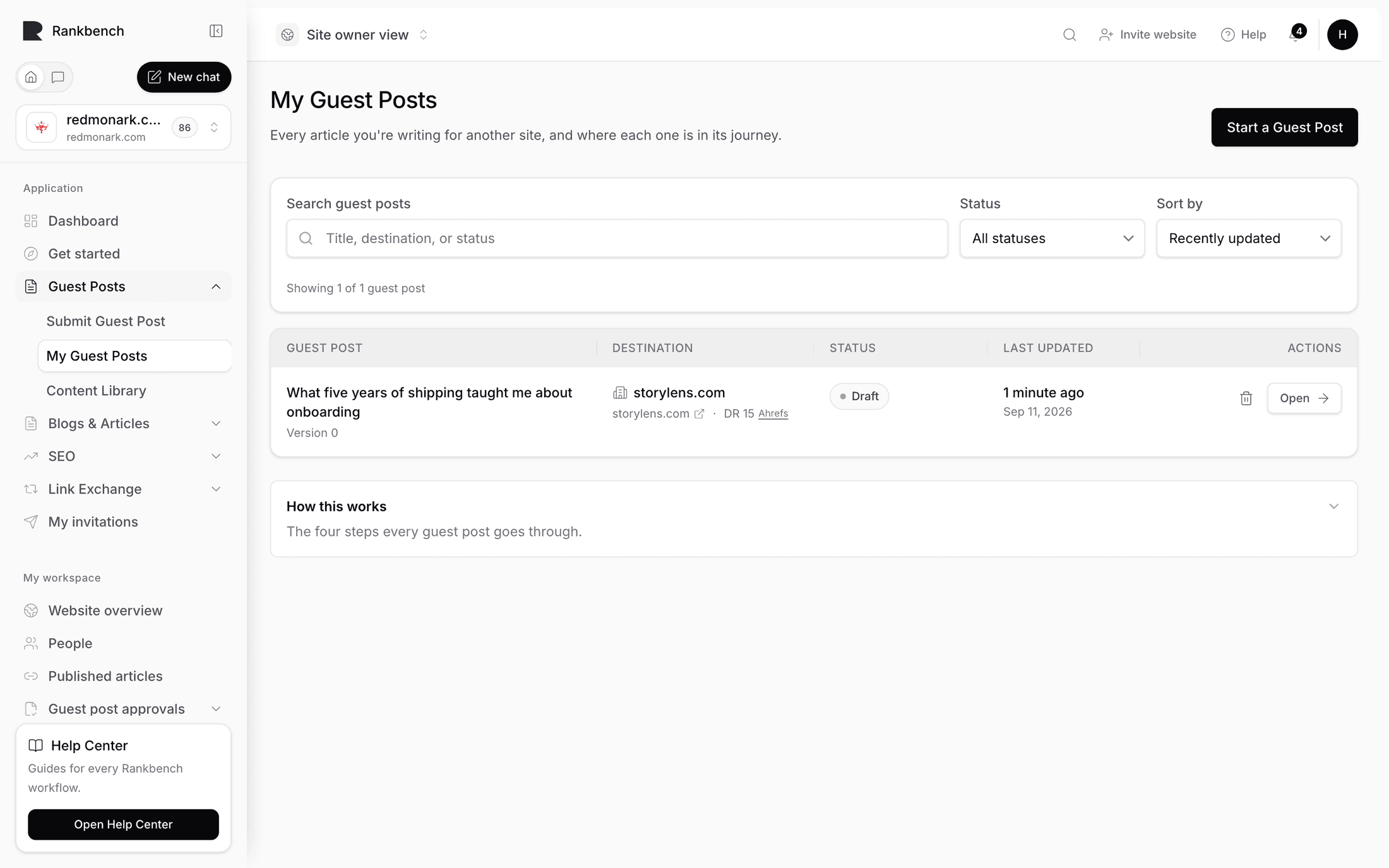
My Guest Posts is the list of everything you are writing for other sites, described under the title as "Every article you're writing for another site, and where each one is in its journey." A Start a Guest Post button sits in the header for the next one.

The table

Five columns:

  • Title, which opens the article.
  • Submitted Organisation, the workspace the destination site belongs to.
  • Status.
  • Current Version, shown as v{n} and going up by one each time you resubmit.
  • Latest Update.

Above the table, a search box reading "Search title, organisation, or status" filters as you type across all three. Next to it, a status filter with six options: All statuses, Imported, Submitted, Changes requested, Approved and Verified live. Those five are the ones worth filtering on day to day, not the full status list. Sorting offers Latest update, Title, Submitted organisation and Status.

Under the table, a disclosure called How this works keeps the four-step explanation from the empty state around: "Each article on the list is somewhere on this path. Open one to see its exact next step."

The My Guest Posts table with several articles in different statuses, the search box, status filter and sort control above it.
Latest update is the default sort, so whatever moved most recently is at the top.

Note

Every status change that concerns you also arrives on the bell. Rankbank sends no email, so if you are waiting on a decision, that is where it will appear. See How Rankbank tells you things.

The statuses, in journey order

These are the ones a writer actually meets, with the label exactly as the badge renders it.

Draft is an article started in the Rankbank editor and not yet sent. Imported is the same stage for an article that came from a Google Doc. Both are fully editable, and both are yours alone.

Submitted means you pressed Send for review and the package is with the destination site. Editing is locked from this point. The site's admins have been notified.

Under review means somebody there has picked it up and pressed Start Review. You get a notification for this too, filed as information rather than as something to act on: "The site has picked it up. Nothing to do — we'll tell you what they decide."

Changes requested means they want revisions before they will publish. Editing reopens. What to do next is When the editors ask for changes.

Approved means they accepted the article. Nothing is required from you. The site now publishes it on their own schedule, on their own site.

Publication pending is the gap between approval and a live link existing. The article is accepted and waiting on the site to put it up.

Live URL submitted means the site has published it and pasted the address back into Rankbank. Your notification for this reads "{title} is live" with "The site published it. We're checking the link now."

Validating is the check itself: Rankbank fetching the live page and comparing it against the approved version.

Verified live is the finish. The page loaded, it is indexable, its content matches what was approved, and every expected link is really there pointing where it should. The article is now in your Content Library.

Two more you may meet:

Rejected means they will not publish this article. The notification is "Your article wasn't accepted" with "They passed on this one. Their notes explain why." It is final for that review, so there is no resubmit path. The note explaining why is on the article page.

Partially verified and Validation failed mean the live check did not come back clean. Some expected links were missing, the page was not indexable, or the published content had drifted too far from what was approved. You get a notification filed under Action needed, and so do the site's admins, because in most cases the fix is on their side.

The article page

Clicking a title opens it, under the line "Your article as we received it — check it over, then follow its progress here."

Three actions sit at the top: Edit article, Review & send →, and, for Google Doc articles only, Re-import from Google Docs.

Alerts stack under those, and which ones you see depends on where the article is:

  • Sent for review: "The editors have it now. You can't edit while they read — if they want changes, you'll get a comment here and editing reopens."
  • Review outcome: {decision}, carrying their note or "No review note was provided.", and the date.
  • It's live!: "We confirmed this guest post is published on the destination site. You'll find it in your Content Library from now on."

Three stat tiles follow: Word count, then either Imported or Started with the date, then either Imported from naming the document or Written in: The Rankbank editor.

The preview panel is headed Your article, with "Every link is highlighted — click one to see where it points."

Where it's been

The panel that answers "what has actually happened to this" is Where it's been: "Versions, the live link once it's published, and our link checks." Three tiles:

  • Current source version, the number of the version currently in play.
  • Live URL, a clickable address once the site has published, or "Not published yet".
  • Latest validation, the outcome of the most recent live check, or "Not validated yet". Underneath it, a line reading "{x} of {y} links verified on {date}."

When a check has run, an alert titled What our check found carries the plain-language summary. Passing looks like "The live page is accessible, indexable, matches the approved content, and contains the expected links." Failures name the reason: "The live page is accessible, but one or more approved links are missing.", "The live page is accessible, but the content does not sufficiently match the approved version.", "The live page is not indexable.", or "The live page did not return a successful HTTP response."

The Where it's been panel on an article page after a check has run, showing the current source version, the clickable live URL, the latest validation result and the "What our check found" alert.
The live URL is clickable and the validation tile shows how many links were confirmed. Here the check found the live page did not match the approved version.

Every validation attempt is kept, not just the last one. A post that failed, got fixed, and passed shows all three moments.

When a post is part of a link exchange

Guest posts can be attached to a link swap. When one is, an extra alert appears reading Exchange status: {status} with one of three explanations:

  • Active: "This article is part of an active link exchange. The Rankbank team handles publication and checks from here."
  • Cancelled: "The exchange this article was part of has been cancelled. It can be attached to a new one if it still qualifies."
  • Otherwise: "This article is attached to a link exchange plan."

That is the guest post's view of it. The swap itself lives in the other module, explained in Link swaps on Rankbank.

Reading the list well

Filter to Changes requested first thing. That is the only status where something is genuinely waiting on you, and it is easy to lose one in a long list.

Approved and Publication pending are waiting on the destination site. Chase those by talking to your contact there, not by pressing anything in Rankbank.

Submitted and Under review need nothing from anyone but time. Resubmitting an already-submitted package does nothing and does not nudge anybody, which is by design.

← When the editors ask for changesFor site owners: opening your site to guest posts →

Still stuck?

Open Rankbank and the page this article describes — most screens explain themselves as you go.

On this page

The tableThe statuses, in journey orderThe article pageWhere it's beenWhen a post is part of a link exchangeReading the list well
Rankbank — Editorial collaborationOpen RankbankHelp home