For site owners: opening your site to guest posts
Updated August 24, 2026
This article is for the site owner's side of guest posting. If you write guest posts rather than publish them, Submitting your first guest post is your article.
Opening a site to guest authors takes four decisions: whether you accept them at all, who is allowed to find you, what you tell them before they write, and where your submission link points. This article covers three of those. The rules themselves get their own article, writing your guidelines.
Two switches, and both matter
Guest posting is controlled in two places, because a workspace can hold several sites and they do not all have to be open.
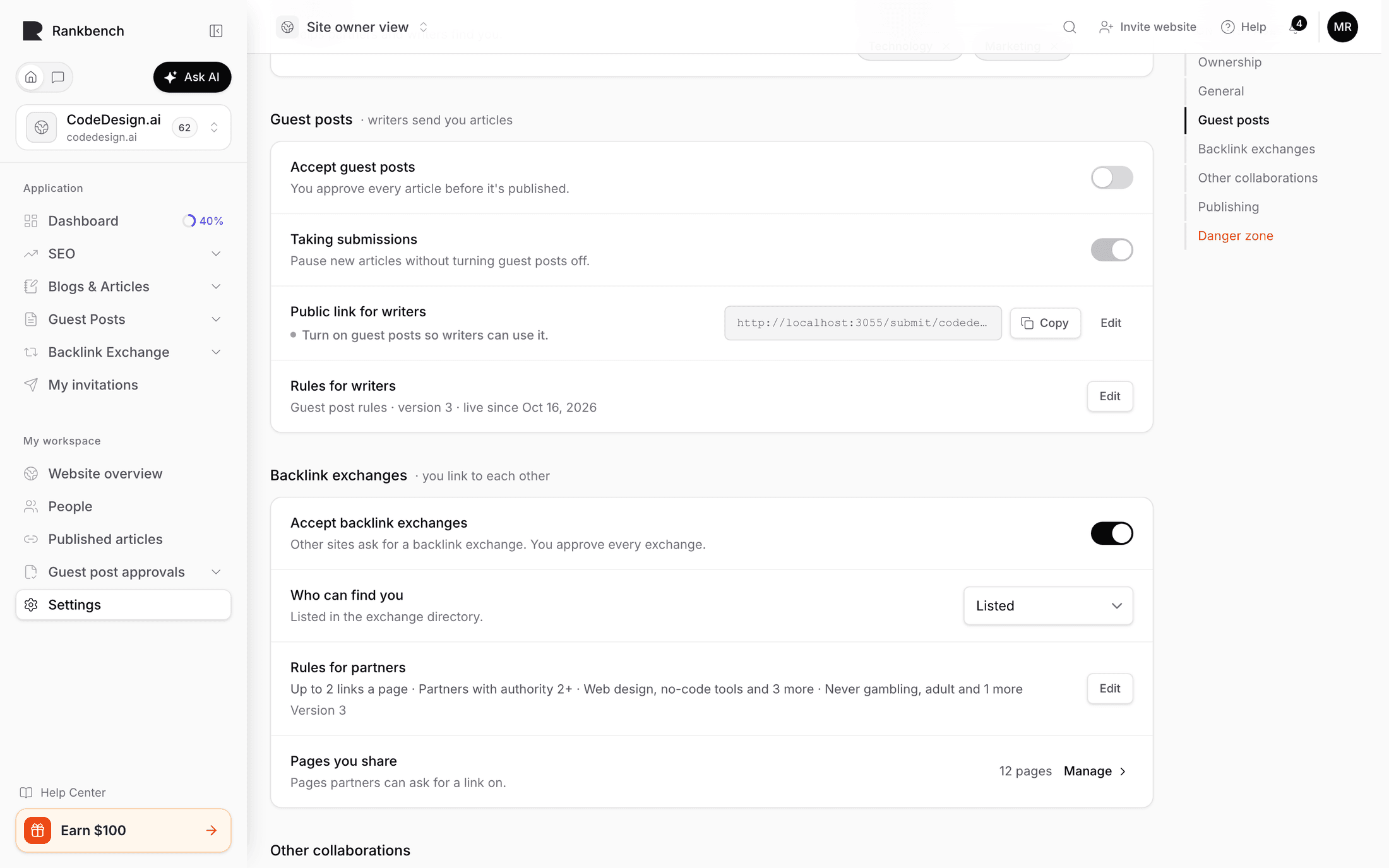
On the site. Open the site from My sites and its settings form has an Accept guest posts switch. The website list shows a "Guest posts" capability chip for sites where it is on.
On the organisation. In Organisation Settings, under Collaboration Access, there is a switch called Accept Guest Posts, described as "Allow authenticated contributors to submit public Google Docs." The same section holds Accept Link Exchanges and Accept Paid Collaborations, which are different capabilities entirely and independent of this one.
Turn on the site switch for each site you want submissions to, and the organisation switch for the workspace they live in.
What authors see about you
Under Organisation Profile, described as "These fields identify the workspace in discovery, direct submission pages, and editorial review context.":
- Name, required. This is what an author sees on their submission and in their My Guest Posts list.
- Website URL.
- Root domain, with the note "Lower-case domain used for search, matching, and future validation."
- Target country and Primary language.
- Categories, "One category per line. Commas are also accepted."
- Description, "A short public description for Guest Authors." This replaces the default line on your public submission page, so it is worth writing.
Per-site details live on the site itself: its display name, description, target country, primary language and categories. Those are what appear on the selected-site card an author sees when they pick you, so fill them in even if the workspace profile duplicates some of it.

Who can find you
Discovery And Submission is the section that decides your visibility, summed up in its own description: "Public organisations appear in search. Private organisations use the direct URL. Invite-only and paused organisations do not accept open submissions."
The Visibility setting has four values.
Public is the open door. Authors searching for a destination site can find you, and your public link works.
Private keeps you out of discovery but leaves the door unlocked. Authors who have your link can still submit. Use this when you want guest posts from people you approached, without an open queue.
Invite Only is stricter, and the field description says so: "Invite-only is reserved for controlled access." Someone landing on your publisher link gets "This publisher is invite-only" with "You need a personal invitation to submit here — ask your contact for one."
Paused closes intake without dismantling anything. The same field description: "Paused blocks submission." Your Paused reason field, "Shown when intake is paused.", is what visitors read instead of the submission buttons, so write a real sentence there. Something like "We are catching up on the current queue and will reopen in March" saves you a dozen emails you would otherwise have to answer.
Tip
Pausing is the right move when you are behind. Leaving an open queue you are not reading costs you goodwill with exactly the authors you want to keep.
Your submission link
Public submission slug is the last part of your public address, and the field's helper shows you the result live: "Shareable URL: /submit/{slug}".
Sites get their own slug too. On the site's settings form, a disclosure called Custom submission link explains when you would bother: "Only if you want to control the URL writers use to submit to you — otherwise we handle it." The Slug field there says "Leave blank and we build it from the name. It becomes your public link: /submit/my-website".
Two kinds of link, then, and they behave differently.
A site link points at one site. A signed-out visitor sees that site's landing page with its rules teaser. A signed-in visitor goes straight to the submit form with the site already chosen.
A publisher link points at your whole workspace. If exactly one of your sites is open, Rankbank forwards visitors to that site's link. If several are, they get a Choose a website to submit to list. If none are, they get the unavailable message.
Once a site has a slug, its page shows an info panel with the finished address, and the Submission availability section carries a Copy submission link button. There is also a Guidelines URL field on the organisation, for pointing at rules you host on your own site.
Turning intake on and off per site
Each site has its own Submission availability section, described as "Pause or resume public Guest Post intake, or archive this website." It offers:
- Pause submissions, which becomes Resume submissions once paused.
- Archive website, the permanent version. Archiving is confirmed with "Submissions are now disabled." and archived sites carry "This website no longer accepts submissions."
- Copy submission link.
Pausing one site does not touch the others.
Why your site might not show as accepting
If your public page says "Not currently accepting submissions" when you believe it should not, work down this list.
For a site link, the page marks itself unavailable when the site has guest posts switched off, or when it has no published guideline version. That second one catches people out: a site with no live rules is treated as not ready, because the whole promise to authors is that they see the rules before they write. Publishing a set of rules, even a preset, fixes it. See writing your guidelines.
For a publisher link, the page marks itself unavailable when none of your sites are eligible, when the organisation switch is off, or when visibility is Paused or Invite Only.
Separately, for a site to appear in the search authors use inside Rankbank, it needs guest posts switched on, intake not paused, and a slug. Sites that have proved they own their domain are listed first, which is one of several reasons to finish verification.
What happens next
Once your rules are live and your site is open, submissions arrive in the review queue and the site's admins get a notification: "New guest post to review: {title}" with "Someone submitted an article for your site — it's waiting on your decision." Like everything else in Rankbank, that lands on the bell inside the app, not in your inbox.
Reviewing them is For site owners: reviewing a submission.
Still stuck?
Open Rankbank and the page this article describes — most screens explain themselves as you go.