Opening Rankbank0.0s
Getting startedCreating your Rankbank accountAdding your first websiteProving your site is yoursWriter view and Site owner viewHow Rankbank tells you thingsYour dashboardRankbank Pro and billing
Site audit & search growthThe SEO overview, explainedHow Rankbank reads your siteThe site health scoreThe Problems to fix pageEvery problem type, explainedYour fix listFindings: how to read a cardEverything Rankbank looks forThe map of your siteConnecting Google Search ConsoleThe growth planSuggested linksTopics and content ideasAuthority: how much weight your site carriesThe Search traffic pagePast reads and history
Guest postsGuest posting on RankbankSubmitting your first guest postImporting from Google DocsWriting in the Rankbank editorReview & send: the last step before the editorsWhen the editors ask for changesTracking your guest postsFor site owners: opening your site to guest postsFor site owners: writing your guidelinesFor site owners: reviewing a submissionFor site owners: publishing and the live checkThe Content Library
Link exchangeLink swaps on RankbankSetting up your site for swapsPages you shareFinding a site to swap withSending a swap requestReviewing a swap request you receivedAsking a partner for a linkAnswering a link requestWhen the page is published somewhere you can't editHow Rankbank keeps watchThe partner ledger
Content calendarThe content calendarSetting up your calendarWhere the keywords come fromReading the calendarSteering an article before it's writtenReviewing and editing a draftConnecting where it publishesPublishing and what happens nextStyle & settings
TutorialsYour first site audit, from "read my site" to fixes you can ship this weekConnecting Search Console and turning its data into clicksWriting a guest post that gets accepted, the full pathRunning guest posts on your site without letting quality slipYour first link swap, start to finishKeeping your links alive, from wording changes to missing linksA month of content on autopilot, done properly
RankbankHelp center
Open Rankbank →
Getting startedCreating your Rankbank accountAdding your first websiteProving your site is yoursWriter view and Site owner viewHow Rankbank tells you thingsYour dashboardRankbank Pro and billing
Site audit & search growthThe SEO overview, explainedHow Rankbank reads your siteThe site health scoreThe Problems to fix pageEvery problem type, explainedYour fix listFindings: how to read a cardEverything Rankbank looks forThe map of your siteConnecting Google Search ConsoleThe growth planSuggested linksTopics and content ideasAuthority: how much weight your site carriesThe Search traffic pagePast reads and history
Guest postsGuest posting on RankbankSubmitting your first guest postImporting from Google DocsWriting in the Rankbank editorReview & send: the last step before the editorsWhen the editors ask for changesTracking your guest postsFor site owners: opening your site to guest postsFor site owners: writing your guidelinesFor site owners: reviewing a submissionFor site owners: publishing and the live checkThe Content Library
Link exchangeLink swaps on RankbankSetting up your site for swapsPages you shareFinding a site to swap withSending a swap requestReviewing a swap request you receivedAsking a partner for a linkAnswering a link requestWhen the page is published somewhere you can't editHow Rankbank keeps watchThe partner ledger
Content calendarThe content calendarSetting up your calendarWhere the keywords come fromReading the calendarSteering an article before it's writtenReviewing and editing a draftConnecting where it publishesPublishing and what happens nextStyle & settings
TutorialsYour first site audit, from "read my site" to fixes you can ship this weekConnecting Search Console and turning its data into clicksWriting a guest post that gets accepted, the full pathRunning guest posts on your site without letting quality slipYour first link swap, start to finishKeeping your links alive, from wording changes to missing linksA month of content on autopilot, done properly
  1. Help center
  2. /
  3. Link exchange
  4. /
  5. Asking a partner for a link

Asking a partner for a link

Updated August 24, 2026


Partners do not file requests at each other. Once two sites are partners, either one can press Ask for a link whenever they have a page worth linking, as many times as they like. The Partners page says so: "You don't need a new request each time — ask a partner for a link whenever you have a page worth linking."

The button is on the partner card and again at the top of the partner ledger. It opens a page titled Ask {partner} for a link: "Pick one of their pages, the page of yours it should point to, and the words that carry the link. {partner} decides whether to place it."

Four numbered steps run across the top, and you move through them one at a time.

Note

If the partnership is paused, the page shows an amber notice instead: "This partnership is paused, so new link requests are on hold. Resume it from the partner page to ask again." Existing links are still watched while a partnership is paused.

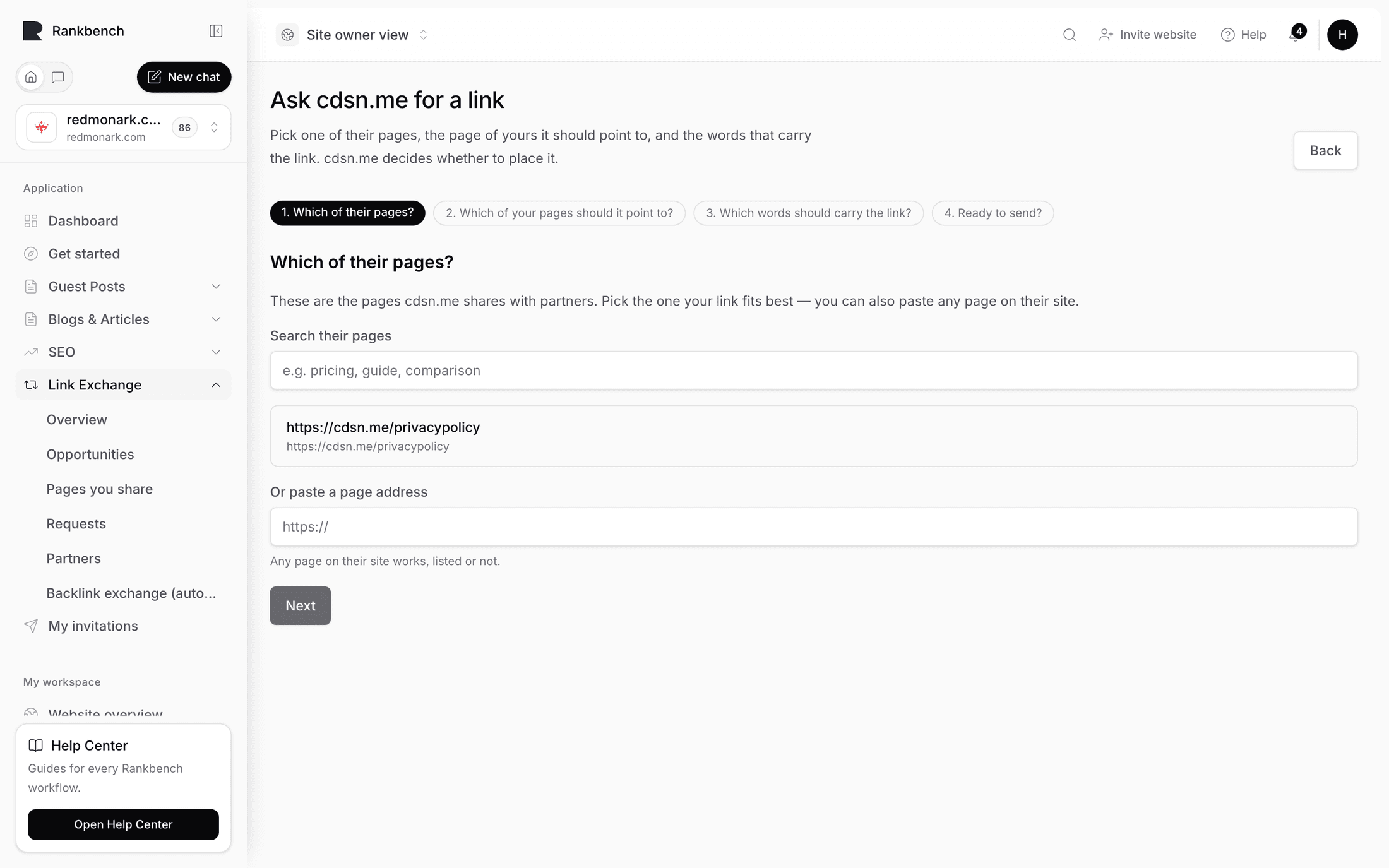
Step 1: Which of their pages?

"These are the pages {partner} shares with partners. Pick the one your link fits best — you can also paste any page on their site."

The list is their inventory. Use Search their pages (placeholder "e.g. pricing, guide, comparison") to filter by title or address, then click a row to select it.

Some rows carry a small chip. "On {domain} · they edit it directly" means your partner published that piece somewhere else but can log in and change it. "On {domain} · a publisher has to apply the change" means they cannot, and a third party will have to make the edit. Both are fine to pick. The second just takes longer, and Rankbank will remind you at the review step.

Underneath the list is Or paste a page address with the note "Any page on their site works, listed or not." Their shared list is a menu, not a fence. If you have read their site and know exactly which article your link belongs in, paste it.

If your partner has shared nothing yet, the list is replaced by "{partner} hasn't listed any pages yet. Paste the address of the page you have in mind and we'll take it from there."

Press Next. It stays disabled until a page is chosen or pasted.

Step one of the builder listing the partner's shared pages with a search box
Their shared pages, plus the option to name any page on their site.

Tip

Pick the page a reader would thank you for. A link that answers the exact question the surrounding paragraph raises is the one that gets accepted, gets clicked, and stays up. The strongest page on their site is rarely the most relevant one.

Step 2: Which of your pages should it point to?

"This is the page that gets the link — usually the one you're trying to rank."

Same shape as step one. Search your own pages, click one, or use Or paste the address, which notes "Any page of yours — it doesn't have to be one you share." Your shared inventory is what partners may place links in. What you point a link at is unrestricted.

Choose deliberately. The obvious instinct is to point everything at the homepage, but a homepage rarely needs the help and rarely deserves the sentence. A specific article or product page gives your partner something concrete to link to and gives the reader somewhere useful to land.

Press Next. This is the step that sets the whole third step in motion: as soon as you continue, Rankbank starts reading the page you picked in step one.

Step two showing the requester's own pages and the paste-an-address field
The page that gets the link. It does not have to be one you share.

Step 3: Which words should carry the link?

This is the step that makes Rankbank's version of a link swap different from an email thread, so it is worth going slowly.

The words that carry a link are called the anchor text. They are what a reader sees and clicks, and they are the strongest clue a search engine gets about what the destination page is about. In an email swap, this is where things go wrong: one side asks for "our link", the other side puts it somewhere odd with wording nobody agreed to, and the disagreement surfaces weeks later. Rankbank fixes that by making you pick the exact words up front, from the page as it actually reads today.

Rankbank opens their page for you

While you wait, the step says "Reading {url}…". Then their page appears as plain, readable paragraphs inside a scrollable box, with a line above it:

This is what's on "{title}" right now. Select the words that should become the link — or pick a sentence and add a new one after it.

Read it as their reader would. Find the paragraph where a link to your page would be a favour rather than an interruption.

Selecting the words

Drag your mouse across the words you want to become the link. That is the whole interaction. The moment you release, Rankbank does three things: it puts the selected words into Anchor text, it remembers the whole sentence they sit in, and it fills the sentence box below so you can see the change in context.

Two guardrails apply to the selection. A selection under two characters is ignored, because a stray click is not an ask. A selection over 120 characters gets refused with "That's a lot of words for one link — pick a short phrase instead." Long anchors read as spam to everyone involved. A short, natural phrase is what you want.

You can always type into Anchor text by hand instead. The field's hint is "The visible words that become the link."

Step three with the partner's page rendered as readable paragraphs, the words "enhance loading times" highlighted in one of them, and Anchor text holding the same phrase
Dragging across the words on their page puts them straight into Anchor text.

Two ways the link can go in

Under How should it go in? there are two options, and the difference between them is the difference between a small favour and a large one.

Link the words that are already there: "The words already on their page become the link. Nothing else changes." Their sentence stays exactly as they wrote it. The only edit is that a handful of existing words become clickable. Ask for this whenever the page already contains a phrase that fits.

Add a new sentence: "One new sentence goes in after the one you picked, carrying the link." A sentence you supply goes in after the one you selected. Rankbank offers a plain starting point, "For more on this, see {anchor}.", and it is genuinely just a starting point. Rewrite it in their voice. A sentence that sounds like the person who wrote the article gets accepted; a sentence that sounds like a link request gets rewritten or declined.

The box beneath changes with your choice. Under the first option it is labelled The sentence it sits in, "The sentence as it stands on their page — we show it so they can see exactly what changes." Under the second it becomes The sentence you'd like added, "This sentence goes in after the one you picked. Edit it so it sounds like them."

Anything you type into that box is yours. Switching between the two options never overwrites your writing; it only replaces text Rankbank put there itself.

When the page cannot be read

Some pages block automated visitors, sit behind a paywall, or are simply slow. When that happens the step says so plainly instead of failing:

We couldn't read that page.

Underneath is the specific reason, such as "{url} answered with HTTP 403. You can paste the sentence yourself below." or "We couldn't open {url}. The page may be slow, blocked to bots, or offline — you can paste the sentence yourself below."

Then the way forward: "No problem — type the words you want linked below and paste the sentence they sit in. Their page is open here." That last bit is a link that opens their page in a new tab. There is also a Try again button, worth one press for a timeout.

In this mode the boxes rename themselves to match what you are doing: Paste the sentence from their page, with the hint "Open their page, copy the sentence you have in mind, and paste it here — they'll see exactly what you mean." Nothing about the request is weaker for having been assembled by hand. Your partner sees the same before-and-after either way.

Note

Rankbank only fetches pages on domains you have a partnership with, or your own. Paste anything else and you get "That page isn't on a site you have a partnership with, so we don't fetch it. Paste the sentence yourself instead." The reader exists to serve a specific step in a specific relationship, not to fetch arbitrary pages on request.

Press Next when you have both an anchor and a destination. Until then the line underneath reads "Choose the words that should become the link to continue."

Step 4: Ready to send?

The review panel is short by design. Three lines: Their page, Links to, and either Sentence with the link or Sentence to add, with your anchor shown in bold and underlined inside the sentence. Read it once as if you were the person receiving it. Is the change small, clear, and obviously fine to make?

If the page is one your partner cannot edit themselves, a note appears here: "This page is published on someone else's site, and its publisher has to apply the change. Your partner will pass the request on — it usually takes a little longer than a page they run themselves." That path is covered in when the page is published somewhere you can't edit.

A note (optional) is the last field: "Anything that helps them say yes — why it fits, or where exactly you had in mind." Two sentences is plenty.

Press Send to {partner}. Underneath the button is the sentence that describes the entire arrangement: "They decide whether to place it. Nothing appears on their site until they do."

Step four showing their page, your destination, and the proposed sentence with the anchor highlighted
The review step. What you see here is exactly what your partner sees.

What happens next

You land on the request's own page with a banner: "Sent. {partner} has been notified — you'll hear back here." The status line reads "Waiting for them to answer. Nothing appears on their site until they accept." and the badge says Waiting for an answer.

On their side the notification is "A partner asked you for a link", and it is marked as needing action: "They'd like "{anchor}" on {page}. Nothing changes until you accept."

Three answers can come back. They accept, and you get "Your link request was accepted — They'll add it to their page and mark it live. We'll check the link once it's up." They suggest different wording, which starts a short back-and-forth described in answering a link request. Or they decline, and you can ask about a different page any time.

While you are waiting, a plain Withdraw this request link sits at the bottom of the request page. Use it if you change your mind or spot a mistake before they answer.

Once the link is live and checked, Rankbank keeps watching it.

← Reviewing a swap request you receivedAnswering a link request →

Still stuck?

Open Rankbank and the page this article describes — most screens explain themselves as you go.

On this page

Step 1: Which of their pages?Step 2: Which of your pages should it point to?Step 3: Which words should carry the link?Rankbank opens their page for youSelecting the wordsTwo ways the link can go inWhen the page cannot be readStep 4: Ready to send?What happens next
Rankbank — Editorial collaborationOpen RankbankHelp home