Opening Rankbank0.0s
Getting startedCreating your Rankbank accountAdding your first websiteProving your site is yoursWriter view and Site owner viewHow Rankbank tells you thingsYour dashboardRankbank Pro and billing
Site audit & search growthThe SEO overview, explainedHow Rankbank reads your siteThe site health scoreThe Problems to fix pageEvery problem type, explainedYour fix listFindings: how to read a cardEverything Rankbank looks forThe map of your siteConnecting Google Search ConsoleThe growth planSuggested linksTopics and content ideasAuthority: how much weight your site carriesThe Search traffic pagePast reads and history
Guest postsGuest posting on RankbankSubmitting your first guest postImporting from Google DocsWriting in the Rankbank editorReview & send: the last step before the editorsWhen the editors ask for changesTracking your guest postsFor site owners: opening your site to guest postsFor site owners: writing your guidelinesFor site owners: reviewing a submissionFor site owners: publishing and the live checkThe Content Library
Link exchangeLink swaps on RankbankSetting up your site for swapsPages you shareFinding a site to swap withSending a swap requestReviewing a swap request you receivedAsking a partner for a linkAnswering a link requestWhen the page is published somewhere you can't editHow Rankbank keeps watchThe partner ledger
Content calendarThe content calendarSetting up your calendarWhere the keywords come fromReading the calendarSteering an article before it's writtenReviewing and editing a draftConnecting where it publishesPublishing and what happens nextStyle & settings
TutorialsYour first site audit, from "read my site" to fixes you can ship this weekConnecting Search Console and turning its data into clicksWriting a guest post that gets accepted, the full pathRunning guest posts on your site without letting quality slipYour first link swap, start to finishKeeping your links alive, from wording changes to missing linksA month of content on autopilot, done properly
RankbankHelp center
Open Rankbank →
Getting startedCreating your Rankbank accountAdding your first websiteProving your site is yoursWriter view and Site owner viewHow Rankbank tells you thingsYour dashboardRankbank Pro and billing
Site audit & search growthThe SEO overview, explainedHow Rankbank reads your siteThe site health scoreThe Problems to fix pageEvery problem type, explainedYour fix listFindings: how to read a cardEverything Rankbank looks forThe map of your siteConnecting Google Search ConsoleThe growth planSuggested linksTopics and content ideasAuthority: how much weight your site carriesThe Search traffic pagePast reads and history
Guest postsGuest posting on RankbankSubmitting your first guest postImporting from Google DocsWriting in the Rankbank editorReview & send: the last step before the editorsWhen the editors ask for changesTracking your guest postsFor site owners: opening your site to guest postsFor site owners: writing your guidelinesFor site owners: reviewing a submissionFor site owners: publishing and the live checkThe Content Library
Link exchangeLink swaps on RankbankSetting up your site for swapsPages you shareFinding a site to swap withSending a swap requestReviewing a swap request you receivedAsking a partner for a linkAnswering a link requestWhen the page is published somewhere you can't editHow Rankbank keeps watchThe partner ledger
Content calendarThe content calendarSetting up your calendarWhere the keywords come fromReading the calendarSteering an article before it's writtenReviewing and editing a draftConnecting where it publishesPublishing and what happens nextStyle & settings
TutorialsYour first site audit, from "read my site" to fixes you can ship this weekConnecting Search Console and turning its data into clicksWriting a guest post that gets accepted, the full pathRunning guest posts on your site without letting quality slipYour first link swap, start to finishKeeping your links alive, from wording changes to missing linksA month of content on autopilot, done properly
  1. Help center
  2. /
  3. Content calendar
  4. /
  5. Reading the calendar

Reading the calendar

Updated August 24, 2026


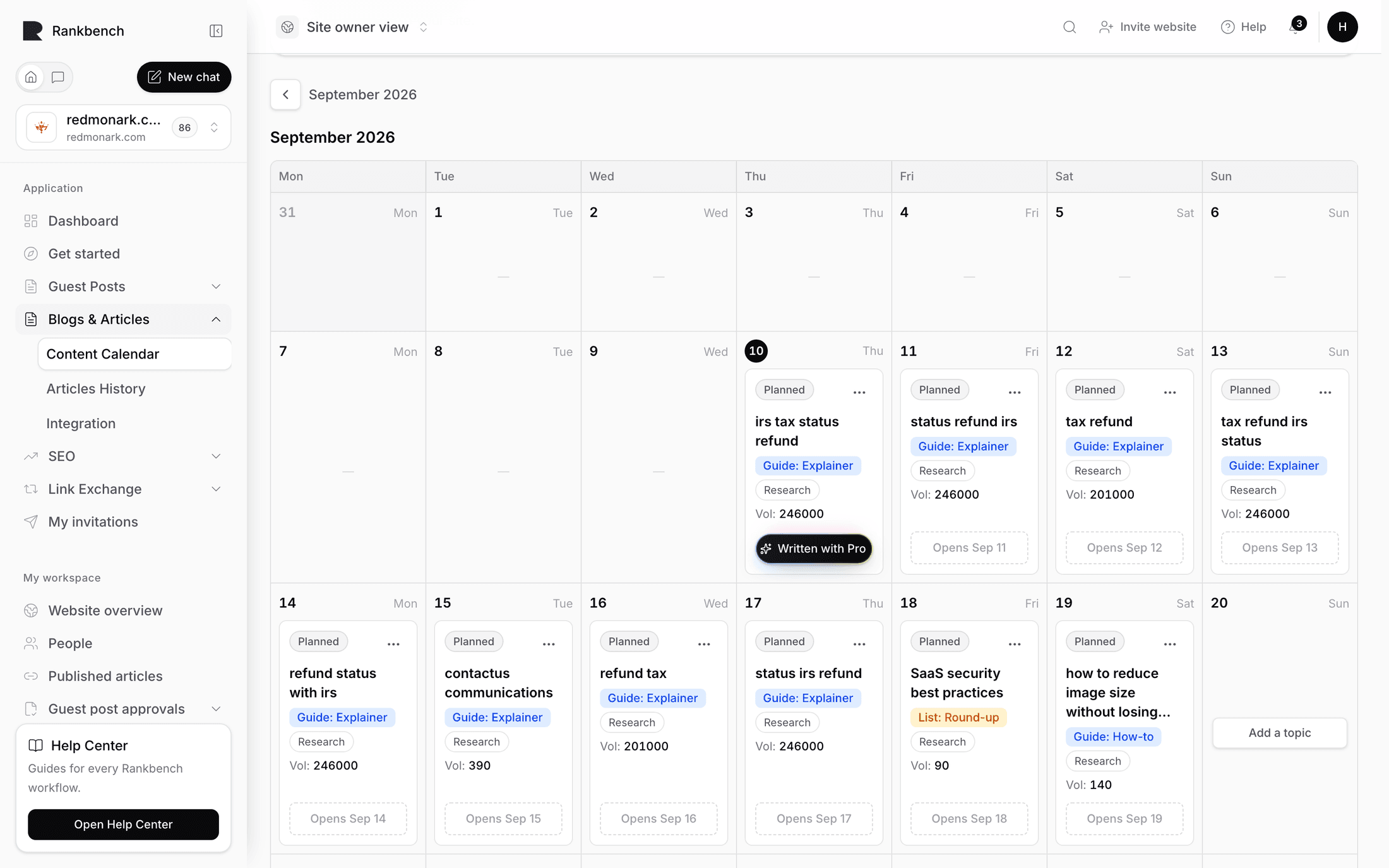
The calendar is a month grid and only a month grid. Columns run Monday to Sunday, today is drawn as a filled circle around the date, and the view keeps rendering months until it has covered everything that is planned. If your plan runs into next month, next month appears below this one under its own heading.

Days outside the current month are padded in and tinted, so the first of the month lands under the right weekday without those cells looking like real publishing days you forgot to fill. A day inside the month with no article shows a single dash.

What a day cell tells you

A cell with an article in it carries four things, top to bottom.

A format badge naming the shape of the article: Guide: How-to, Guide: Explainer, List: Resources, List: Examples, List: Round-up, Comparison or Case study. Guides are tinted blue, lists amber, and the two deep-dive formats grey. The format is chosen from what the keyword suggests the searcher wants, and it decides the outline the writer follows. A how-to guide gets numbered steps and a closing section on what usually goes wrong; a comparison gets the two or three dimensions that actually decide the choice rather than a feature checklist.

The keyword, or once the article has been written, its title. Two lines, clipped if longer.

Vol and Diff figures when they are known: the search volume for the keyword and a difficulty number. Either can be absent, and when both are absent the line does not appear.

A button, whose label depends entirely on where that article has got to.

A month of the calendar with cells in different states, showing future days, a day ready to write, a draft awaiting review and a published post
One month of the grid. Today is the filled circle, and every cell's button label tells you whose move it is.

Every button label

Opens 12 Sept, greyed out with a dashed border. The article is scheduled for a day that has not arrived yet. This is deliberate rather than a limitation: articles are written on their scheduled day so they reflect your site, your rankings and your instructions as they are then, rather than as they were weeks earlier. Hovering the button says exactly that. You can still brief the article before its day comes round, which is what Steering an article before it is written is about.

Write it now. The day has arrived and nothing has been written yet. Pressing it generates the draft on the spot, which takes up to a minute.

Writing…, greyed out. Generation is running.

Review & publish. A draft exists. This opens the entry page with the editor and the evidence panel, covered in Reviewing and editing a draft.

Open. An article exists but is somewhere other than drafted, for example mid-publish. Same destination.

View published post, in green. The article went out and Rankbank has the URL your CMS returned. This opens the live post in a new tab.

If generation failed, the cell shows the error message underneath in red, and the button returns to Write it now so you can try again. The reason is shown rather than swallowed, so a bad credential or a model timeout is something you can act on rather than guess at.

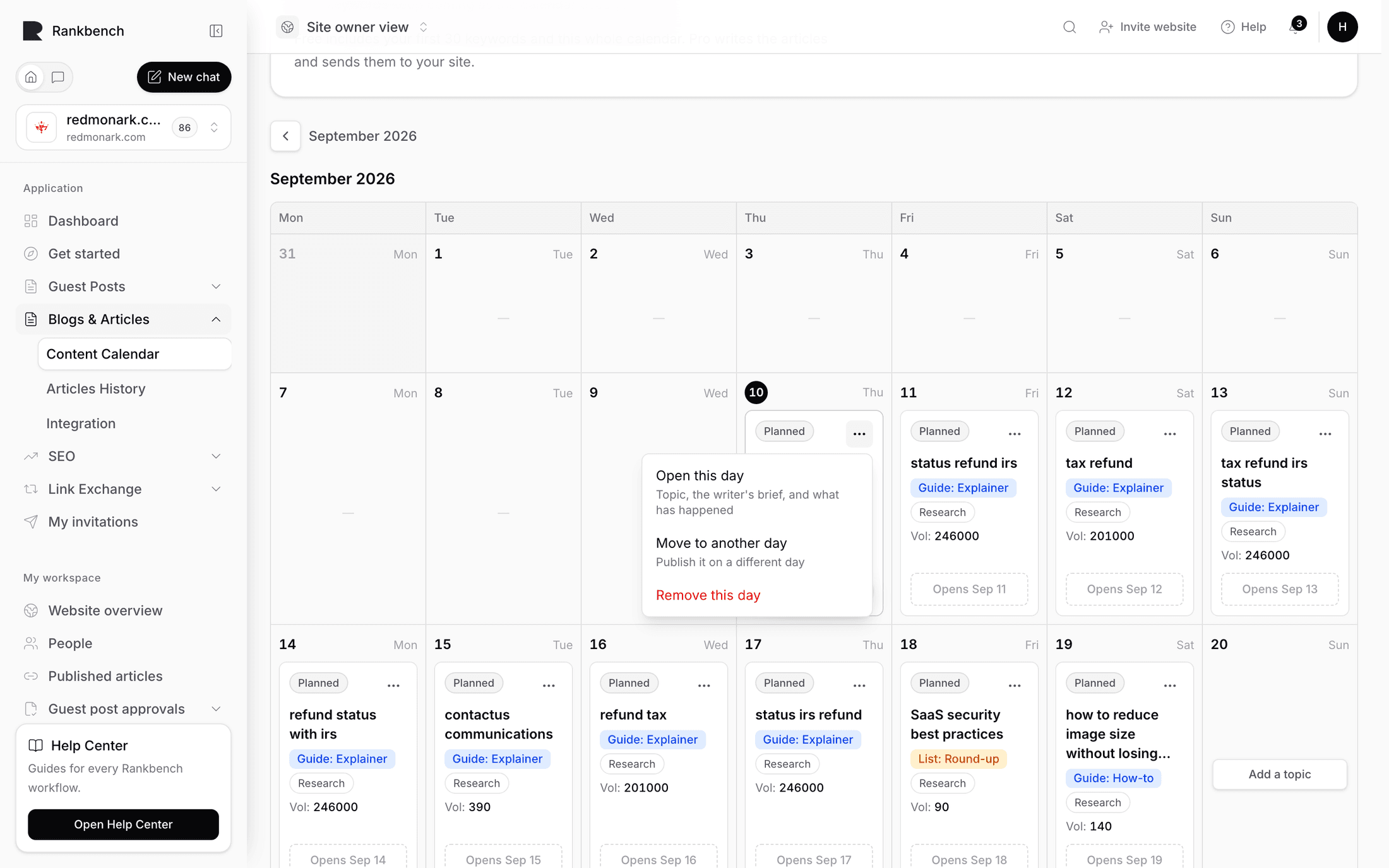
The three hover controls

Hover a cell that has an article, or move keyboard focus into it, and three small round buttons appear along its top edge. They are reachable by keyboard as well as by mouse, so the calendar works without pointing at anything.

The lightbulb opens the interview questions dialog, titled "Answer questions to make this article yours".

The question mark opens the freeform instructions dialog, "Tell the writer how to approach this one". If you have already saved instructions for that entry, an amber count badge sits on the corner of this button so you can see at a glance which days you have briefed.

The bin removes the day, titled "Remove this day". Removing an entry returns its keyword to the pool, where it becomes a candidate for a future day. Nothing is destroyed; the topic just goes back in the queue. This is how you prune a plan that has drifted off-target, and it is the only way to change what is on the calendar.

A day cell hovered, showing the three round controls for interview questions, instructions and removal along its top edge
The hover controls. The amber badge on the middle button counts instructions already saved for that entry.

Note

There is no way to move an article to a different day. There is no drag-and-drop, no date picker, and no way to add a day by hand. Days come from the planner and go back to the pool when you remove them. If you want more or fewer days per week, change Articles per week in Style & settings and the next planning run will follow it.

Above and below the grid

Four stat tiles sit above: Days planned, Ready to write, Drafts and Published. When a build or refresh is running, a progress banner replaces the summary and names the step it is on.

Below the grid a panel reports the depth of the keyword pool and reminds you that a new day is added automatically as each one comes into range, so the calendar stays about thirty days deep. If the pool is empty it says so and tells you the next daily top-up will look for more.

The two buttons at the top right are Site audit, which jumps to the audit for the same site, and Refresh keywords, which re-reads Search Console and fills any open days.

When the grid gets long

After a few months the grid is the wrong tool for the question "what have we published". The All articles tab answers that instead: a plain table of every article planned or written for the site, newest first, with its title, keyword, volume, status and date. Each title links to the same entry page the calendar cells open.

Where to go next

  • Steering an article before it is written covers the two dialogs behind the hover controls.
  • Reviewing and editing a draft picks up where Review & publish takes you.
  • Publishing and what happens next covers the last step.
← Where the keywords come fromSteering an article before it's written →

Still stuck?

Open Rankbank and the page this article describes — most screens explain themselves as you go.

On this page

What a day cell tells youEvery button labelThe three hover controlsAbove and below the gridWhen the grid gets longWhere to go next
Rankbank — Editorial collaborationOpen RankbankHelp home