
Working for clients
Updated · First published
If you look after websites for clients, Rankbench can be arranged around them. Agency view gives you one list of your client sites and the link building for each, and nothing else in the way.
Each client site stays separate. It has its own exchange rules, its own pages, its own partners and its own owner. You see them side by side.
Turning it on
There are three ways in, and they all lead to the same place.
When you sign up, setup asks "One website, or several?". Choose Several websites I manage for clients.
If a partner invited you to exchange backlinks, the same question appears after you sign in. Your sites are then sent to that partner together at the end.
In Profile, under How you use Rankbench, choose I manage websites for clients. Switch to one website of my own turns it off again, and nothing you set up is lost either way.
Your own website, if you have one, stays where it is. Site owner view, with every module, is one switch away in the header.
Adding your client sites
Which sites do you look after? takes up to ten addresses at once. Type one per line, separate them with commas, or paste a column straight from a spreadsheet.
Each address gets its own answer underneath:
- Added. It is one of your sites now.
- Already one of your sites. Nothing to do.
- Listed twice, added once. Duplicates in the paste are merged.
- Not a website address. Fix it and add it again.
- Past your limit, so not added. You can have ten client sites.
- Its owner already verified it on Rankbench. The site has an owner here already, so it cannot be added again. You can ask them to let you work on it as their SEO consultant instead, and they answer from their People page.
Setting up each site
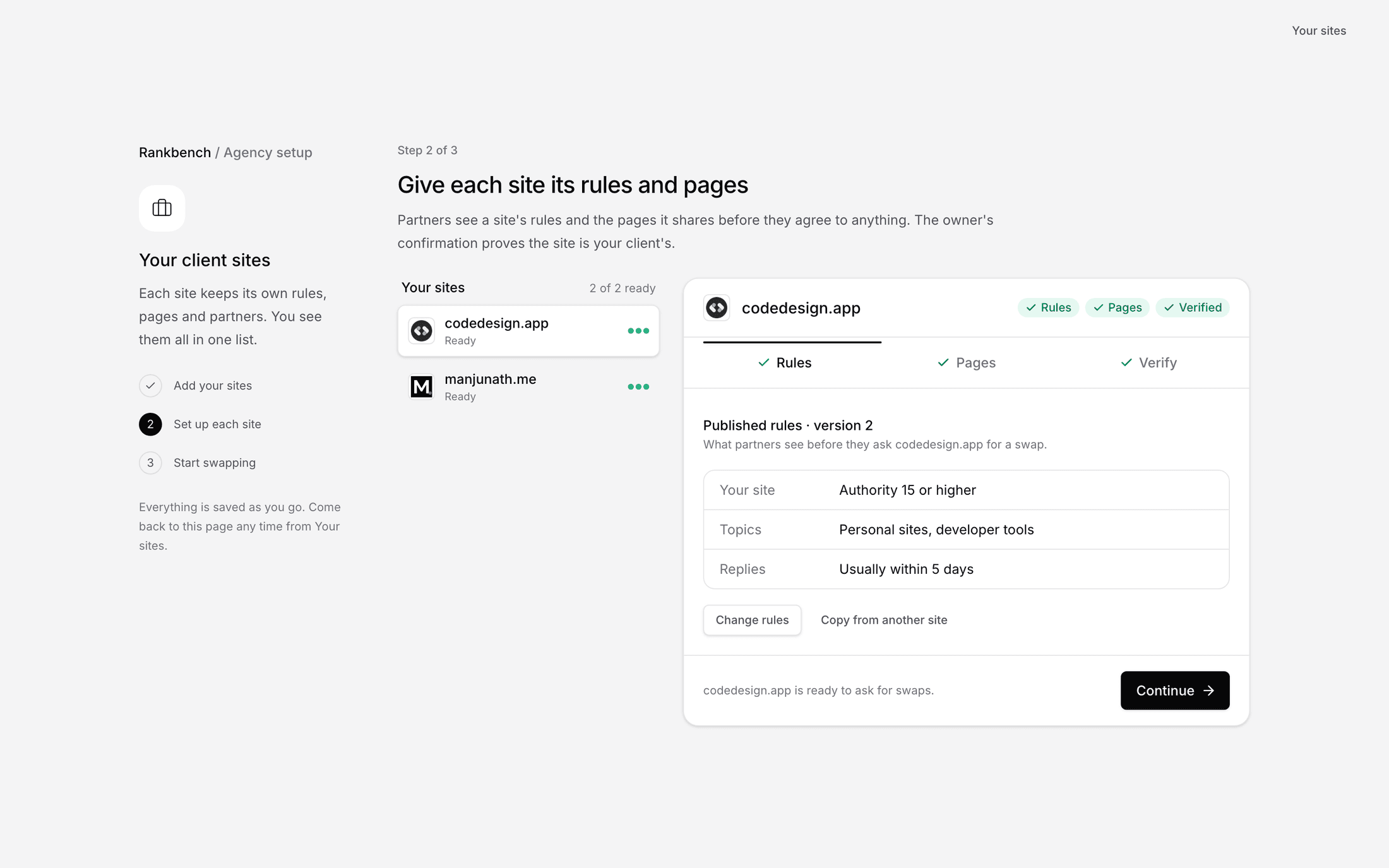
Set up each site walks through your sites one at a time, with three tabs for each. A site opens on the first tab it still needs, and everything is saved as you go.
Rules. What a partner may link from and to. Standard rules are plain rules that suit most sites. Copy from a site reuses the rules of another of your sites. Paste my own rules takes the rules you already use and sorts them for you. Customise lets you set the topics, link type and minimums yourself. Publishing a site's first rules opens it to backlink exchanges.
Pages. The pages partners may ask for a link on, read from the site's sitemap first. Path filters such as /blog keep only the sections you want, and a page you remove stays removed. See pages you share.
Verify. Partners only exchange with sites whose ownership is proven. For a client site the quickest proof is usually the owner's email, below, so Email the site's owner comes first, above Google Search Console. Search Console, a tag, a file or DNS work too, exactly as for your own site.
A site with its rules, at least one page and a verified owner is Ready.
The owner confirms by email
Email the site's owner sends one email to an address at the client's own domain. The owner clicks once to confirm you represent the site. Nobody needs to add code or share a login.
The address has to belong to the site's domain, such as owner@abcd.com for abcd.com. Addresses at public mail providers and throwaway inboxes are refused, because a mailbox anyone can open says nothing about who owns a domain. The domain must also receive email and the site must load.
The link works for seven days, with one reminder after three. If it runs out, send it again or ask someone else at the domain. If the owner says no, that address cannot be asked again for 30 days.
Partners see such a site as Owner confirmed by email rather than plain Verified, so they know which proof it is. It is enough for backlink exchanges. The free Pro week still needs a tag, a file, DNS or Search Console. If the owner later proves the site that way themselves, their proof takes over.
What the owner sees is covered in confirming who represents your website.
Your sites
Your sites lists every client site with where its link building stands. The tabs narrow it to Needs set-up, Ready or Owner joined.
Needs you sits above it. It gathers what is waiting on you across all your sites, newest first: a partner who wants to exchange with one of them, a question about a request, a link waiting to be placed, other wording a partner suggested, or a link that came down. Each item opens the right site.
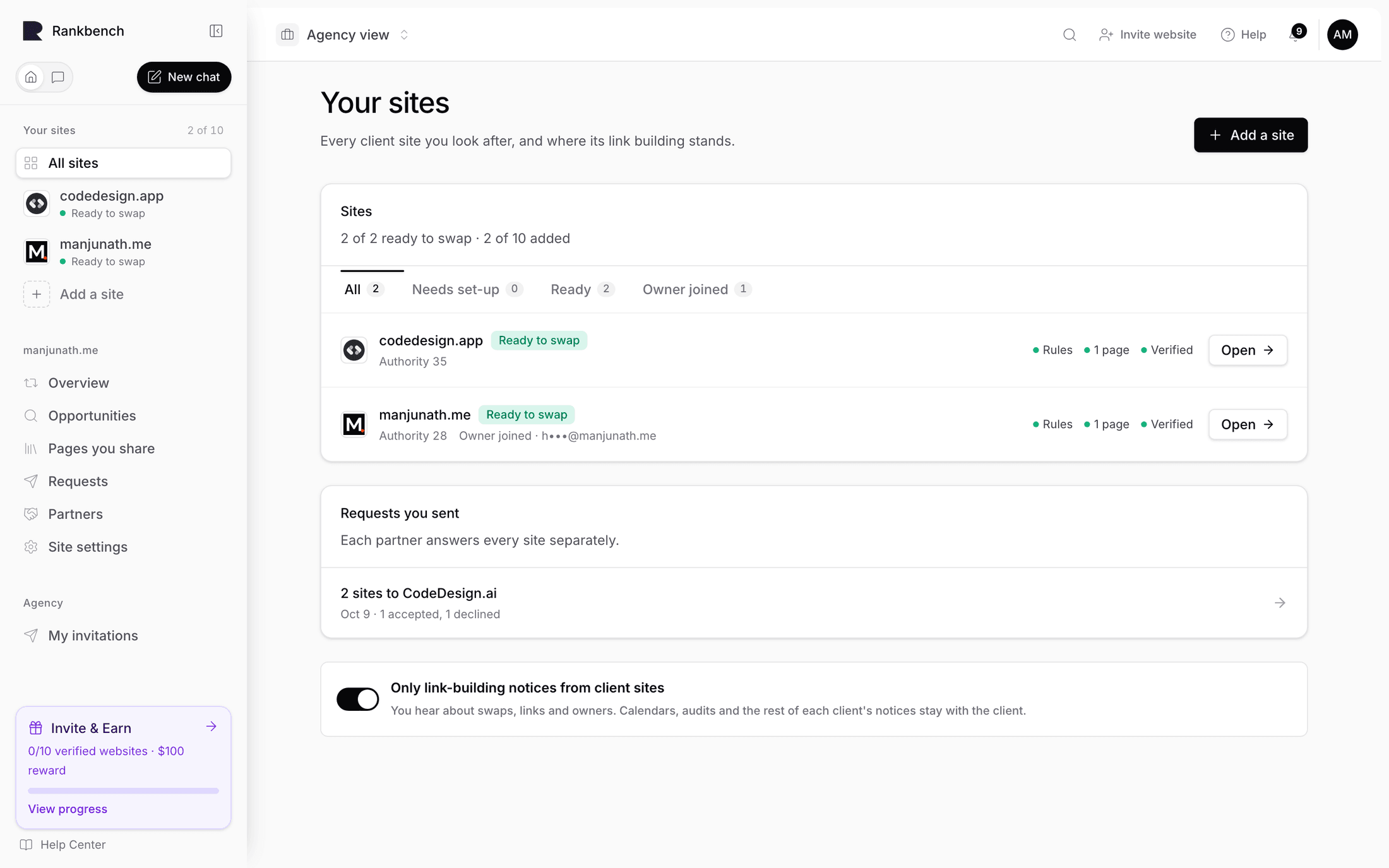
Choosing a site in the sidebar opens its link building: Overview, Find partners, Pages you share, Exchange rules, Requests and Partners, then, for the site's admins, Website overview and Site settings. Exchange rules is where a site's rules are changed after setup. Each site has its own address, so two browser tabs can show two client sites at once.
Asking for exchanges
In Find partners, Ask for an exchange on a site's row sends one request from the site you have open. Click a site's name to open its details: Ask for a backlink exchange there does the same, and Ask from several sites sends the same partner requests from as many of your sites as suit them, and they get one message for all of them. See sending requests from several sites.
Notices from client sites
Each client site sends notices the way it would to its owner: audits, calendars, publishing. By default you only hear about link building from client sites: exchanges, links, owners and people asking to join. Only link-building notices from client sites on Your sites turns that off if you want everything.
When the owner takes over
When the owner confirms by email, they are offered the site on Rankbench, free, for 30 days. Taking it makes them its owner. You stay on as their SEO consultant, so the link building carries on.
From then on the owner decides. On their People page, your row says Answers exchange requests while you may accept and decline exchange requests for the site. It starts that way. If they choose Stop them answering exchange requests, exchange requests for the site are the owner's alone, and you no longer see or answer them. They can remove you at any time.
The site is marked Owner joined in your list.
Where to go next
Sending requests from several sites covers the batch. People and roles is what the owner sees once they join.
Still stuck?
Open Rankbench and the page this article describes — most screens explain themselves as you go.