Opening Rankbank0.0s
Getting startedCreating your Rankbank accountAdding your first websiteProving your site is yoursWriter view and Site owner viewHow Rankbank tells you thingsYour dashboardRankbank Pro and billing
Site audit & search growthThe SEO overview, explainedHow Rankbank reads your siteThe site health scoreThe Problems to fix pageEvery problem type, explainedYour fix listFindings: how to read a cardEverything Rankbank looks forThe map of your siteConnecting Google Search ConsoleThe growth planSuggested linksTopics and content ideasAuthority: how much weight your site carriesThe Search traffic pagePast reads and history
Guest postsGuest posting on RankbankSubmitting your first guest postImporting from Google DocsWriting in the Rankbank editorReview & send: the last step before the editorsWhen the editors ask for changesTracking your guest postsFor site owners: opening your site to guest postsFor site owners: writing your guidelinesFor site owners: reviewing a submissionFor site owners: publishing and the live checkThe Content Library
Link exchangeLink swaps on RankbankSetting up your site for swapsPages you shareFinding a site to swap withSending a swap requestReviewing a swap request you receivedAsking a partner for a linkAnswering a link requestWhen the page is published somewhere you can't editHow Rankbank keeps watchThe partner ledger
Content calendarThe content calendarSetting up your calendarWhere the keywords come fromReading the calendarSteering an article before it's writtenReviewing and editing a draftConnecting where it publishesPublishing and what happens nextStyle & settings
TutorialsYour first site audit, from "read my site" to fixes you can ship this weekConnecting Search Console and turning its data into clicksWriting a guest post that gets accepted, the full pathRunning guest posts on your site without letting quality slipYour first link swap, start to finishKeeping your links alive, from wording changes to missing linksA month of content on autopilot, done properly
RankbankHelp center
Open Rankbank →
Getting startedCreating your Rankbank accountAdding your first websiteProving your site is yoursWriter view and Site owner viewHow Rankbank tells you thingsYour dashboardRankbank Pro and billing
Site audit & search growthThe SEO overview, explainedHow Rankbank reads your siteThe site health scoreThe Problems to fix pageEvery problem type, explainedYour fix listFindings: how to read a cardEverything Rankbank looks forThe map of your siteConnecting Google Search ConsoleThe growth planSuggested linksTopics and content ideasAuthority: how much weight your site carriesThe Search traffic pagePast reads and history
Guest postsGuest posting on RankbankSubmitting your first guest postImporting from Google DocsWriting in the Rankbank editorReview & send: the last step before the editorsWhen the editors ask for changesTracking your guest postsFor site owners: opening your site to guest postsFor site owners: writing your guidelinesFor site owners: reviewing a submissionFor site owners: publishing and the live checkThe Content Library
Link exchangeLink swaps on RankbankSetting up your site for swapsPages you shareFinding a site to swap withSending a swap requestReviewing a swap request you receivedAsking a partner for a linkAnswering a link requestWhen the page is published somewhere you can't editHow Rankbank keeps watchThe partner ledger
Content calendarThe content calendarSetting up your calendarWhere the keywords come fromReading the calendarSteering an article before it's writtenReviewing and editing a draftConnecting where it publishesPublishing and what happens nextStyle & settings
TutorialsYour first site audit, from "read my site" to fixes you can ship this weekConnecting Search Console and turning its data into clicksWriting a guest post that gets accepted, the full pathRunning guest posts on your site without letting quality slipYour first link swap, start to finishKeeping your links alive, from wording changes to missing linksA month of content on autopilot, done properly
  1. Help center
  2. /
  3. Guest posts
  4. /
  5. Writing in the Rankbank editor

Writing in the Rankbank editor

Updated August 24, 2026


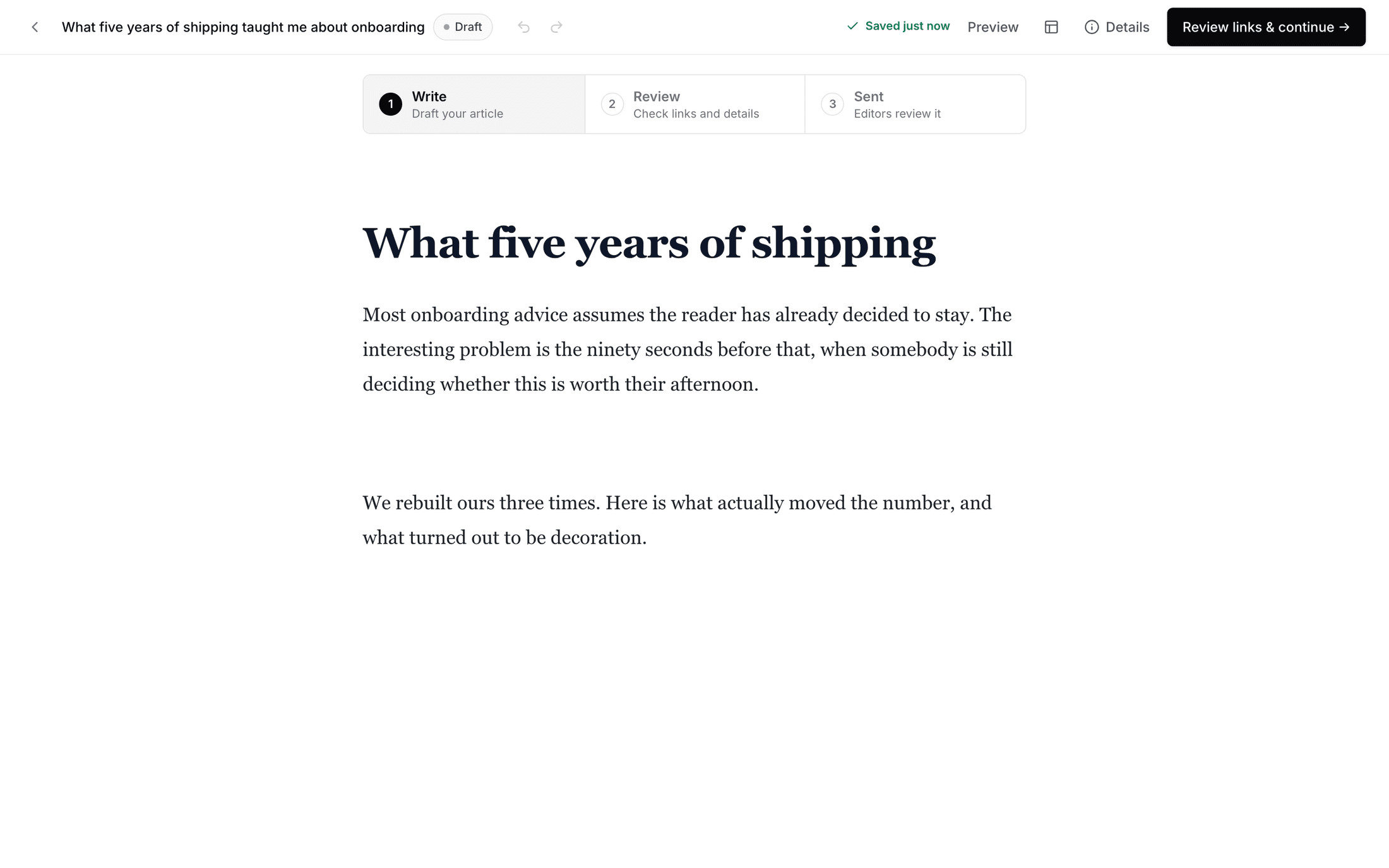
Whichever way you started, importing a Google Doc or opening a blank draft, you end up in the same place: a full-screen editor with your article in the middle and everything the destination site expects of you tucked into panels on the right.

The top bar

Left to right, it holds:

  • A back chevron, labelled Back to My Guest Posts.
  • The article's title, or Untitled until you type one.
  • A status badge showing where the article is in its journey.
  • Undo and Redo.
  • The save-state badge, covered below.
  • A Preview / Edit toggle.
  • Show side panels / Hide side panels, on wide screens.
  • Details, which opens the same panels as a drawer.
  • The primary action, Next: review & send →. On a narrow screen it shortens to Next →, and it reads Saving... while a save is in flight.

Writing

The title goes in the field at the top, with the placeholder Title. The body sits underneath, and starts out reading "Tell your story...". On a heading line the placeholder changes to "Heading" instead.

There is no toolbar strip. Formatting appears where you need it, in two places.

Select some text and a bubble menu appears above the selection with Bold, Italic, Add link, Remove link, Heading, Subheading and Quote.

The editor with a phrase selected and the bubble menu floating above it, showing Bold, Italic, Add link, Heading, Subheading and Quote.
The bubble menu only shows Remove link when the selection is already a link.

Put the cursor on an empty line and a + appears beside it. That menu holds the block-level things: Heading, Subheading, Bullet list, Numbered list, Quote and Insert image by URL.

Two levels of heading is all there is, which is deliberate. Guest posts read better with a flat outline, and destination sites render your headings in their own template anyway.

Links

Add link prompts you with "Enter a safe URL". Rankbank accepts http, https, mailto and tel addresses and refuses everything else with "Only http, https, mailto, and telephone links are supported." A malformed address gets "Enter a valid URL."

Every link you add is extracted as you save, and the outbound ones are grouped by site for the review step. Duplicates collapse: three links to the same domain show up as one row with an occurrence count of three.

Images

Insert image by URL prompts with "Paste a public HTTPS image URL". The address must be HTTPS, or you get "Image URLs must use HTTPS."

Warning

There is no upload button in the editor, and no file picker anywhere in the guest post flow. Images either come from a Google Doc you imported or from a public HTTPS address you paste. If your image lives only on your laptop, put it somewhere public first.

Alt text matters here for a practical reason: the SEO panel counts images without it, and the site's own rules may ask for it.

Autosave and the save states

The editor saves for you, roughly a second after you stop typing. The badge in the top bar tells you where you stand:

  • Saved just now or Saved, when everything is on the server.
  • Unsaved changes, when you have typed something the server has not seen yet.
  • Saving..., in flight.
  • Save failed, when the save did not go through. Your text is still on screen. Try again, or copy it somewhere safe if it keeps failing.
  • Conflict detected, when the version on the server moved on without you, usually because the same draft is open in another tab or on another device. Close the other one and reload this one.

One thing blocks autosave outright: an empty title. You get "Article title is required before autosave can run." Type a working title early, even a bad one, and change it later.

Note

No AI writes, rewrites, or suggests anything in this editor. The words are yours, start to finish.

The side panels

On a wide screen, Show side panels puts seven panels down the right. On any screen, Details opens them as a drawer. There are two layouts and Rankbank remembers which you last used on that device: Focus is a single column of writing, Workspace is the writing plus the panels.

Document outline lists your headings and scrolls with you, highlighting the one you are in. Click any heading to jump there. Empty, it says "Add headings to build a live outline."

Feedback from the editors shows notes from the destination site's reviewers, most recent first. Before anyone has reviewed anything: "Nothing yet. If they ask for changes, their notes appear here."

Article details is the boring, useful one: Going to names the destination site, then either From: Google Docs or Written in: Rankbank editor, then Last saved and Words.

The site's rules repeats what you agreed to at the start, so you do not have to remember it: Topics they take, Link rules, and Images. If the site published none of those, the panel does not appear at all.

SEO is five counts, no scores and no grades: Title length in characters, Words, Headings, Images missing alt text, and External links. Read them against the site's rules rather than against some general ideal. If they ask for 1,000 words and two external links, that is the target.

Links and metrics says "{n} links to {m} sites." and lists each site with a pill reading Complete or Metrics required. Clicking a site jumps to its row on the review screen.

Submission readiness is a green Ready to send with "Everything the destination site needs is in place.", or a blue Not ready yet telling you what is outstanding: "Add a title." and "Complete the domain details."

The editor in Workspace layout with the article on the left and the side panels on the right showing Document outline, Article details, The site's rules and SEO.
Workspace layout. The panels scroll independently of the article.
The Submission readiness panel showing a green Ready to send alert reading "Everything the destination site needs is in place."
Ready to send is the state you want before pressing Next.

About "Complete the domain details"

That phrase makes it sound like there is a form waiting for you. There is not.

Metrics required means Rankbank has not yet got public data back about a site you link to. It fetches that in the background, for each domain, after you save. Sometimes it arrives in seconds, sometimes there is nothing public to find. Either way you type nothing, and none of it stops you.

The review screen states the rule plainly: "The numbers are context, not a gate: missing data never blocks your submission." The Send for review button is not disabled by missing metrics. Only a missing title actually stands in your way.

Preview

The Preview toggle switches the editing surface for a rendered one, close to what a reviewer sees. Use it to check that headings and quotes read the way you meant. Switch back with Edit.

When editing is locked

Once your article is with the editors, the editor goes read-only. A blue box says Read-only, and underneath: "This version is locked while the editors read it. You'll be able to edit again if they ask for changes."

That is the whole rule. Editing is open while an article is a draft, imported, or has changes requested. It closes the moment you submit, and reopens the moment the editors send it back. It stays closed after approval, because from then on the version that matters is the one being published and checked.

Moving on

When the article is finished, press Next: review & send →. That takes you to Review & send, the last screen before the editors see anything.

← Importing from Google DocsReview & send: the last step before the editors →

Still stuck?

Open Rankbank and the page this article describes — most screens explain themselves as you go.

On this page

The top barWritingLinksImagesAutosave and the save statesThe side panelsAbout "Complete the domain details"PreviewWhen editing is lockedMoving on
Rankbank — Editorial collaborationOpen RankbankHelp home